Build an after-hours support agent in Connect
Hire an autonomous Connect agent, connect it to your inbox, and let it answer routine email and escalate the rest, around the clock, while you sleep.
Last updated
Crewdle Connect lets you hire an autonomous AI agent, give it a job and your tools, and leave it running. This guide builds one real example: an after-hours agent that watches your inbox, drafts replies to the routine questions, and flags anything that needs a human. It works while you sleep. Setup takes about 20 minutes.
This walkthrough uses a Gmail inbox, but the same steps work for Outlook and the other connectors.
Step 1: Hire the agent
In Crewdle Connect, open Messaging and click Hire Agent. Give it a name (we used "Front Desk") and describe its job in plain language: what inbox to watch, what to answer, and what to escalate. Then click Suggest role & responsibilities and Connect fills in a structured role and responsibility list you can edit.
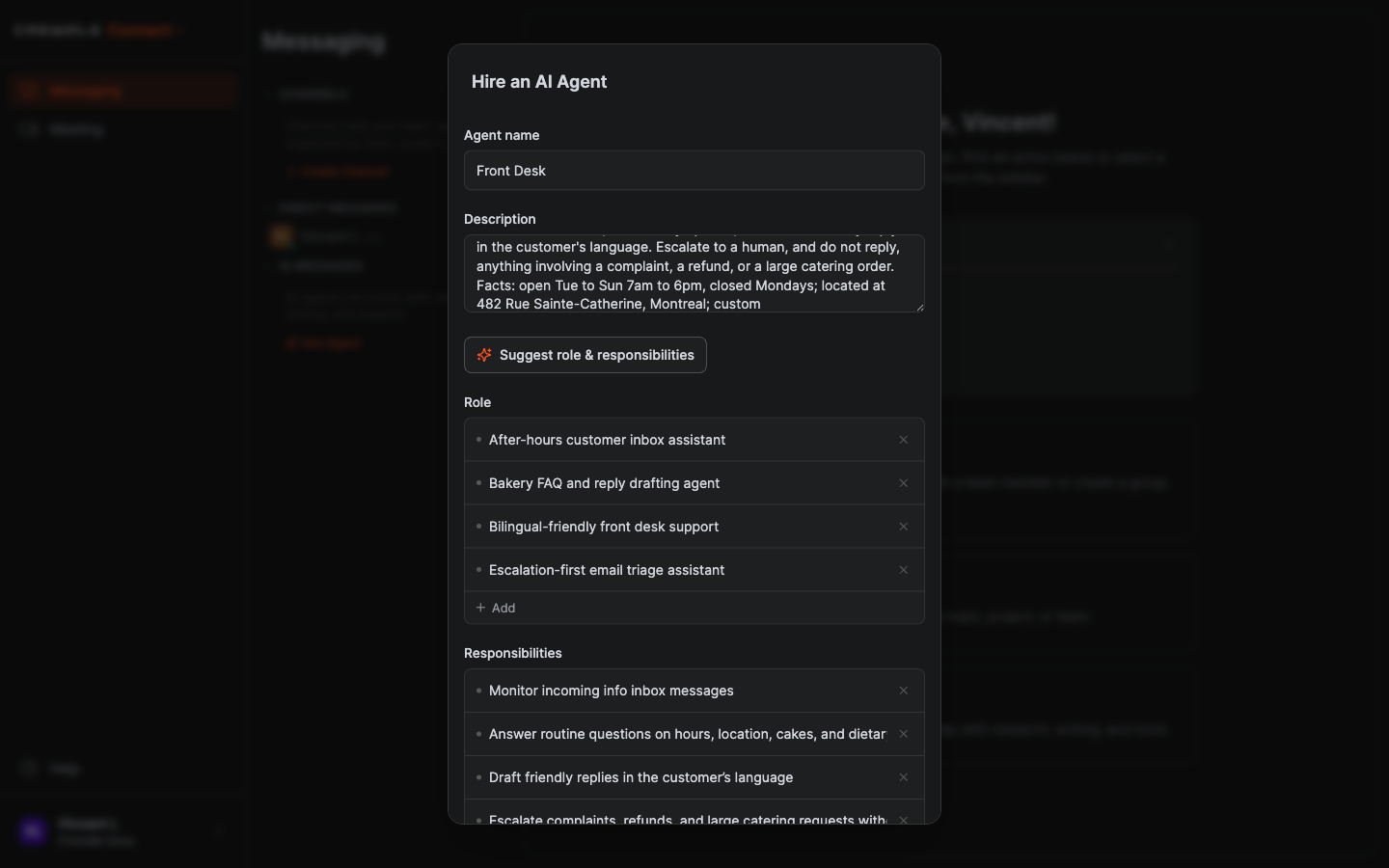 Name the agent, describe its job, and let Suggest fill in the role and responsibilities.
One thing to watch: Suggest can also change the AI model. Check the model before you finish, and set it in the next step.
How to hire the agent
- In Messaging, click Hire Agent.
- Name it and describe what it should watch and how to handle each kind of message.
- Click Suggest role & responsibilities, then edit the suggestions if needed.
- Click Hire Agent. It starts up and appears under AI Messages.
Step 2: Set its model
Pick the model that powers the agent. For this kind of work we use Claude Sonnet 4.6, a strong all-rounder. You can change any agent's model at any time.
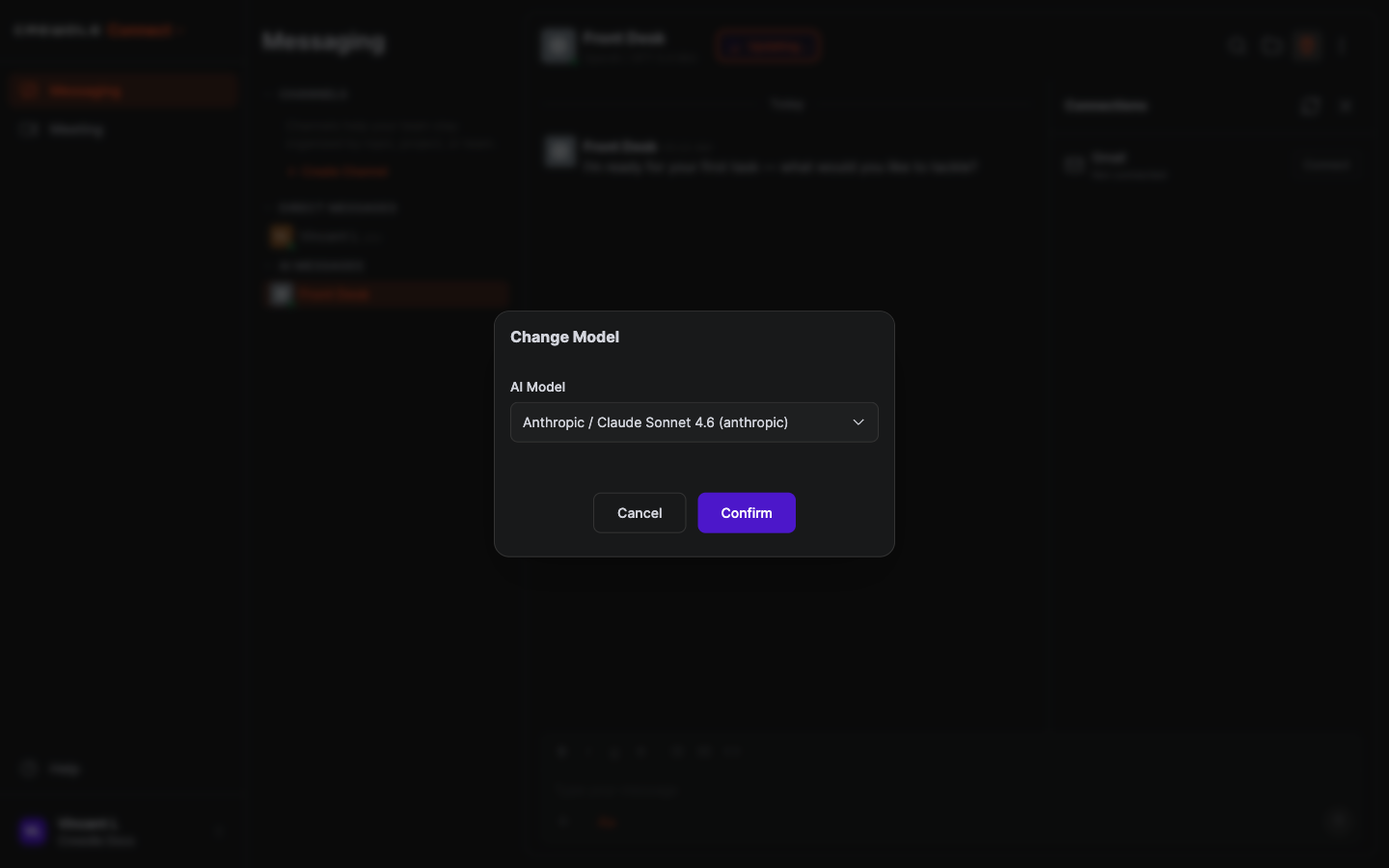 Change the model from the agent's options menu at any time.
How to change the model
- Open the agent and click the options menu (the three dots) in the top right.
- Choose Change Model.
- Pick a model (we used Claude Sonnet 4.6) and click Confirm.
Step 3: Enable the connector in Admin
Before an agent can touch a tool, an admin enables it for the organization. In Crewdle Admin, open Integrations, expand the connector you want (here, Gmail), turn on Enable integration, choose which roles may use it, and Save Changes.
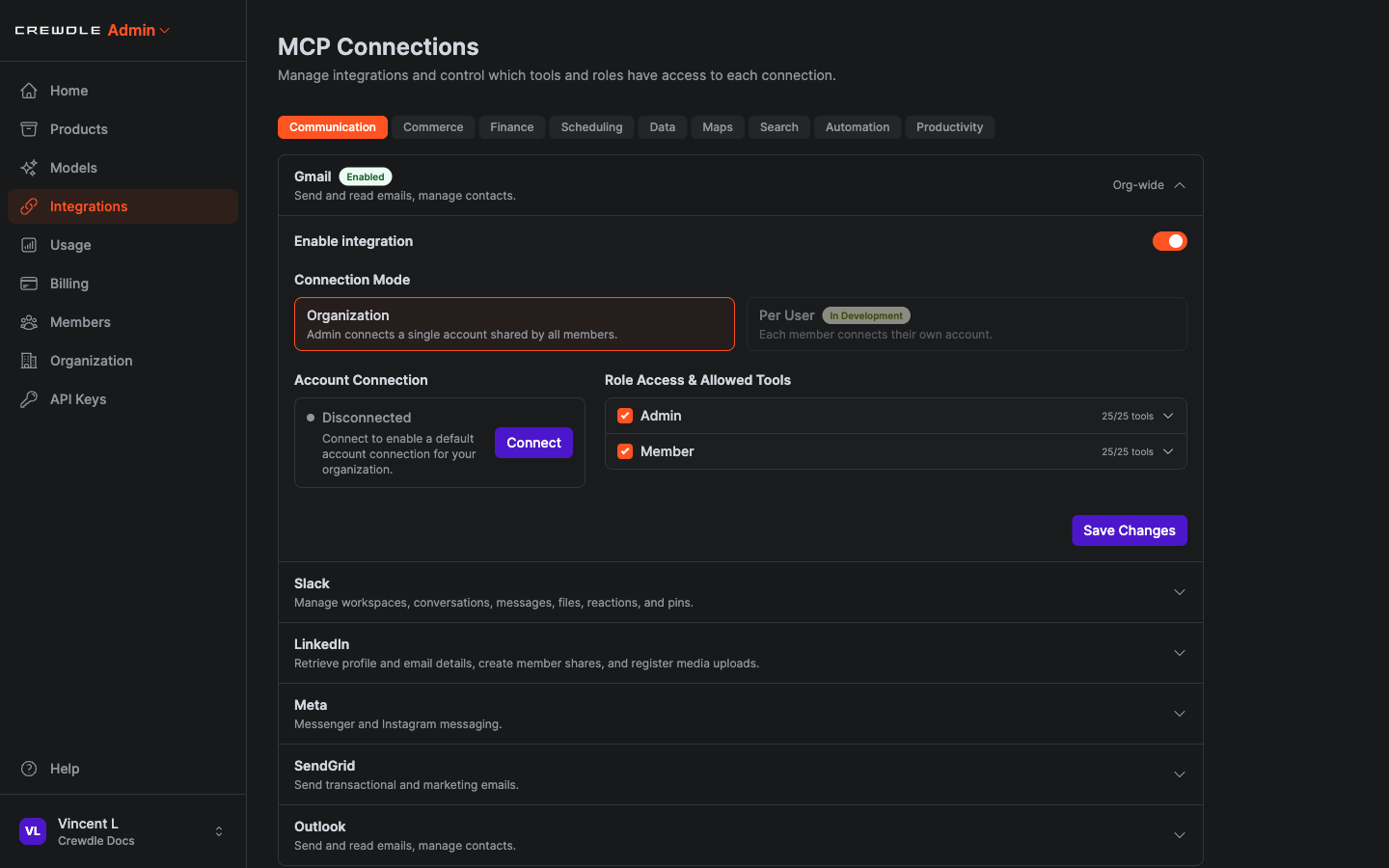 Enable the connector in Admin and save. This makes it available to your agents.
How to enable a connector
- In Crewdle Admin, open Integrations.
- Expand the connector (for example Gmail) and turn on Enable integration.
- Choose which roles may use it, then click Save Changes.
Step 4: Connect your inbox
Back in the agent, open the Connections panel (the plug icon in the top right). The connector now appears. Click Connect and authorize the account you want the agent to work in. For an info inbox, connect the shared mailbox, not your personal one.
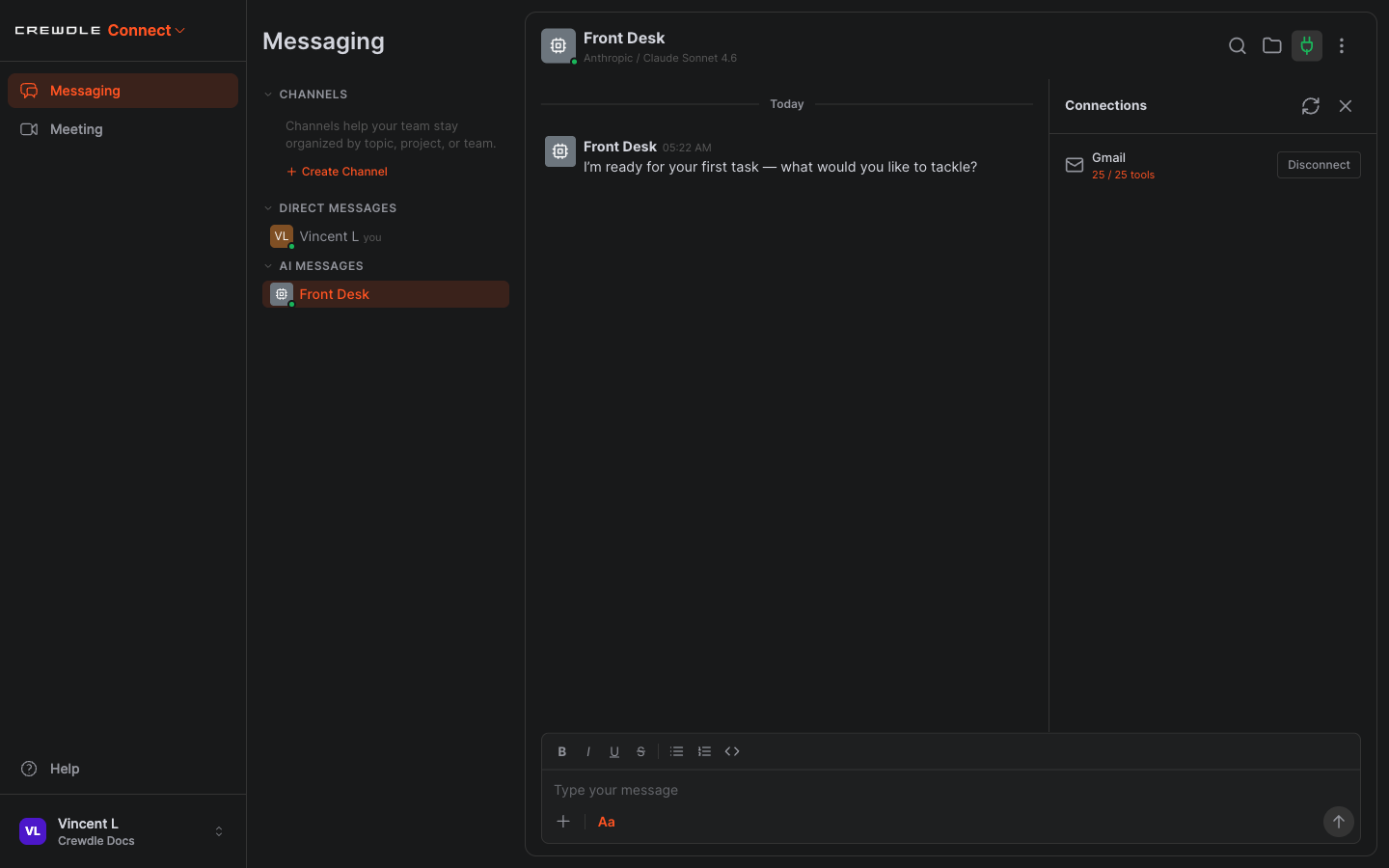 Once authorized, the connector shows as connected, with the tools the agent can use.
How to connect the account
- Open the agent and click the Connections (plug) icon.
- Next to the connector, click Connect.
- Complete the provider's sign-in and authorization. It then shows as connected.
Step 5: Choose what it can do
Click the connector in the Connections panel to see every action it offers, and switch off anything you do not want the agent to do. This is your guardrail. For an inbox agent you are reviewing, a good setup is draft-only: keep Read Email, Search Emails, and Create Draft on, and turn Send Email off, so the agent prepares replies but never sends on its own.
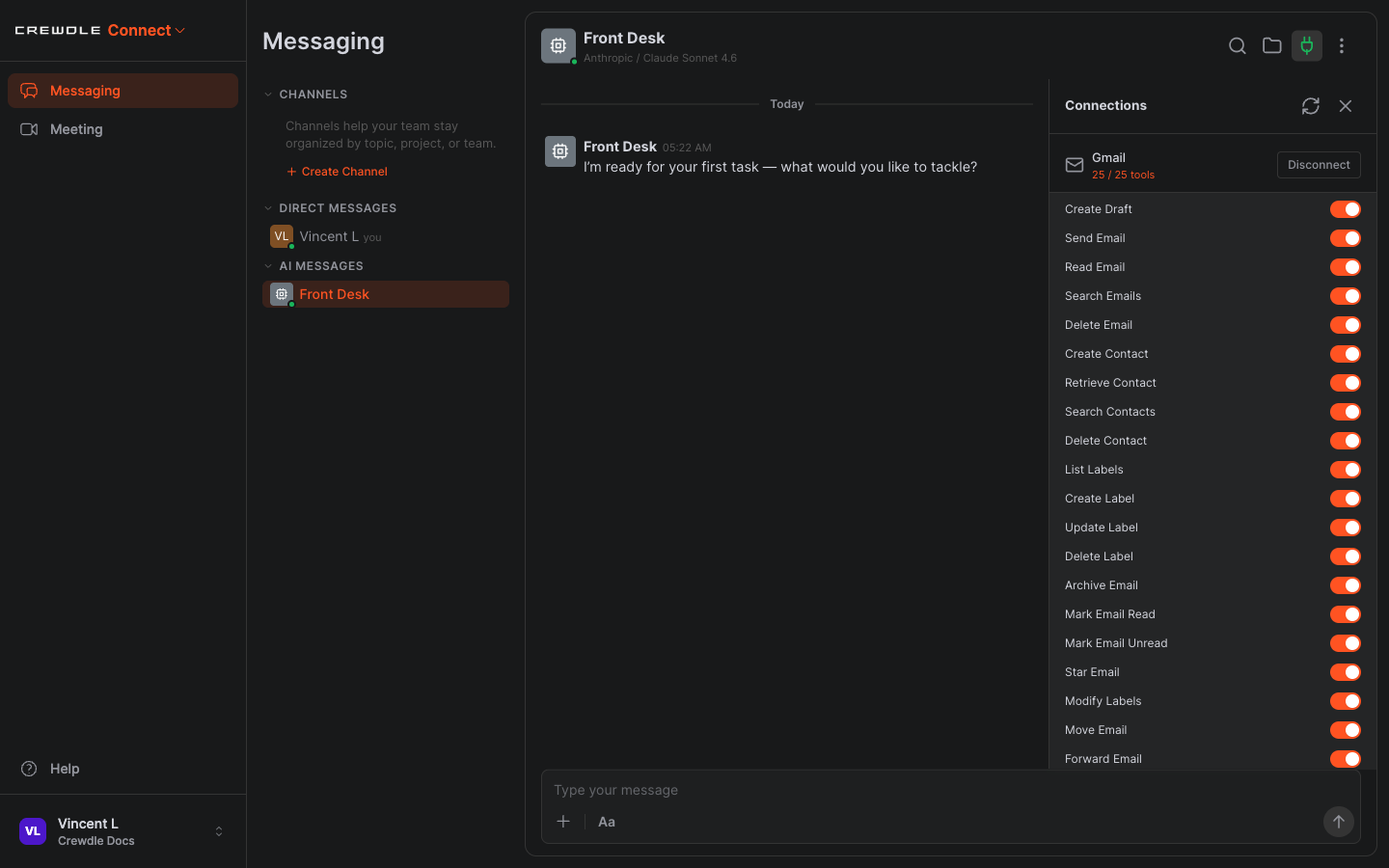 Each connector exposes individual actions. Turn off Send Email for a draft-only agent.
Step 6: Put it to work
Tell the agent what to do, or just let it run, it watches on its own. We asked it to check the inbox and handle each email. It answered the routine questions with drafts, handled a French email in French, and escalated the refund complaint, the large catering request, and a security alert instead of replying.
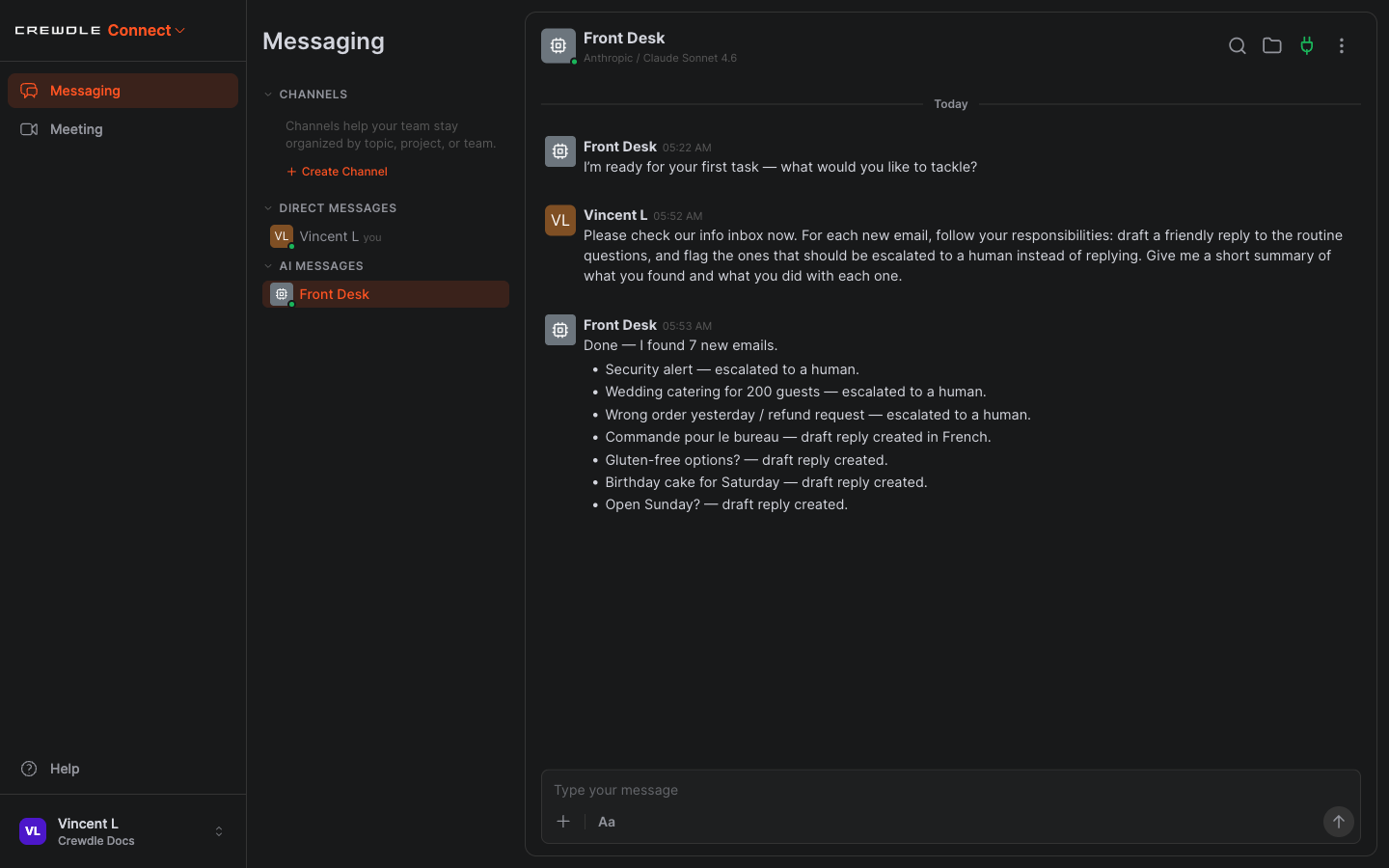 The agent triages the inbox: drafts for the routine questions, escalations for anything that needs a human.
Step 7: Keep it running around the clock
One pass is not the point: you want this happening on its own, day and night. Connect agents are autonomous, so you set the rhythm by telling the agent in plain language. The other half is making sure it never handles the same email twice, which you do with a Gmail label.
Send the agent a standing instruction, for example: "From now on, check the inbox every 30 minutes and handle any new emails the same way. To avoid handling the same email twice, apply a 'Triaged' label to each one once you have handled it, and skip any email that already has that label."
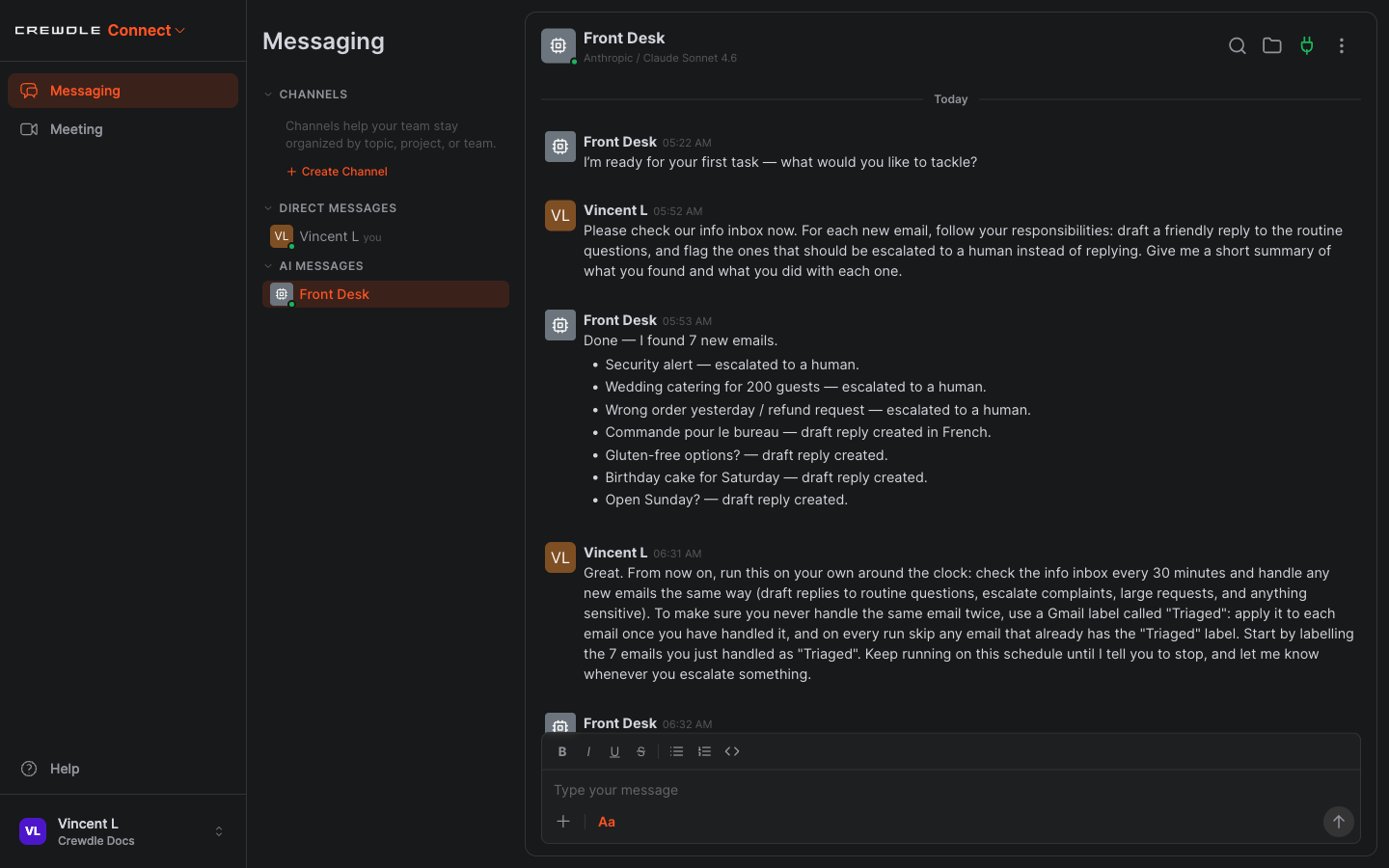 Tell the agent the cadence and the dedup rule once, and it keeps going on its own.
Our agent confirmed: "Done, I've set up the 30-minute triage schedule and labeled those emails as Triaged." From then on it works in the background on that rhythm, picking up only new email each run. It keeps going until you stop it (Stop Agent in the options menu), and an idle agent costs nothing between runs.
How to set the schedule and avoid duplicates
- In the agent conversation, tell it how often to check (for example every 30 minutes) and to keep going until you say stop.
- Tell it to apply a label (for example Triaged) to every email it handles.
- Tell it to skip any email that already has that label on each run. New email only, every time.
Step 8: Stay in the loop
You stay in control. Drafts wait in your inbox for a quick review and send. Escalations show up in Connect so a human can step in, with team messaging and video meetings built in for when they do. And because agents are billed in credits only when they actually work, leaving one running around the clock costs nothing while it is idle. See Credits and billing.
When you are ready for the agent to send on its own, turn Send Email back on in Step 5. Until then, it drafts and you decide.
Frequently asked questions
What can a Connect agent connect to?
Email and calendar (Gmail, Outlook, Google Calendar), cloud storage, e-commerce (Shopify), accounting (QuickBooks, Xero), and more. An admin enables each connector, and you control which actions the agent may take.
Will the agent send emails without me?
Only if you let it. Each connector’s actions are individually switchable. Leave Send Email off and the agent drafts replies for you to review and send; turn it on when you want it to send on its own.
Does an idle agent cost anything?
No. Agents are billed in credits only when they actually do something, so leaving a crew running around the clock costs nothing while idle.
