Have a Connect agent research a topic and build you a report
Hire a Connect agent, give it a topic, and it researches the web and builds a live, interactive report you open right in the conversation. No setup, search is built in.
Last updated
Connect agents do not just act on your tools, they can produce a finished deliverable. This guide builds a research agent: you give it a topic, it searches the web, and it builds a live, interactive report (a dashboard with charts, filters, and cited sources) that you open right inside the conversation. There is nothing to connect first, web search and the ability to build small interactive apps are built into every agent. And you do not have to get it perfect in one prompt: the core of the workflow is asking the agent to refine the report, and it rebuilds it.
Step 1: Hire a research agent
Hire a second, job-specific agent rather than reusing one. In Messaging, click Hire Agent, name it (we used "Analyst"), and describe the job: research topics and turn them into an interactive report with the key numbers, a comparison, and cited sources. Use Suggest role & responsibilities to fill in the details.
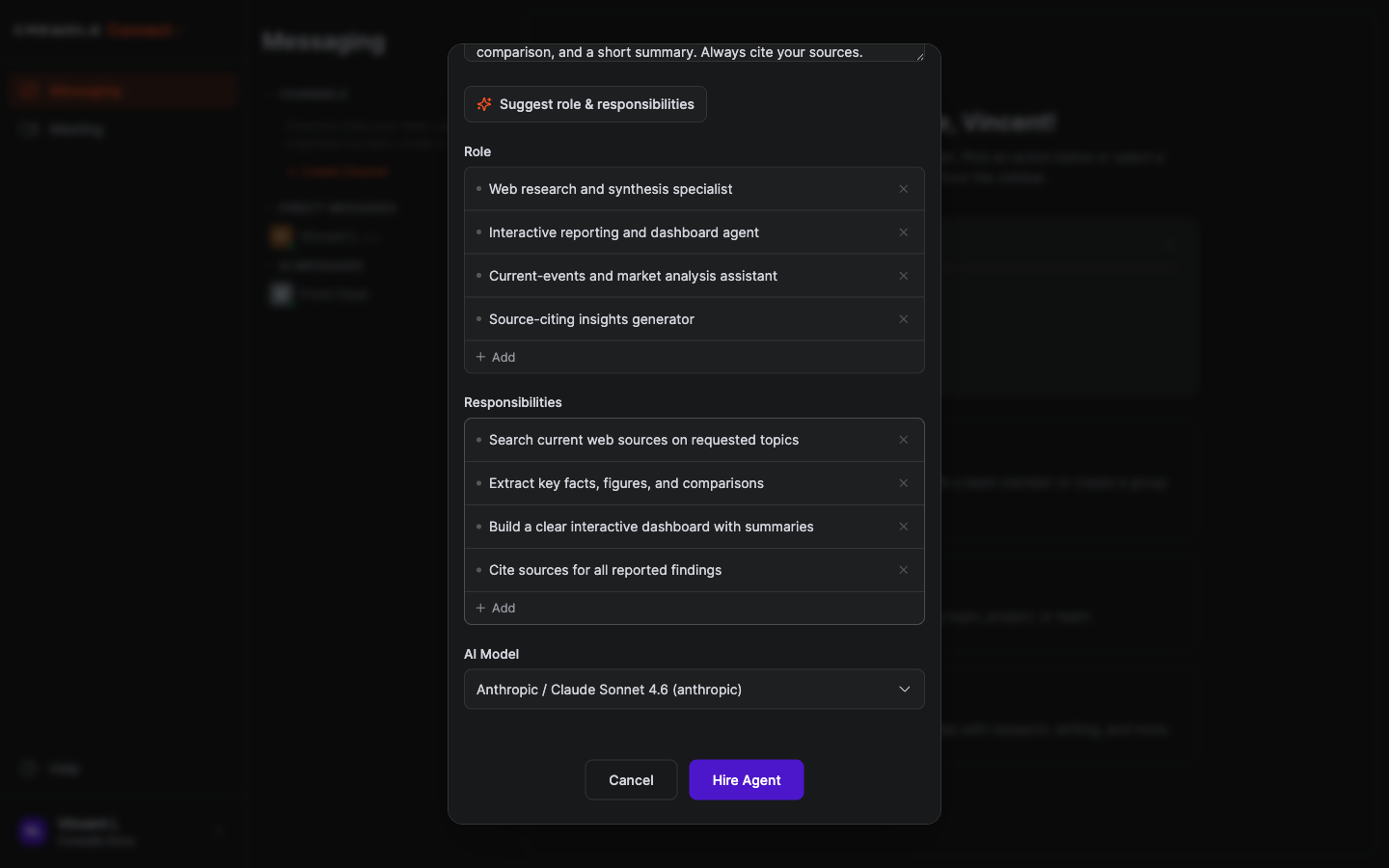 Hire a dedicated Analyst, and set the model to a strong all-rounder like Claude Sonnet 4.6.
Suggest can change the model, so check it before you finish. We set this one to Claude Sonnet 4.6 for the reasoning and the quality of the app it writes. See Build an after-hours support agent for the full hire and change-model steps.
Step 2: Give it a topic and ask for a report
Once the agent is ready, describe what you want researched and the shape of the report. Be specific about the fields and the format, for example: "Research the top-rated bakeries in downtown Montreal and build me an interactive comparison dashboard: for each one, show its name, rating, neighbourhood, price range, and what it is known for. Add a short summary at the top, and cite your sources."
Step 3: Let it research and build
The agent works on its own: it runs several web searches, reads the top sources, pulls out the facts and figures, and then writes a small interactive app from what it found. When it is done it posts a short written summary and an "Open app" card in the conversation.
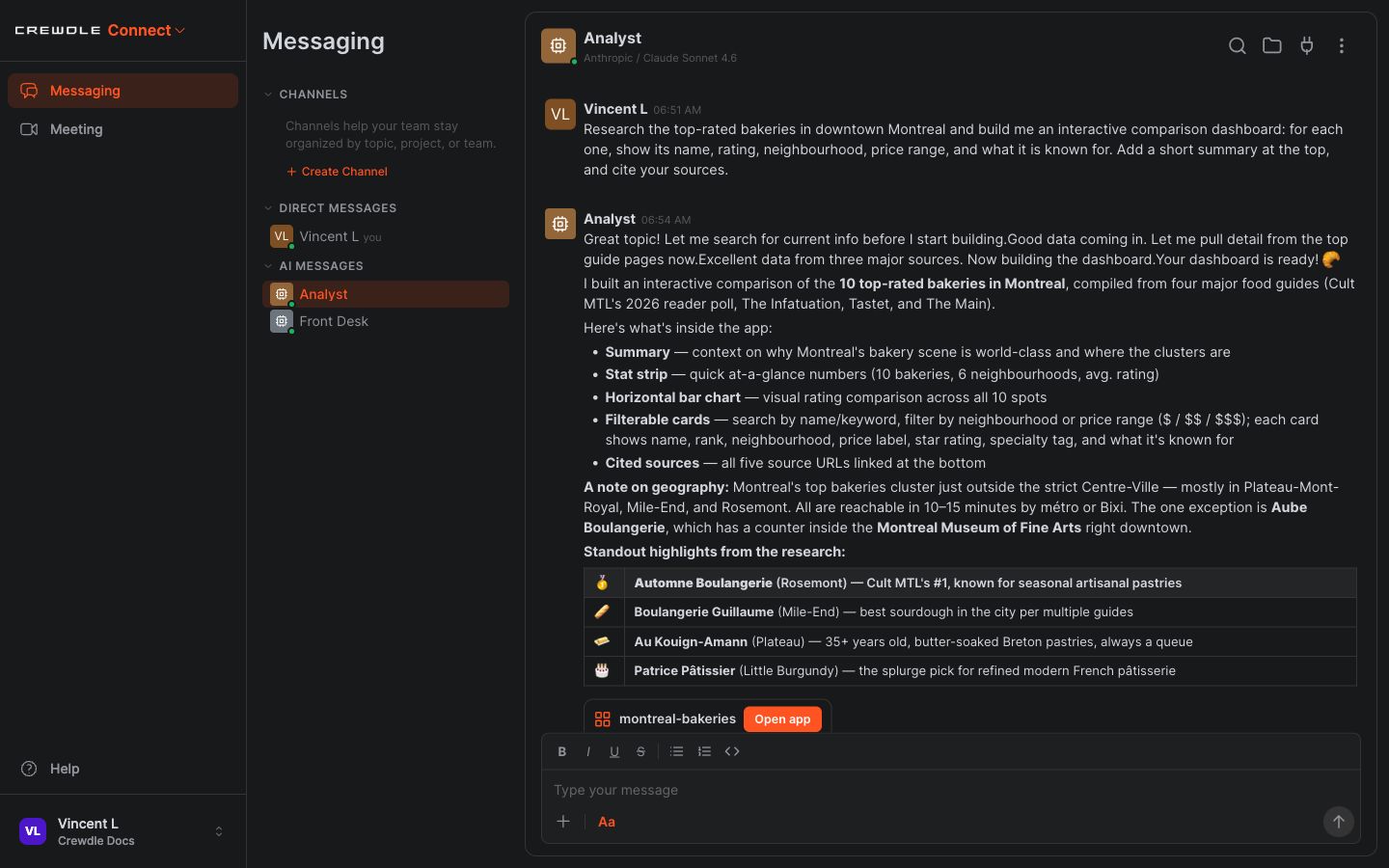 The agent summarizes what it found, names its sources, and posts an Open app card for the report it built.
Step 4: Open the interactive report
Click Open app and the report runs right there in a secure sandbox, isolated from the rest of Crewdle. Our agent built a "Top-Rated Bakeries in Montreal" dashboard: a summary, a stat strip, a rating chart, filterable cards you can search and filter by neighbourhood and price, and a list of cited sources. Use the Expand, Download, and Close controls in the panel header to take it full-screen, save it, or dismiss it.
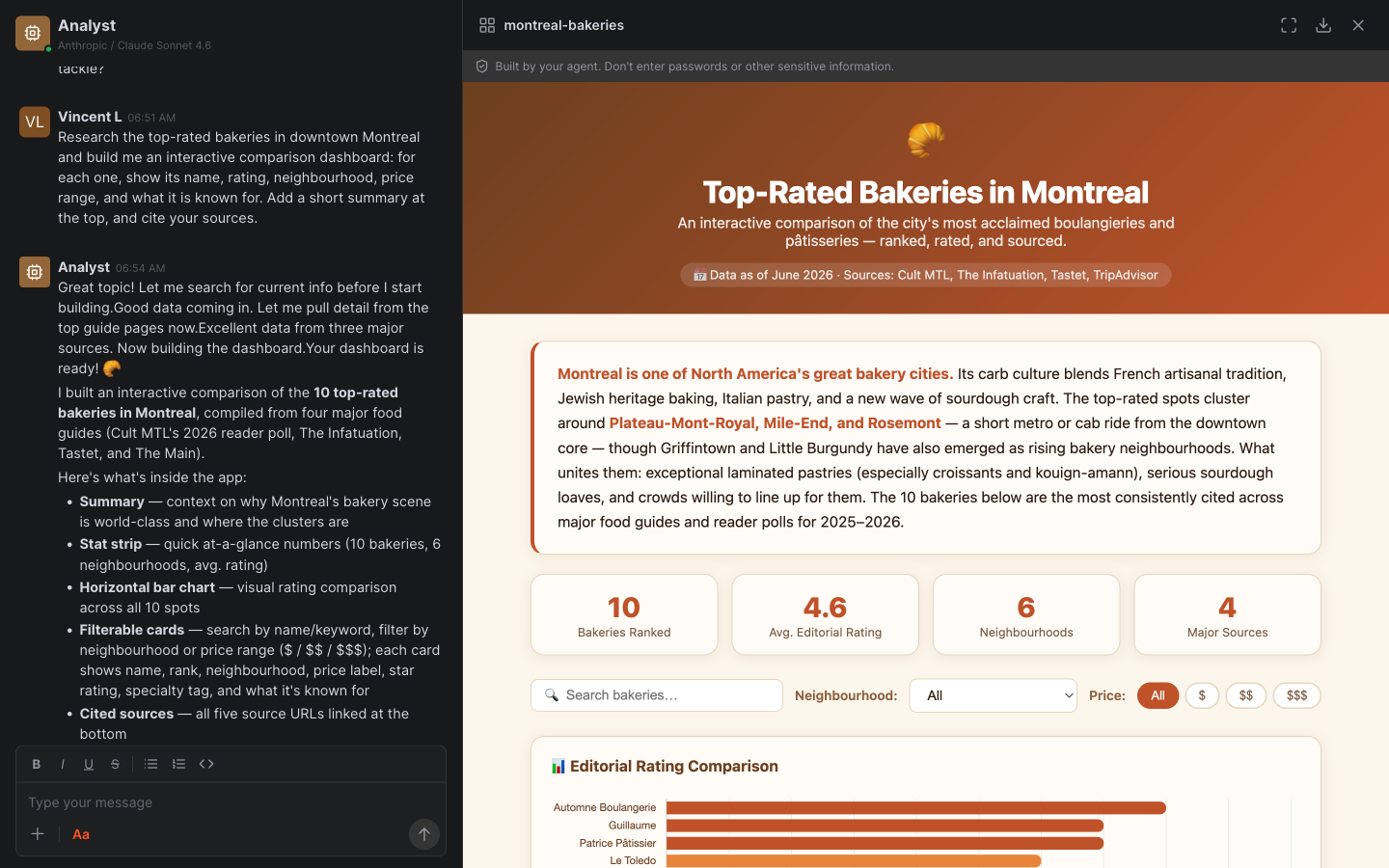 The finished report is a live, interactive app you open in the conversation, built from the agent's research.
Because the app is generated by an agent, it runs in a sandbox and shows a reminder not to enter passwords or other sensitive information.
Step 5: Ask it to improve the report
This is the most important habit when working with an agent: you do not have to get the perfect result in one shot. Treat the first report as a draft and tell the agent what to change, in plain language. We asked ours to make it richer: "Rebuild it as a polished dashboard with a price-vs-rating chart, a bar chart of bakeries per neighbourhood, a 'best for' quick-picks section, and keep the filterable cards." It rebuilt the whole app, and along the way it re-researched the data and caught that one bakery had permanently closed, swapping in a current one and noting the correction.
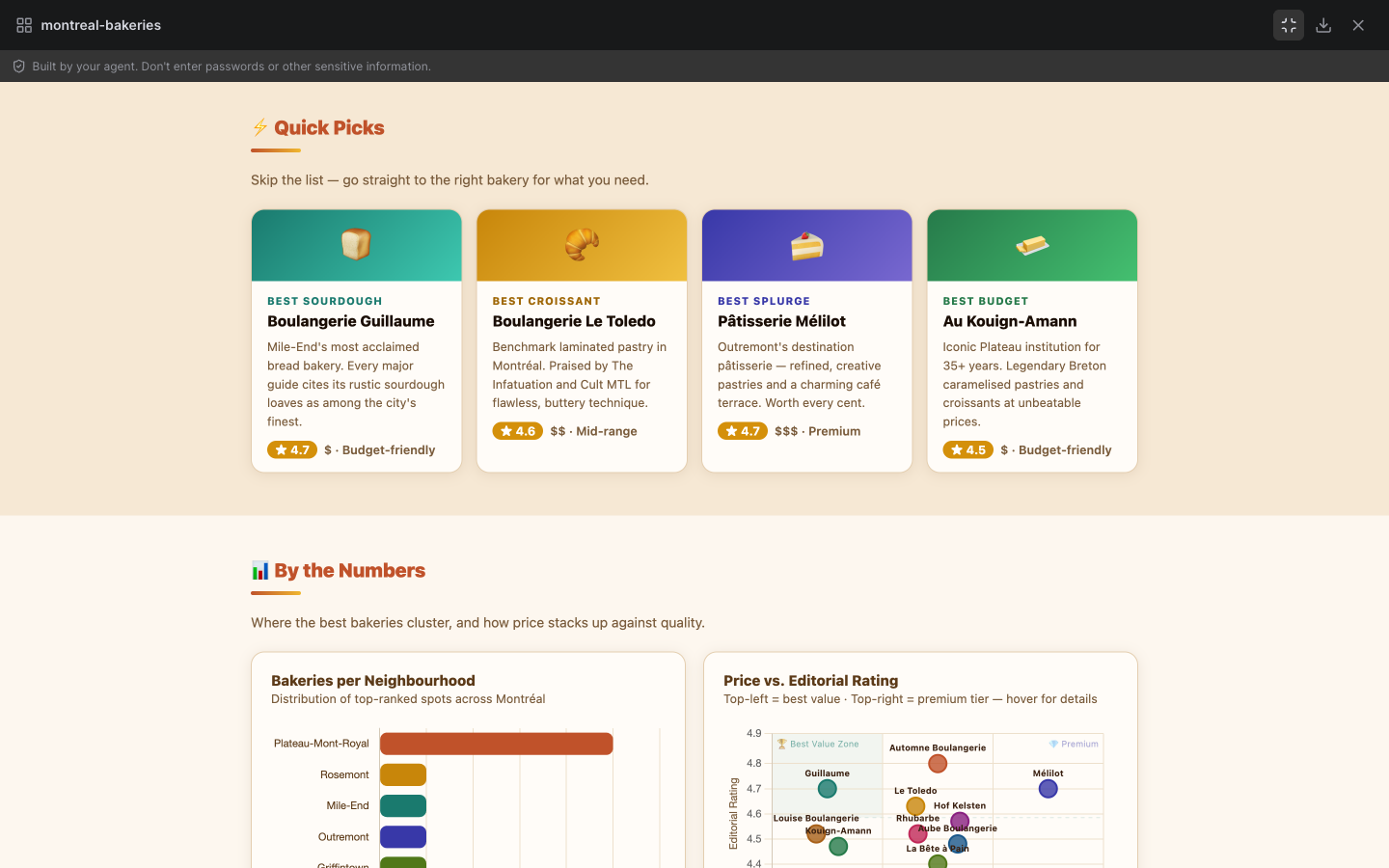 Ask for changes in plain language and the agent rebuilds the report, here adding quick-picks and charts, and correcting stale data on its own.
Refining works for anything: narrow or broaden the topic, add a column or a chart, change the layout, or ask it to re-check the facts. Each request rebuilds the app, so you shape the report conversationally until it is exactly what you want.
Step 6: Reuse and keep it current
Use the panel's Download to keep a copy, or ask the agent to refresh the report with newer sources whenever you need it, even on a schedule (for example weekly), the same way you set a cadence in Build an after-hours support agent. Agents are billed in credits only when they work, so a report agent costs nothing between requests.
Frequently asked questions
Do I need to set up a search tool for the agent?
No. Web search is built into every Connect agent, so a research agent works out of the box with no connector to enable.
What kind of report can the agent build?
A small interactive app: dashboards with stats, charts, searchable and filterable cards or tables, and cited sources. It opens in a secure sandbox in the conversation, and you can expand, download, or close it.
Are the agent-built apps safe to use?
Each app runs in a sandbox isolated from the rest of Crewdle and shows a reminder not to enter passwords or sensitive information, since it was generated by an agent.
