Work on a document with Crewdle Chat
Upload a contract, report, or spreadsheet to Chat, then summarize it, find any clause, pull out the numbers, and draft replies grounded in the file.
Last updated
Crewdle Chat is great at one thing this guide leans on: you give it a document, and you work on it together. Upload a contract, a report, a spreadsheet, or a spec, then ask about it and have Chat help you act on it. This walks through a real example from start to finish.
Want to follow along? Download our sample services agreement (PDF), a short fictional contract, and use it for every step below.
Step 1: Upload the document
In a new chat, click the + button in the message box and choose Upload Files. Pick your file: Chat reads PDFs, Word and Excel files, CSVs, images, and more.
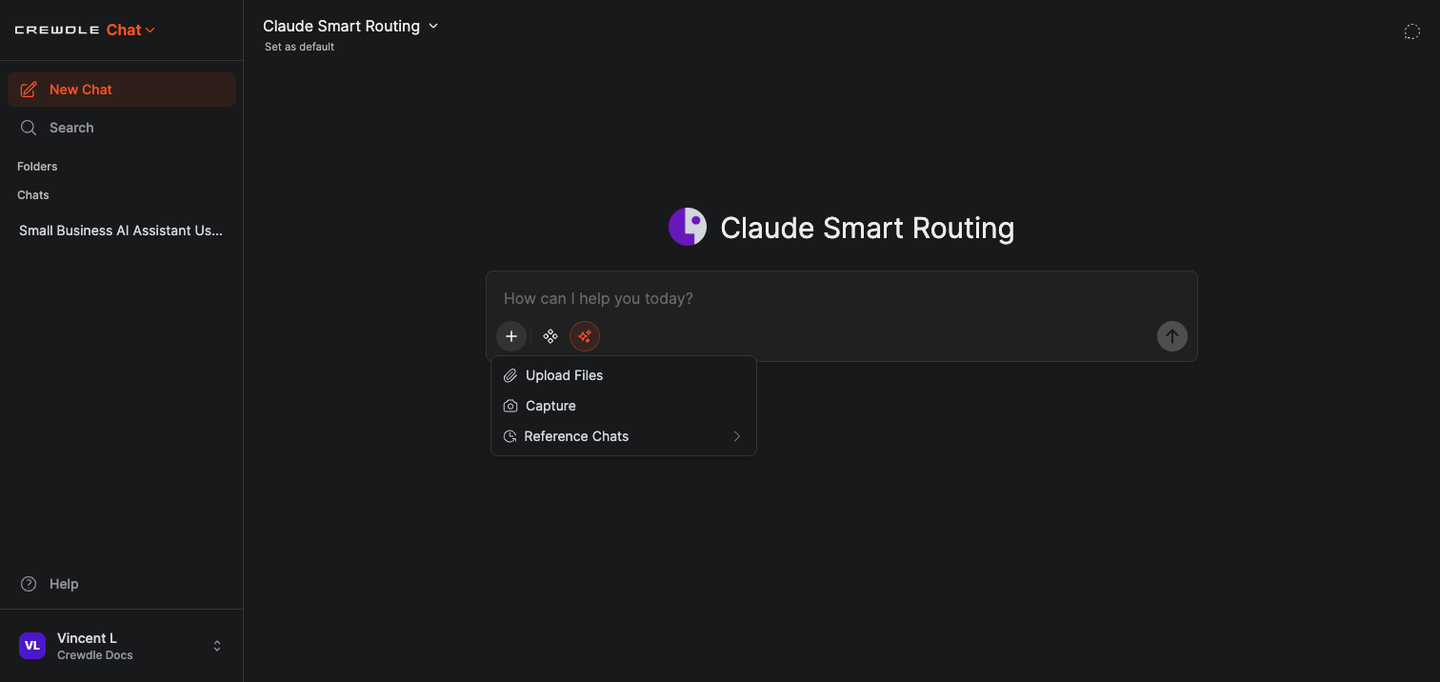 Open the + menu and choose Upload Files to add your document.
The file appears as a chip above the message box. You can attach more than one when you need to compare documents.
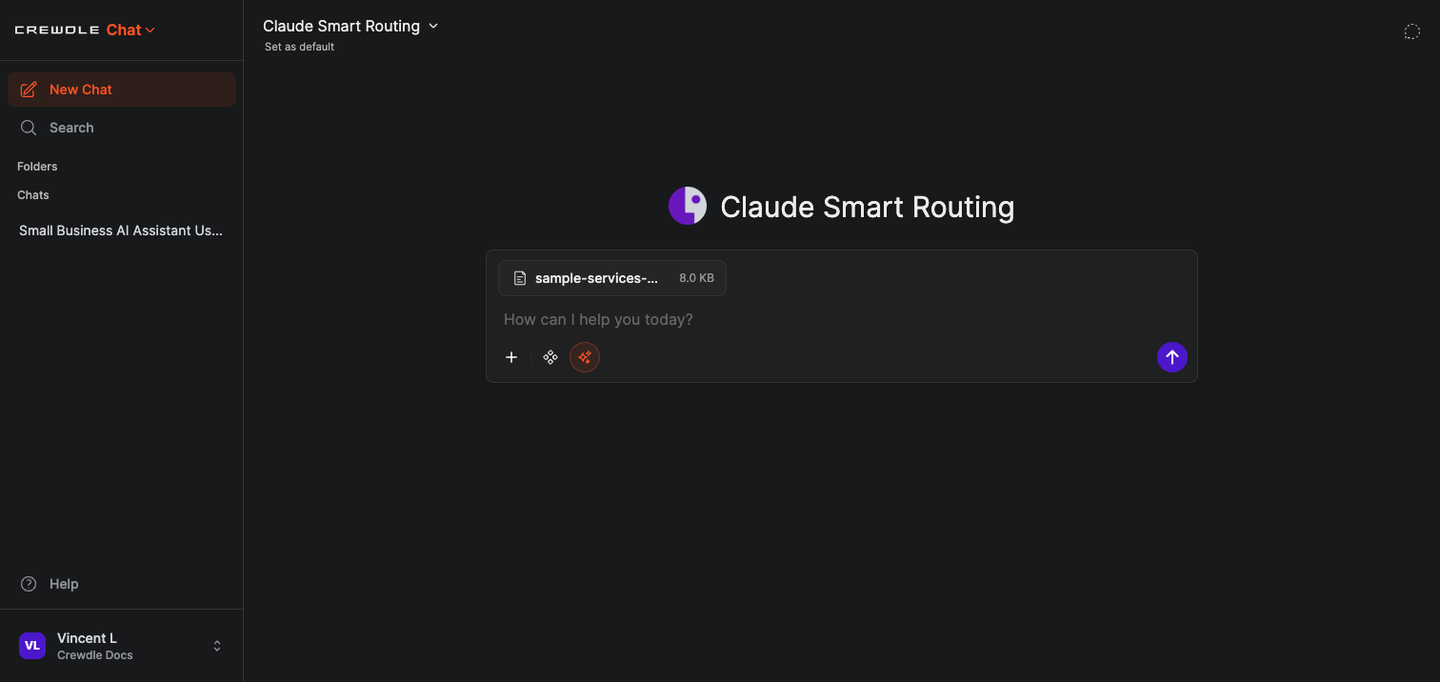 Your document is attached and ready. Now ask away.
Step 2: Ask about the document
With the file attached, ask anything you would ask a colleague who just read it. Chat answers from the document itself, so you get the real terms, not a generic guess. Try:
- Summarize it: "Summarize this contract in plain English: who the parties are, what is being delivered, the total cost, and how either side can cancel."
- Find a clause: "What does this say about cancellation, and how much notice is required?"
- Pull a number: "When is the deposit due, and how much is it?"
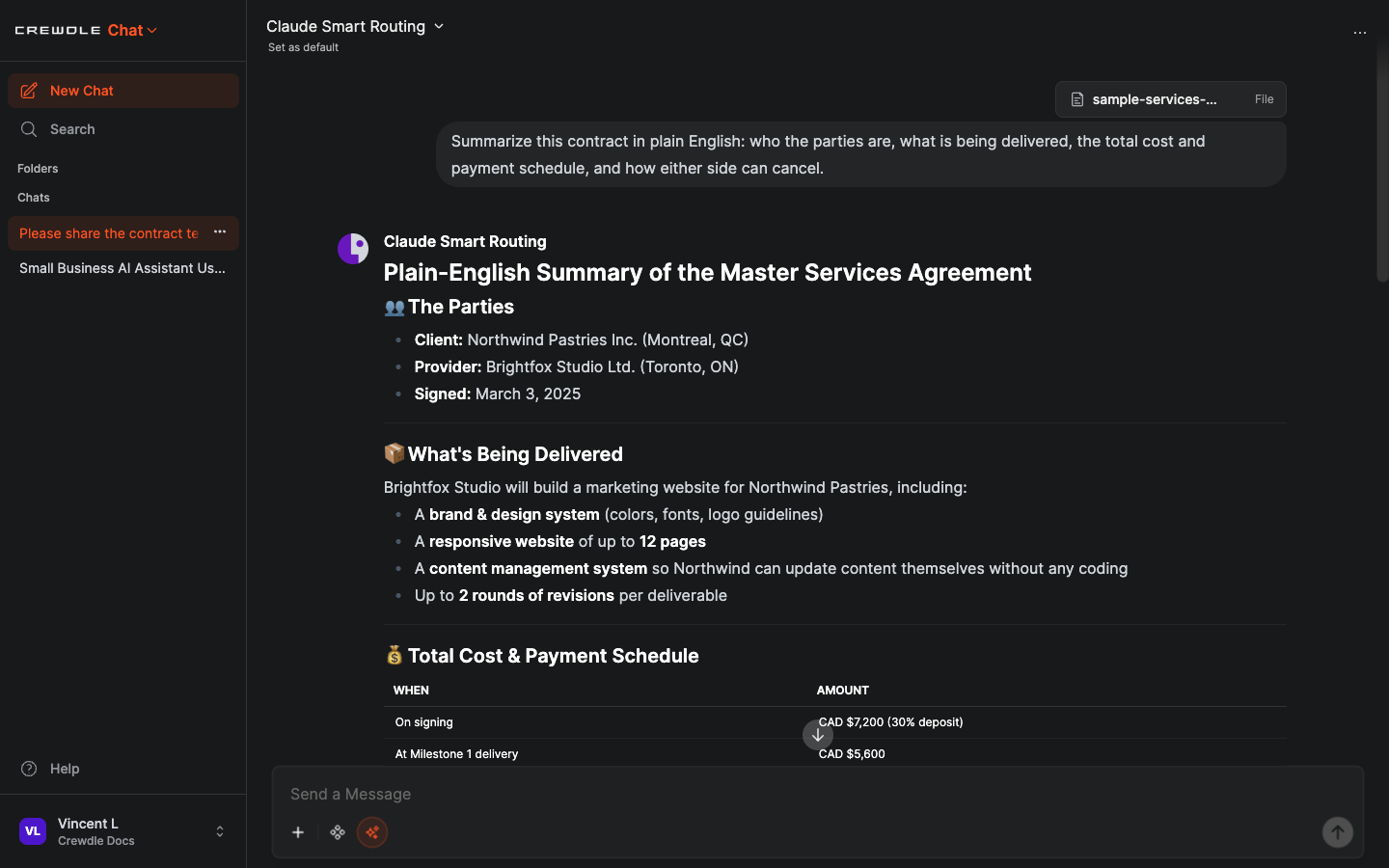 Chat reads the document and answers from it, pulling out the parties, the deliverables, and the exact figures.
Step 3: Work on it, not just read it
Reading is only half of it. Because Chat has the document in context, it can help you produce the next thing: a reply, a rewrite, a summary table, a list of action items. For example:
- "Draft a short, friendly email asking to change the payment terms from Net 30 to Net 45. Reference the relevant section."
- "Rewrite the cancellation clause in plain language a non-lawyer would understand."
- "List every date and deadline in this contract as a checklist."
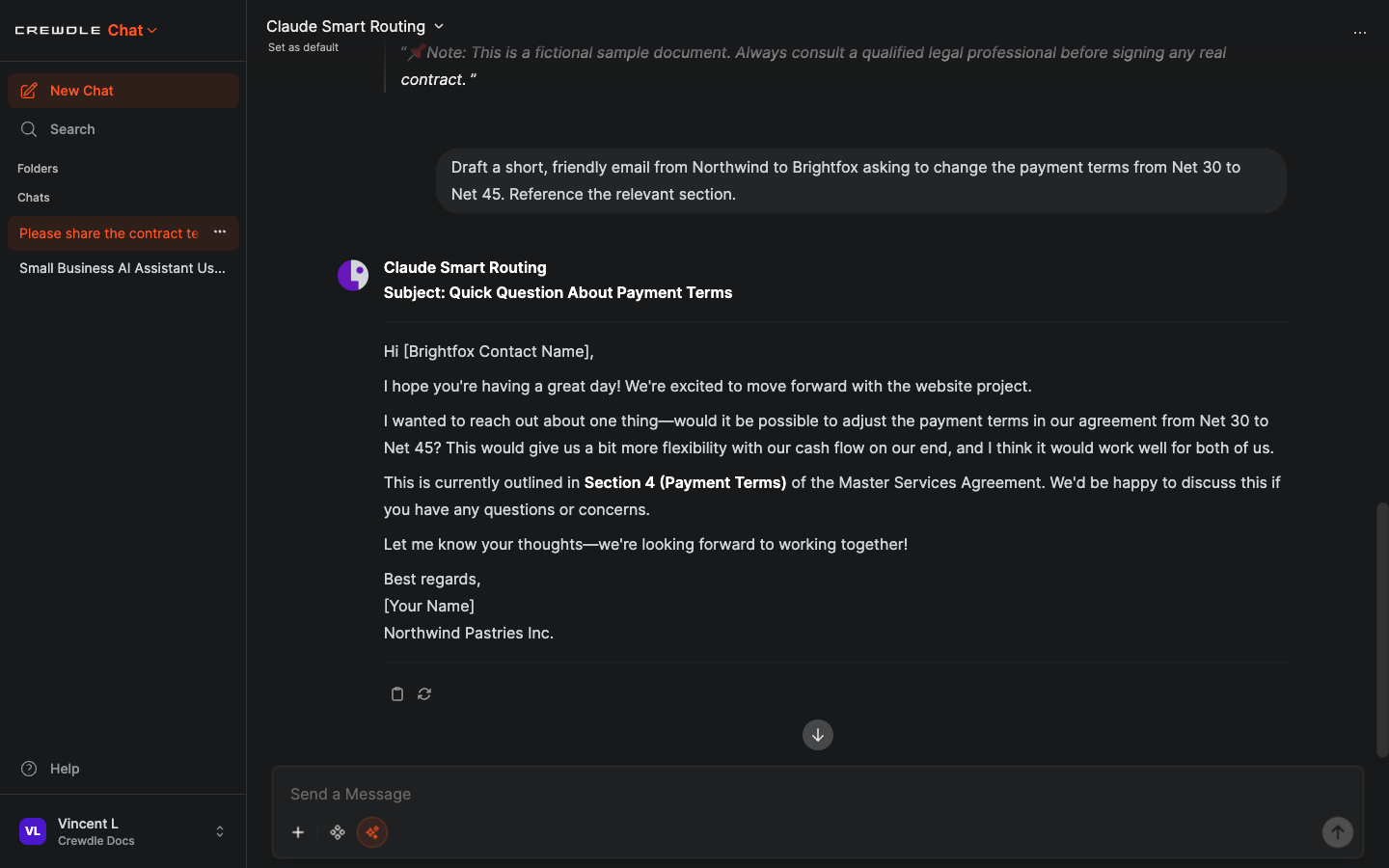 Ask Chat to draft from the document, and it grounds the result in the real terms, here citing the correct section.
Always read what Chat produces before you send or sign anything. It is a fast first draft, not a substitute for your own judgment or professional advice.
Step 4: Pick the right model
For everyday documents, Claude Smart Routing (the default) balances quality and cost: Crewdle sends simple questions to a faster model and harder ones to a stronger model. For dense legal or technical work, switch to a top-tier model from the model menu at the top of the chat. See Models and routing.
Step 5: Keep it for next time
If you work on the same kind of document often, save the steps so you do not retype them:
- Save a reusable prompt template with a slash command, for example
/summarize-contract, so your go-to question is one keystroke away. - Pin the chat, or file it in a folder, to find it again later.
- For a document your whole team needs to ask about, add it to a knowledge base so the AI draws on it automatically in every chat. See Crewdle Chat.
Frequently asked questions
What file types can I upload to Crewdle Chat?
PDFs, Word and Excel files, CSVs, images, code, and more. Attach a file and ask about it, or attach several to compare them.
Is my uploaded document used to train AI?
No. Your files and conversations are yours and are never used to train AI models. See Security and privacy.
Can Chat edit my document and send it back?
Chat works with the text and can draft new versions, rewrites, summaries, or replies right in the conversation. You review and use what it produces; it does not act or send anything on its own.
