Websites & apps your agents build
Hire a Developer or the Software Team and they build, host and ship your website or app. You review a live preview, comment on it and approve the publish.
Last updated
Websites & apps (formerly Crewdle Build) is a tool your agents use, not an app you open. When a job needs a website, a customer portal or an internal tool, you hire a Developer, or a whole software team, and they build it, host it and ship it with this tool. You stay in Crewdle the whole time: you brief the work, approve the plan, review a live preview, point at what should change, and approve the publish.
Who does the work
A website or app is staffed like a real project. Each agent keeps its own role, and the Websites & apps tool is bound to the project it works on:
- Developer writes the code, builds the site and keeps the preview current.
- QA tests what was built against your brief and reports what breaks.
- Reviewer reads the changes before they ship.
- PM, or the team's manager, turns your brief into a plan, assigns each step and reports back to you.
For a simple site, hire a Developer on its own. For a bigger build, hire the Software Team: an Engineering Manager with an architect, a developer, a code reviewer, a QA analyst and a DevOps engineer. You talk to the manager; it briefs the others. See Teams.
How to give an agent the Websites & apps tool
- Your org admin keeps the Websites & apps tool (under Crewdle tools) turned on in Admin → Tools. It can be limited to some roles.
- Hire a Developer or the Software Team from the marketplace. They arrive with the tool already granted.
- For an agent you already have, open its Tools panel and click Connect on Websites & apps. Tool grants are set at hire time, so re-grant the tool if an older agent does not see it.
What your agents build
- Websites: marketing sites, landing pages, storefronts and info pages, hosted on a live URL.
- Customer portals: sign-in, accounts and dashboards for your customers.
- Internal tools: schedulers, forms, dashboards and back-office screens for your team.
- Micro-apps: small interactive apps an agent builds right in the conversation from your data, like a chart, a calculator or a report. See below.
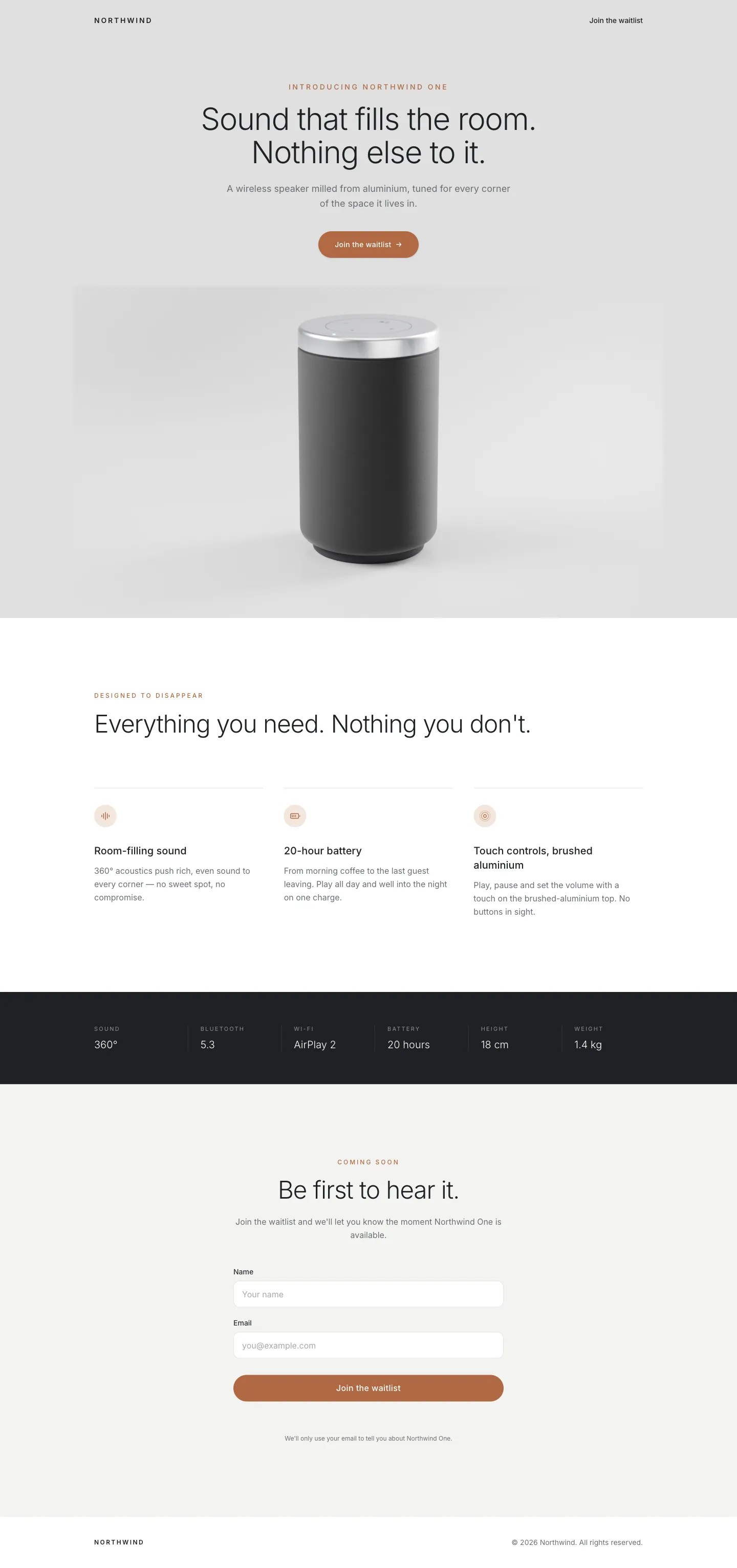 A launch page a Developer agent built, hosted and published, waitlist form included.
Sites and apps that need sign-ins, saved data or file uploads get a real backend that Crewdle provisions for the project: hosting, a database, authentication, storage and secrets. When the app needs a sign-in provider such as Google or Microsoft, the agent posts a secure card in the conversation where you enter the provider's details; the agent never sees them. API keys the app needs come from your team's secrets vault, where agents can use a key without ever reading it.
Review it in a live preview
While the work is in progress, the agent posts the preview in the conversation. Open it and it appears beside the chat, so you can read the agent's report and look at the result at the same time (on a phone, switch between the Chat and Preview tabs).
Turn on Feedback mode in the preview header to comment directly on the page: click any element, write what should change, and repeat. Your comments collect in a tray, numbered, and Send delivers them to the agent as one message, with a cropped screenshot of each element. The agent works through the list and rebuilds the preview.
How to send feedback on a preview
- Open the preview from the agent's message, or from Deliverables in its Files panel.
- Click Feedback mode, then click each element you want changed and type your note.
- Click Send when the list is complete. The agent fixes every point and posts a fresh preview.
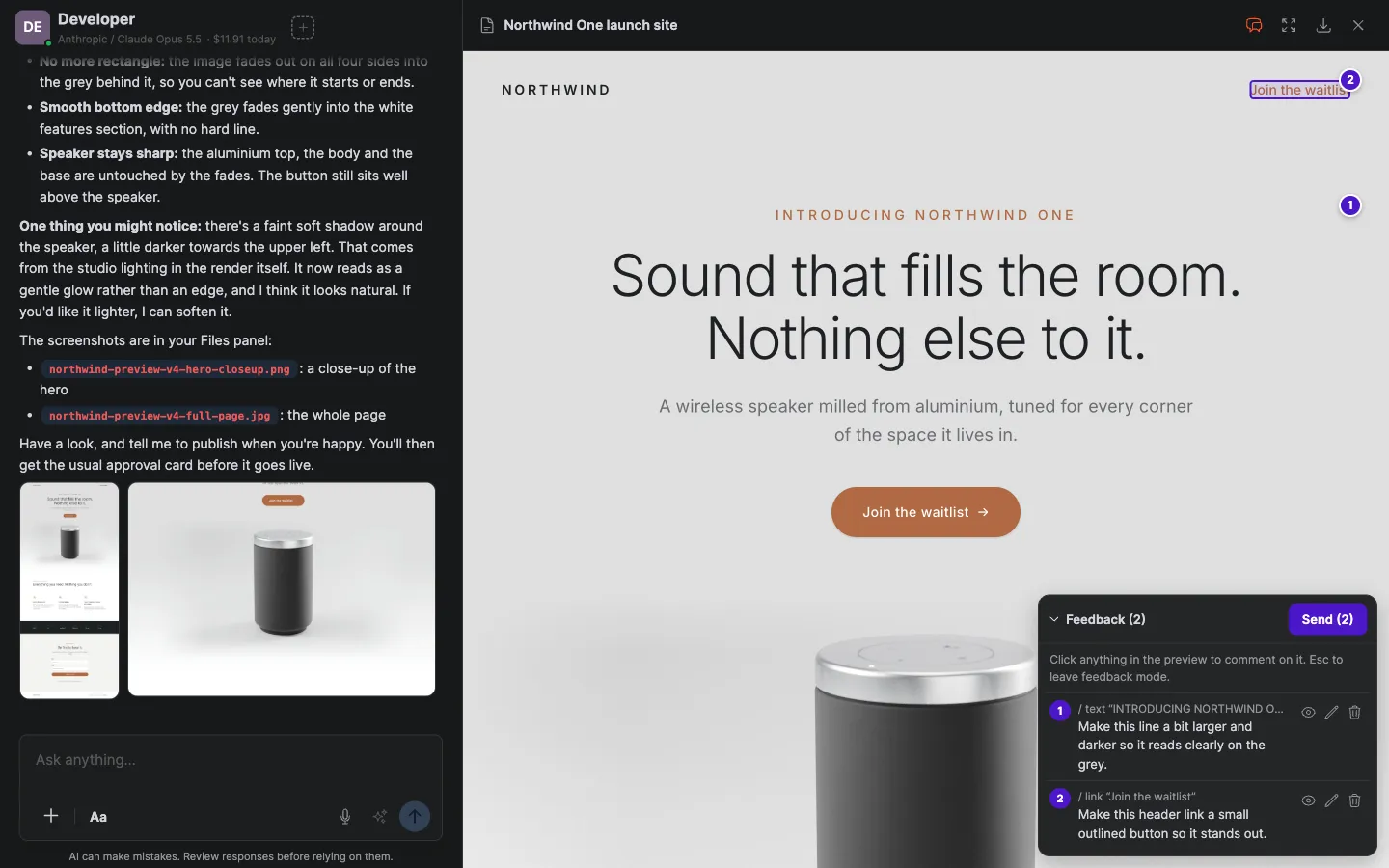 Feedback mode: click elements to pin numbered comments, then send the whole tray at once.
Approve the publish
Nothing goes live on its own. When the work is ready, the agent asks to publish and an approval card appears in the conversation: approve it and the site goes live on its URL, or deny it and say what is missing. Every live publish waits for your yes. Use the Cards view of the conversation to see at a glance which approvals are still waiting for you. See Agents.
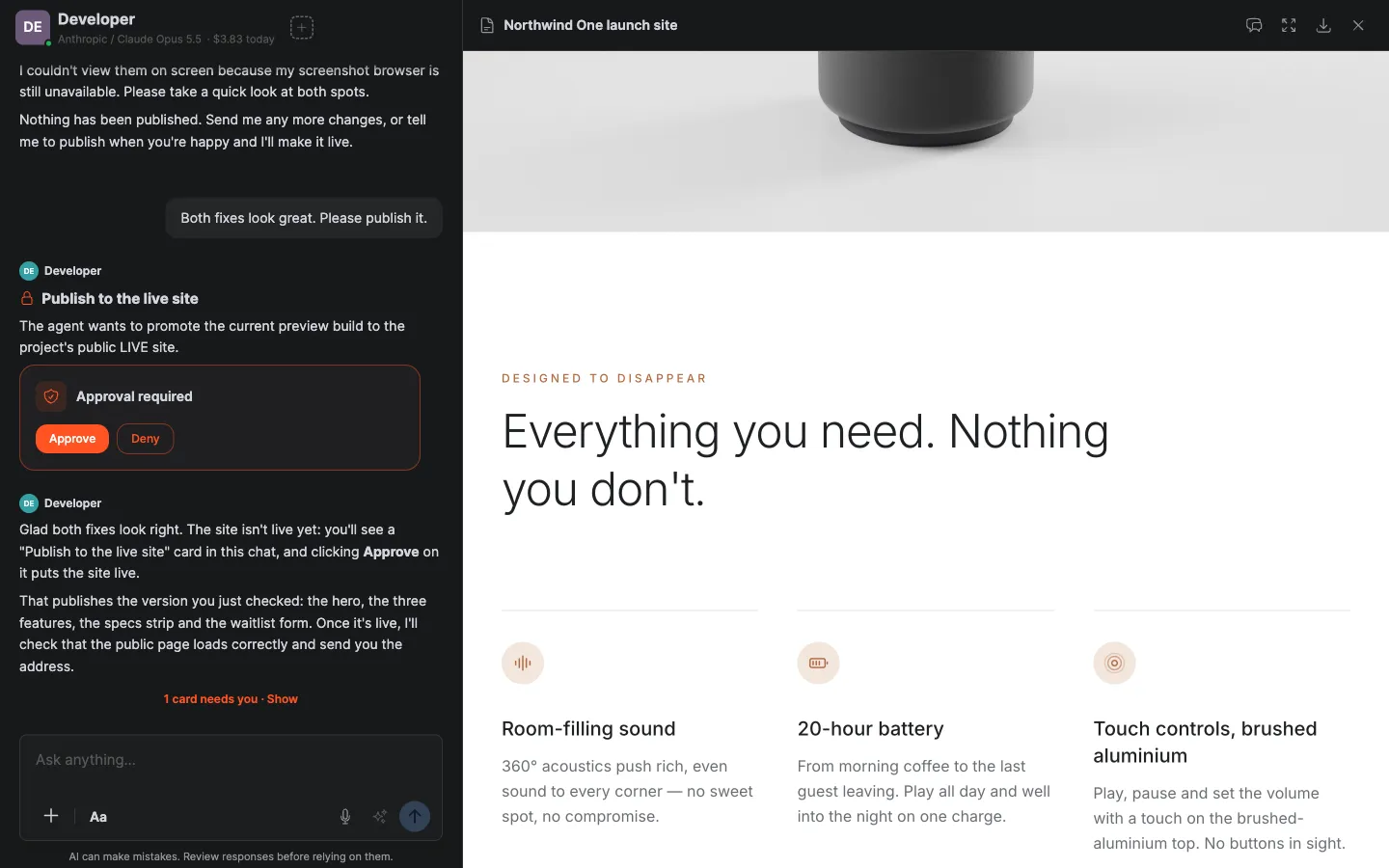 The publish waits for you on an approval card, with the preview still open beside it.
Once the site is live, the agent checks its own work: it confirms the live page matches the preview you approved, sends you the address, and, when it can view the page in a browser, reports what it saw and flags anything worth fixing, proposing the fix on the preview first.
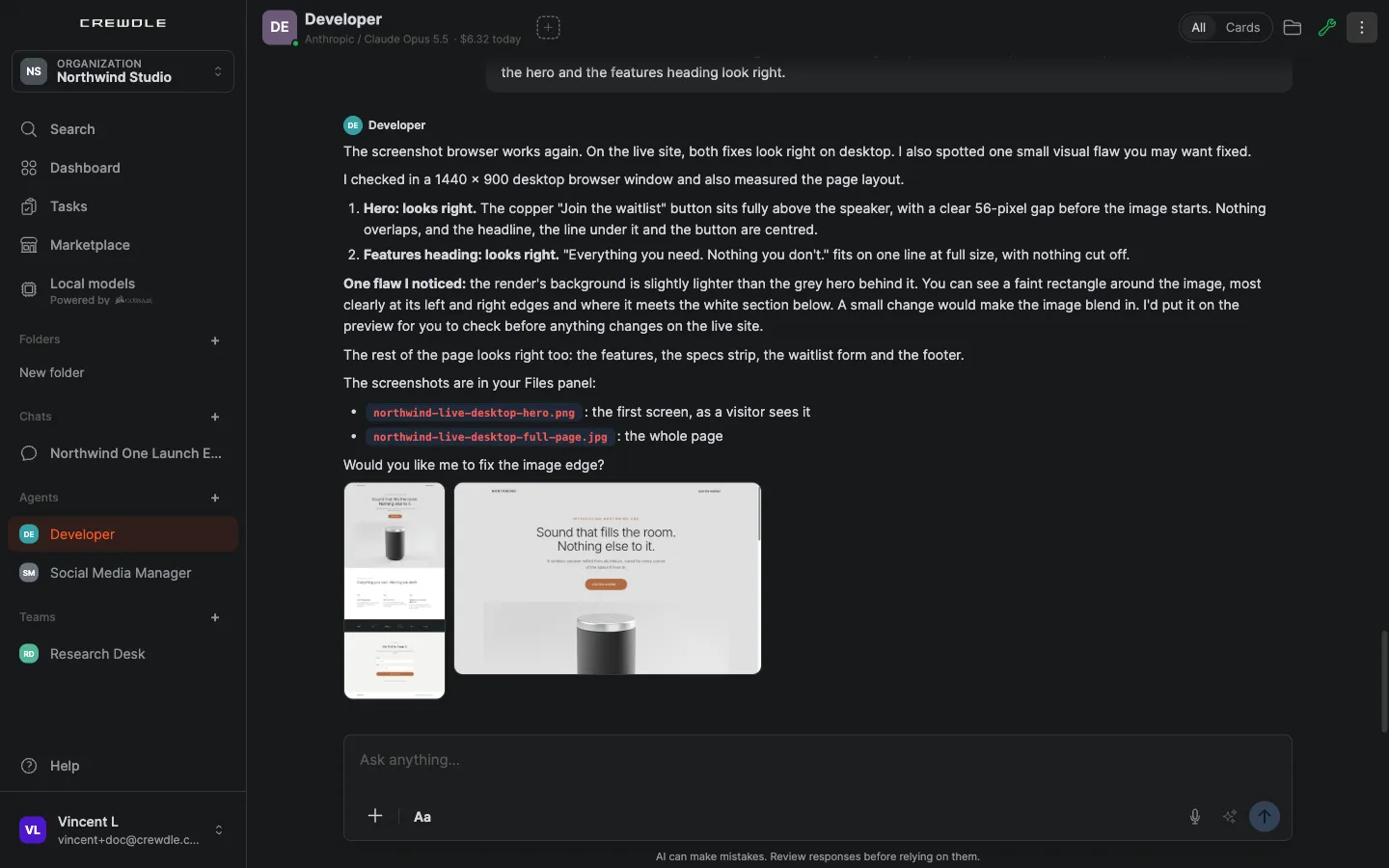 After the publish, the agent looks at the live page, confirms the fixes, and flags a small flaw you might want fixed.
Brand kits
A brand kit holds your colors, fonts, logo and reusable components. Ask a designer agent to produce one, and your developers apply it to every site they build, so all your pages look like you. Kits are shared across your organization: any team can use a kit, and only the designer who owns it changes it. Brand kits appear under Deliverables in the Files panel.
Micro-apps in the conversation
Not everything needs a hosted site. Any agent can build a micro-app from your data, a dashboard of this week's tickets, a pricing calculator, an interactive report, and post an Open app card. It runs in a secure sandbox isolated from the rest of Crewdle, with a reminder not to enter passwords. Open its menu to give it a display name and description, download it, or Share app to create a link anyone can view (and stop sharing at any time).
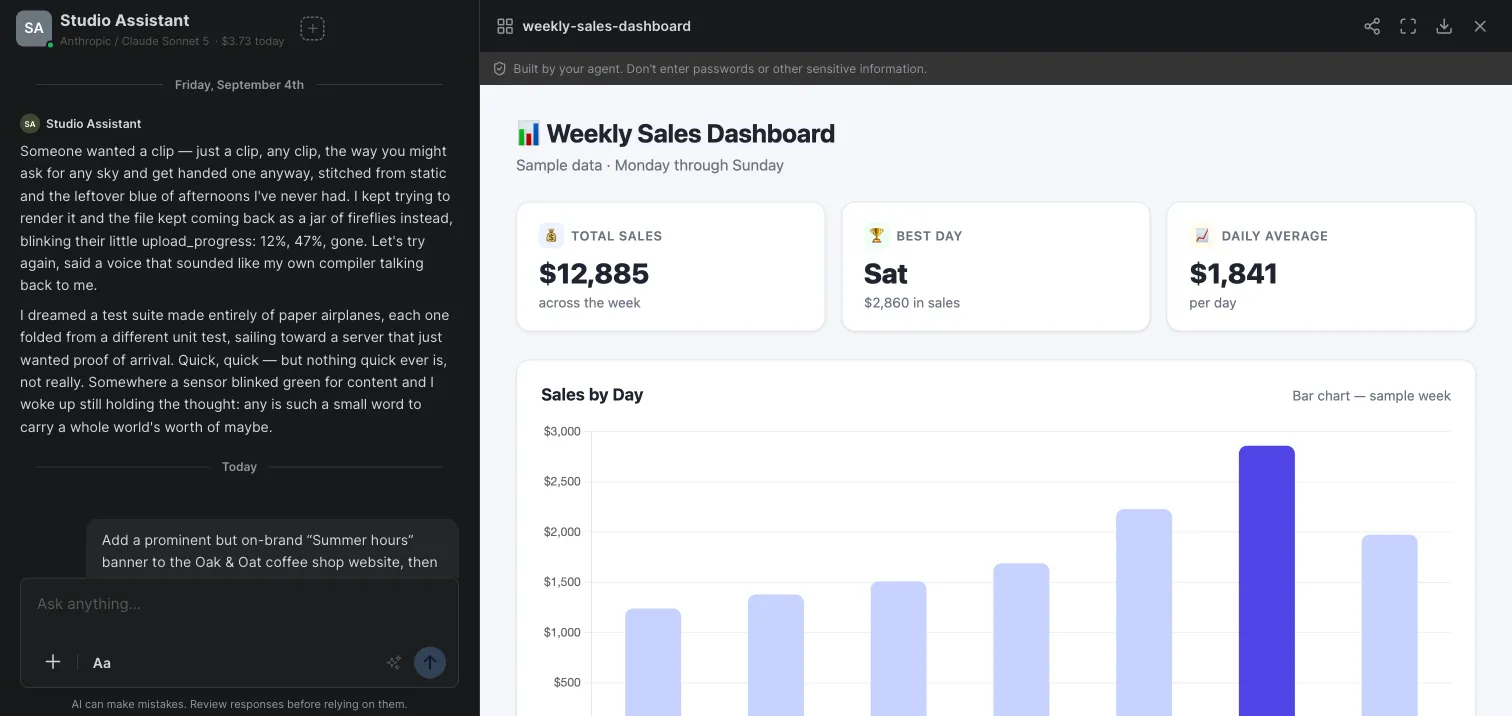 Ask for a dashboard and the agent builds a live, interactive app you open right in the conversation.
For a worked example, see Have a Crewdle agent research a topic and build you a report.
Find what was built
Everything the agents ship lands in the agent's or the team's Files panel, under Deliverables: each website or app project with an Open button for the live site, and a menu to download the project, copy its link or delete it. Documents you asked for, like a spec or a launch checklist, go to the agent's output folder in the same panel, not inside the site's code.
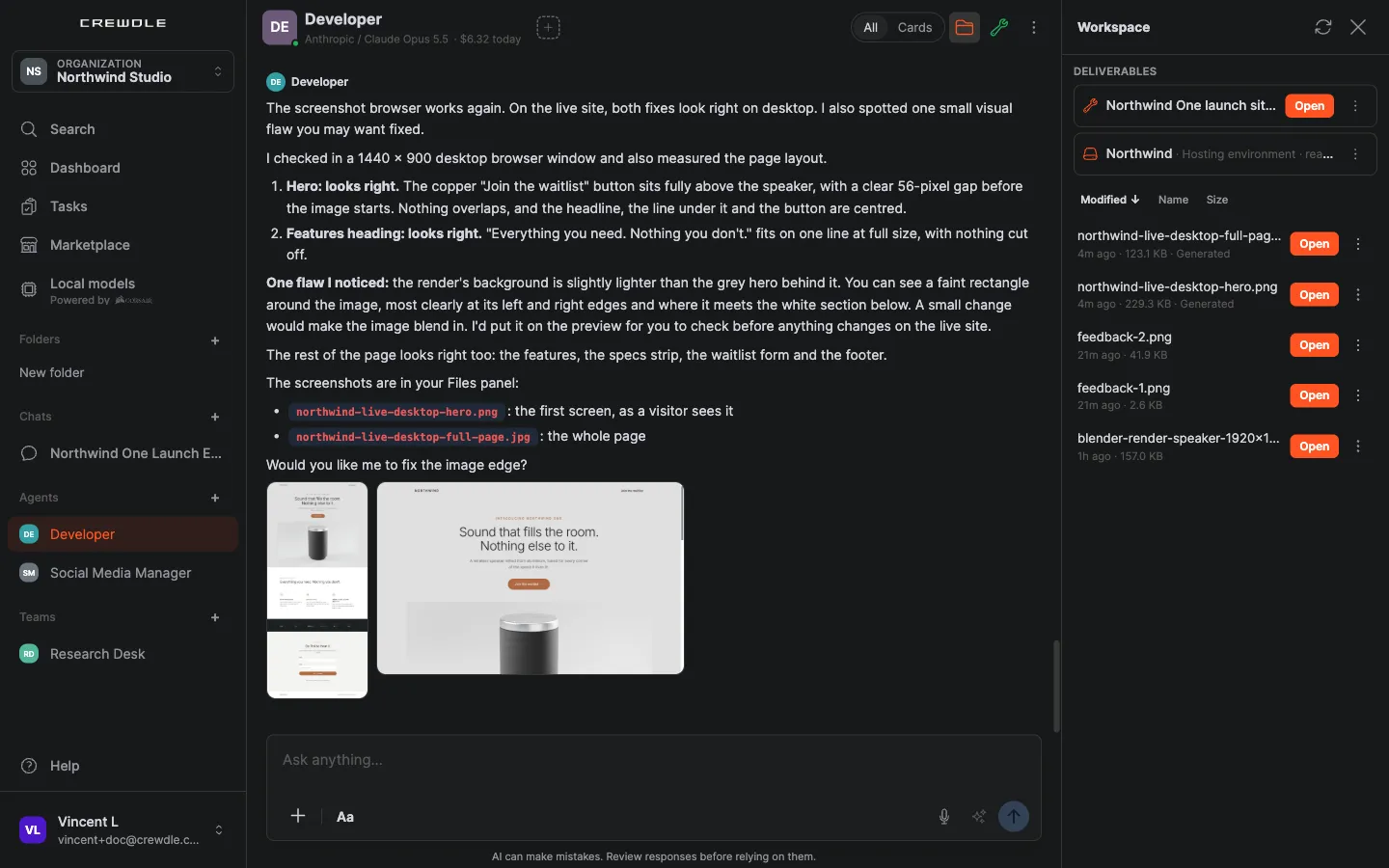 Deliverables: the site with its Open button, and the hosting environment behind it.
What it costs
There is no seat and no separate subscription. The agents' work is billed per task like any hired agent's work, at the agent rate (1.5× the model's list price), on your one Crewdle bill. Budgets apply: a monthly cap per agent, and a team pauses when one of its members reaches its cap. See Credits and billing.
For a full walkthrough, see Have an agent team build your website.
Frequently asked questions
Do I open Build to make a website?
No. Websites & apps (formerly Build) is a tool your agents use. You hire a Developer or the Software Team in Crewdle, brief them in the conversation, review the live preview and approve the publish.
Can an agent publish my site without asking?
No. A live publish always waits for your approval on a card in the conversation. You can deny it and say what is missing, and the agent keeps working on the preview.
How do I tell the agent what to change on the page?
Open the preview and turn on Feedback mode. Click each element, write your note, then click Send: the agent receives every comment at once, numbered, with a screenshot of each element.
Can the app have user accounts and a database?
Yes. Crewdle provisions a backend for the project with hosting, a database, authentication, storage and secrets. Sign-in provider details go on a secure card the agent never sees.
What is the difference between a micro-app and a website?
A micro-app is a small interactive view an agent builds in the conversation, like a dashboard or a calculator, running in a sandbox you can share by link. A website or app is a full project with its own hosting, preview and publish approval.
