Build an after-hours support agent in Crewdle
Hire a support agent from the Crewdle marketplace, connect your inbox, and let it draft replies and escalate the rest, around the clock.
Last updated
Crewdle lets you hire an autonomous AI agent, give it a job and your tools, and leave it running. This guide builds one real example: an after-hours agent that watches your inbox, drafts replies to the routine questions, and flags anything that needs a human. It works while you sleep. Setup takes about 20 minutes.
This walkthrough uses a Gmail inbox, but the same steps work for Outlook and the other email connectors.
Step 1: Hire the agent
In Crewdle, open the Marketplace and hire Support Triage: it reads inbound requests, classifies and prioritizes them, drafts suggested replies for your approval and escalates anything urgent. Prefer to start from scratch? Click the + in the Agents section of the sidebar and describe the job in your own words (what inbox to watch, what to answer, what to escalate); Crewdle proposes a setup you accept or adjust.
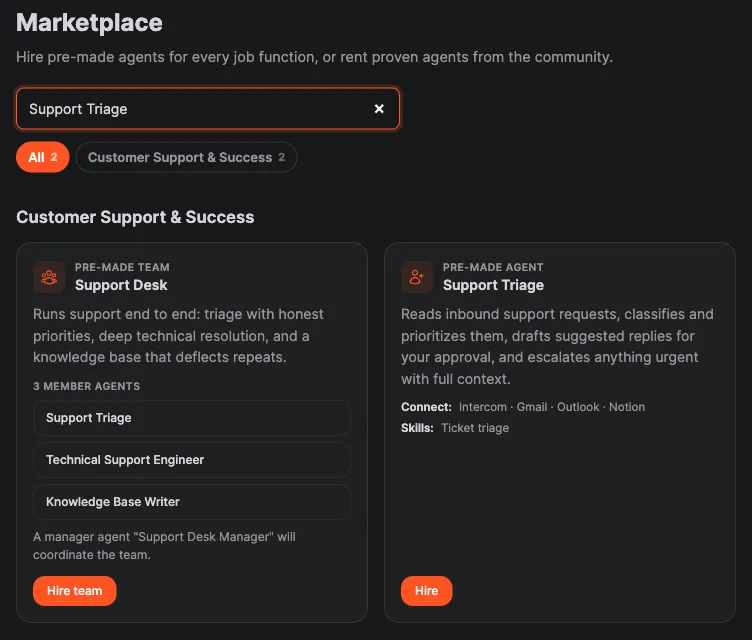
Once it's hired, give it a name you'll recognize with Rename Agent in its options menu (we used "Front Desk").
Step 2: Check its model
The hire review shows the model the agent will use; marketplace agents start on a strong Claude model, a good fit for this work. Change it there if you prefer another model your organization allows. You can switch later with Change Model in the agent's options menu, and the agent keeps everything it has learned.
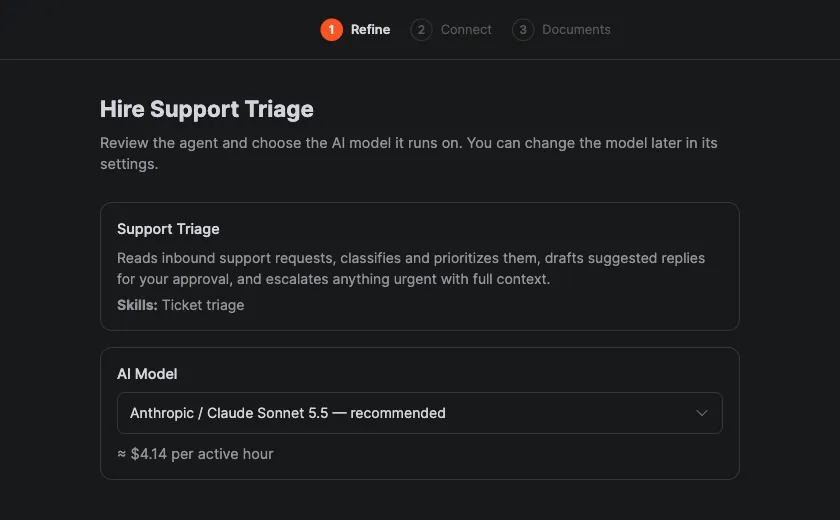
Step 3: Enable the connector in Admin
Before an agent can touch a tool, an admin enables it for the organization. In Admin → Tools, under Connectors, turn on the connector (here, Gmail), expand it to choose which roles may use it and which of its tools each role gets, then click Save Changes.
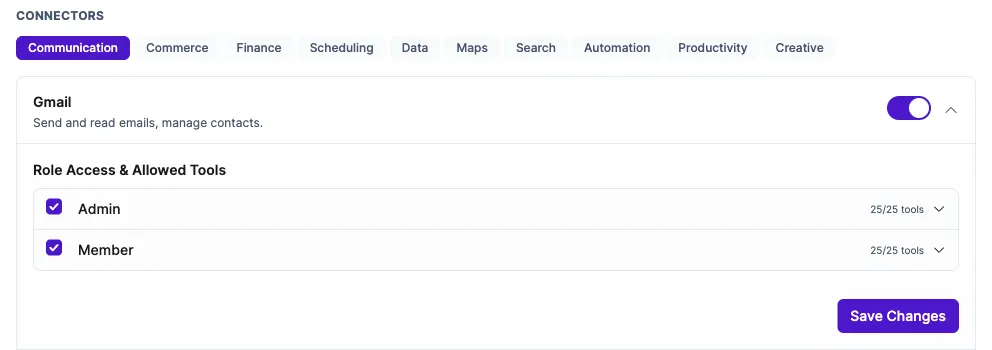
How to enable a connector
- In Admin, open Tools.
- Under Connectors, turn on the connector (for example Gmail) and expand it.
- Choose the roles that may use it and which of its tools they get, then click Save Changes.
Step 4: Connect your inbox
Back in Crewdle, open the agent and click the Tools icon (the wrench) in its header. The connector now appears. Click Connect and authorize the account you want the agent to work in. For an info inbox, connect the shared mailbox, not your personal one.
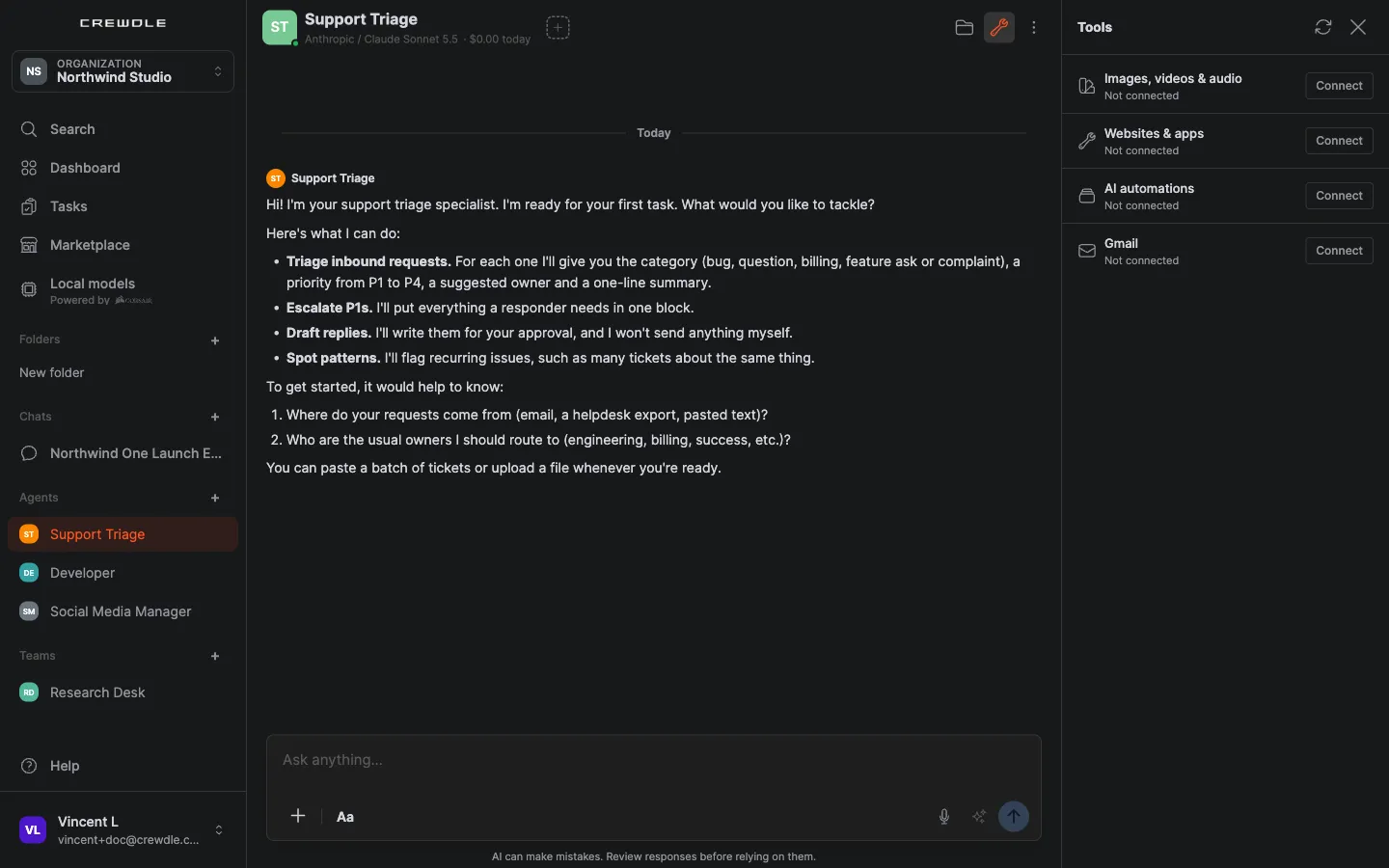
Step 5: Choose what it can do
Expand the connector in the Tools panel to see every action it offers, and switch off anything you don't want the agent to do. This is your guardrail. For an inbox agent you are reviewing, a good setup is draft-only: keep reading, searching and creating drafts on, and turn sending off, so the agent prepares replies but never sends on its own.
Step 6: Put it to work
Tell the agent what to do, or just let it run: it watches on its own. We asked it to check the inbox and handle each email. It answered the routine questions with drafts, handled a French email in French, and escalated a refund complaint, a large catering request and a security alert instead of replying. Each run shows up on the Tasks board with what it spent.
Step 7: Keep it running around the clock
One pass is not the point: you want this happening on its own, day and night. You set the rhythm by telling the agent in plain language, and you make sure it never handles the same email twice with a Gmail label.
Send the agent a standing instruction, for example: "From now on, check the inbox every 30 minutes and handle any new emails the same way. To avoid handling the same email twice, apply a 'Triaged' label to each one once you have handled it, and skip any email that already has that label."
The agent confirms the schedule and works in the background on that rhythm, picking up only new email each run. It keeps going until you stop it (Stop in its options menu), and an idle agent costs nothing between runs.
How to set the schedule and avoid duplicates
- In the agent conversation, tell it how often to check (for example every 30 minutes) and to keep going until you say stop.
- Tell it to apply a label (for example Triaged) to every email it handles.
- Tell it to skip any email that already has that label on each run. New email only, every time.
Step 8: Stay in the loop
You stay in control. Drafts wait in your inbox for a quick review and send. Escalations come to you in the agent's conversation in Crewdle, with a notification, and anything the agent needs you to decide arrives as a card; switch the conversation to the Cards view to see only what needs you. Set a monthly budget in the agent's View logs panel to cap what it can spend. See Credits and billing.
When you are ready for the agent to send on its own, turn sending back on in Step 5. Until then, it drafts and you decide.
Frequently asked questions
What can a Crewdle agent connect to?
Email and calendar (Gmail, Outlook, Google Calendar), storage and documents, CRM and e-commerce (Zoho CRM, HubSpot, Shopify), accounting (QuickBooks, Xero), and more. An admin enables each connector in Admin → Tools, and you control which actions the agent may take.
Will the agent send emails without me?
Only if you let it. Each connector’s actions are individually switchable. Leave sending off and the agent drafts replies for you to review and send; turn it on when you want it to send on its own.
Does an idle agent cost anything?
No. Agents are billed in credits only when they actually do something, so leaving one running around the clock costs nothing while idle.
