The desktop app and local models
Install Crewdle on Mac or Windows, run free local models from Hugging Face, pin chats and agents to them, schedule local agents and share local folders.
Last updated
The desktop app is the same Crewdle as on the web (every agent, every team, your tasks and the chat) in a Mac or Windows app. It adds Local models: open models from Hugging Face that run on your own computer, completely free.
Install it
Download the build for your computer from the download page, which picks the right one for you.
| Computer | Build |
|---|---|
| Mac with Apple silicon | Crewdle for Mac (Apple silicon) |
| Mac with an Intel processor | Crewdle for Intel Mac |
| Windows PC, x64 or ARM | Crewdle for Windows: one installer for both |
Not sure which Mac you have? Apple menu → About This Mac: "Chip Apple M…" means Apple silicon, "Processor Intel…" means Intel.
Open the downloaded file, install the app, and sign in with your Crewdle account. Everything you have on the web is already there.
Local models
Open Local models in the sidebar (powered by Corsair). Search Hugging Face for a GGUF model, download it, and it runs on your computer's GPU: Metal on a Mac, CUDA or Vulkan on a PC.
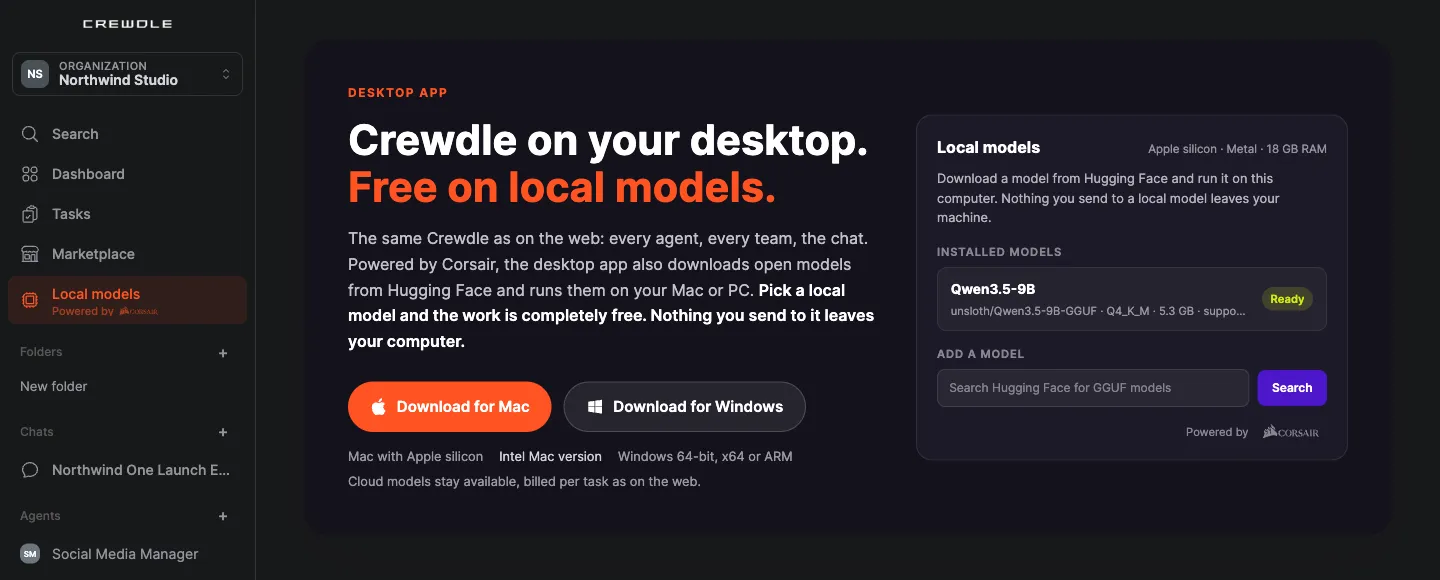
- Free: a local run uses no credits at all.
- Private: nothing you send to a local model leaves your machine.
- Pick a size that fits: larger models need more memory and run slower. Start with a small or mid-size model.
- For agents, pick a model that supports tools: hired agents work through tools, and the model list shows which models support them.
Cloud models stay available, billed per task as on the web.
Pin a chat or an agent to a local model
Choose a local model in a chat's model picker, or pin a hired agent to one in the hire wizard's Refine step. You can switch either back to a cloud model at any time.
Local agents on a schedule
An agent on a local model can run on a schedule, with the same approvals as any other agent. Because it runs on your computer, scheduled runs only happen while the computer is on.
Share local folders
Cloud agents and chats can work with a folder on your computer. Access is granted per request: the agent asks, and you decide each time.
Notifications and updates
The app sends system notifications when an agent answers or needs you, lives in the tray, can launch at login, and updates itself automatically.
Troubleshooting
- The Mac app won't open or runs poorly. Check you downloaded the right build for your chip (Apple silicon or Intel).
- A local model is slow. Try a smaller model or a lighter quantization.
- A local agent can't use its tools. Pin it to a model marked as supporting tools.
- A scheduled local run didn't happen. The computer was off. Local schedules only run while it's on; use a cloud model for work that must run around the clock.
Frequently asked questions
Is the desktop app free?
The app is free to download, and work on a local model is completely free: it uses no credits. Cloud models are billed per task, as on the web.
Does my data leave my computer with a local model?
No. Nothing you send to a local model leaves your machine.
Which GPUs are supported?
Local models run with Metal on a Mac, and with CUDA or Vulkan on a Windows PC.
Do local agents run when my computer is off?
No. A local agent runs on your computer, so its schedule only runs while the computer is on.
