Crewdle documentation: chat
Chat with GPT, Claude, Gemini, and Grok in the Crewdle app, next to your hired agents. Verify answers across models, upload documents, and search the web.
Last updated
Chat is where you do your own day-to-day AI work inside Crewdle, right next to your hired agents. It puts several frontier models in one interface, so you stop juggling separate subscriptions and logins. When a conversation turns into a recurring job, you can promote it to a hired agent from the same screen.
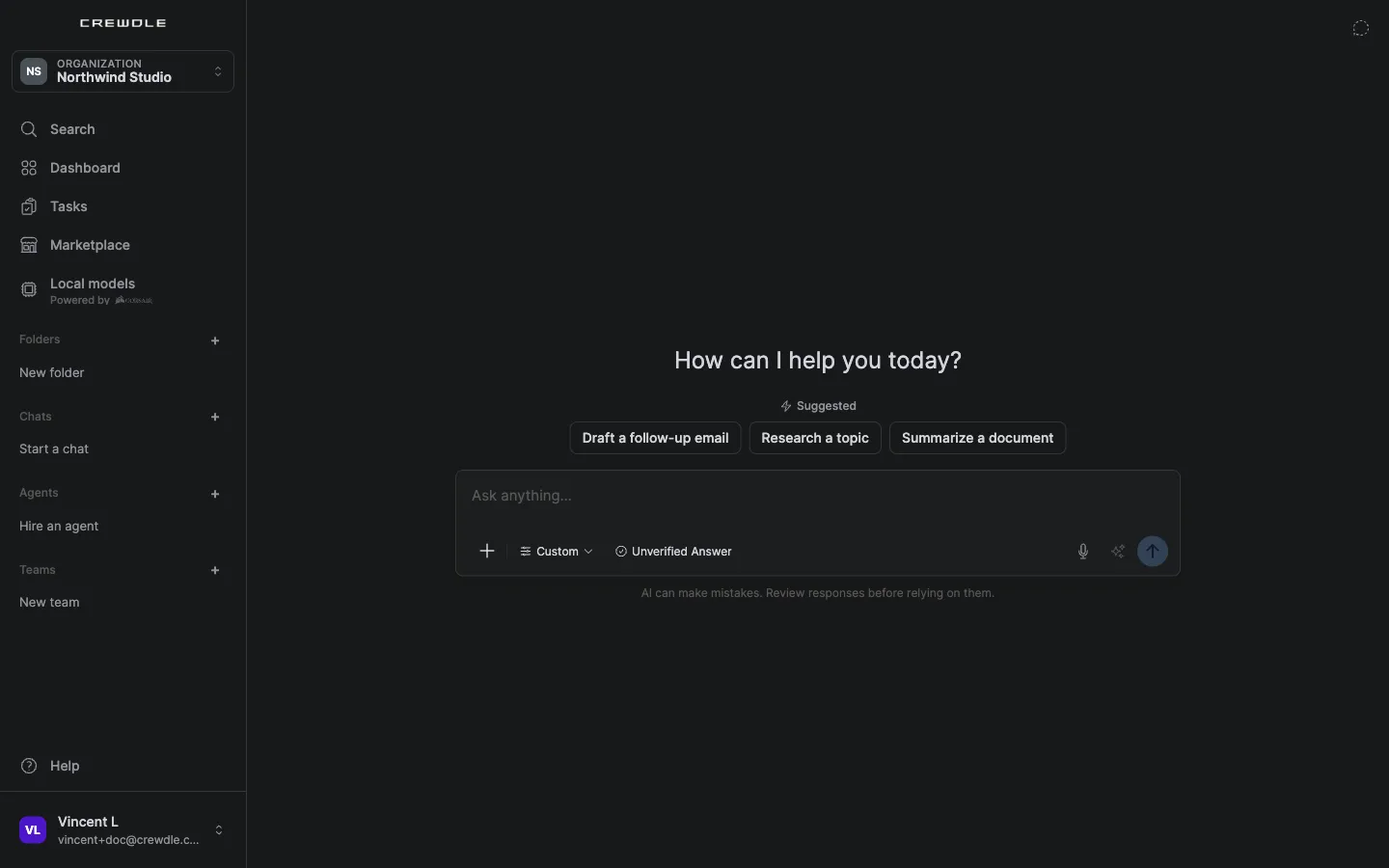 Chat opens on a clean home: pick a suggestion or just ask. The message box holds the mode menu, Verified Answer and dictation.
Chat modes: General use, Research, and Writing
Pick a mode from the composer instead of configuring tools by hand. General use is the everyday default. Research leans on web search and citations for finding things out. Writing is tuned for drafting and editing text. Open Advanced settings from the same menu to pick a specific model by name or turn web search and page-reading on or off directly, the same controls modes set for you automatically.
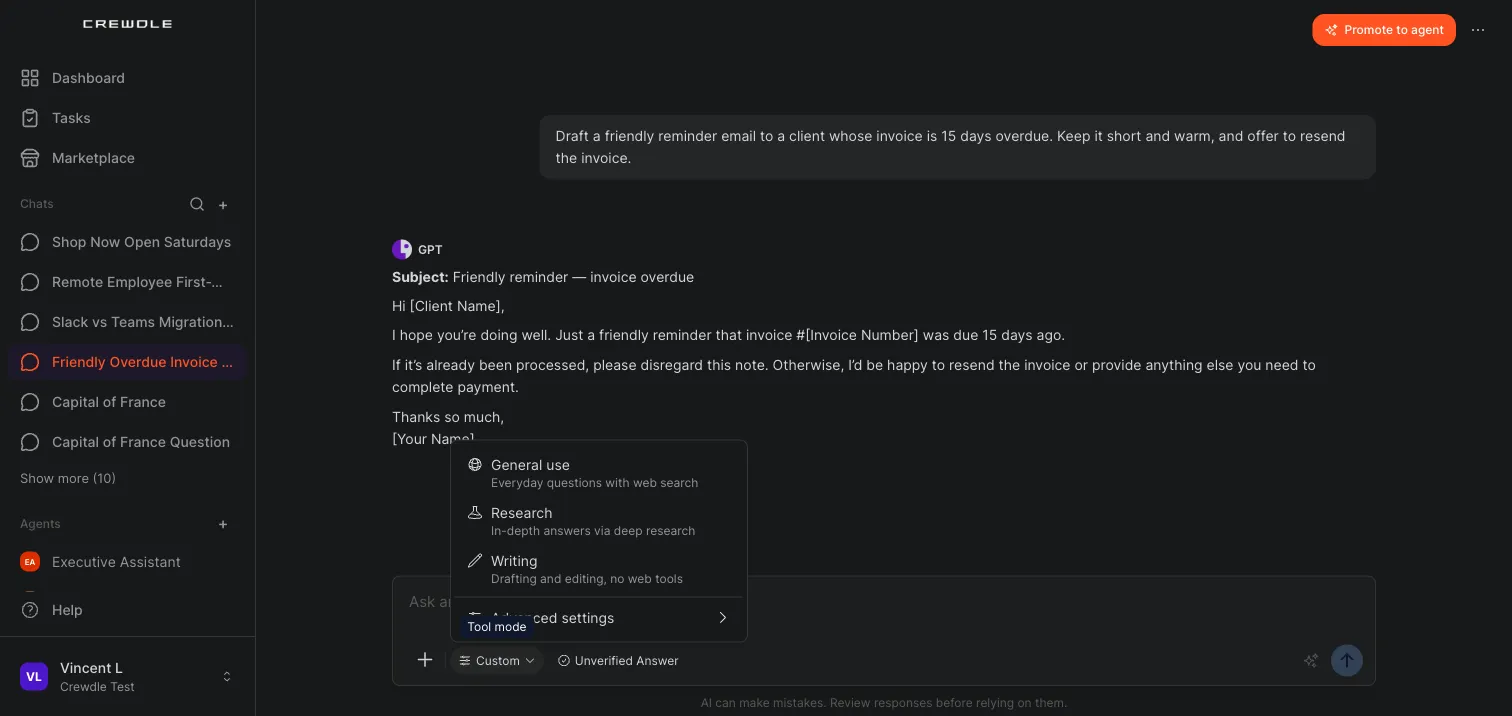 Pick a mode for the kind of work you're doing, or open Advanced settings to control the model and web tools yourself.
How to switch chat modes
- Click the mode name next to the + button in the message box (it starts on General use).
- Pick Research for web-backed answers with citations, or Writing for drafting and editing.
- Open Advanced settings at the bottom of the menu to choose a specific model or toggle web search and page-reading directly.
Choose a model
Switch between GPT, Claude, Gemini, and Grok at any time, even mid-conversation, from Advanced settings in the mode menu. There is no setup and no API keys: Crewdle holds the model relationships, you just talk. Clicking Claude, GPT, or Gemini picks that family's Smart Routing: Crewdle automatically routes each request to the right model in that family based on its complexity, a faster, cheaper model for simple asks, a top model for the hard ones. Open Show advanced models to pick a specific model by name instead.
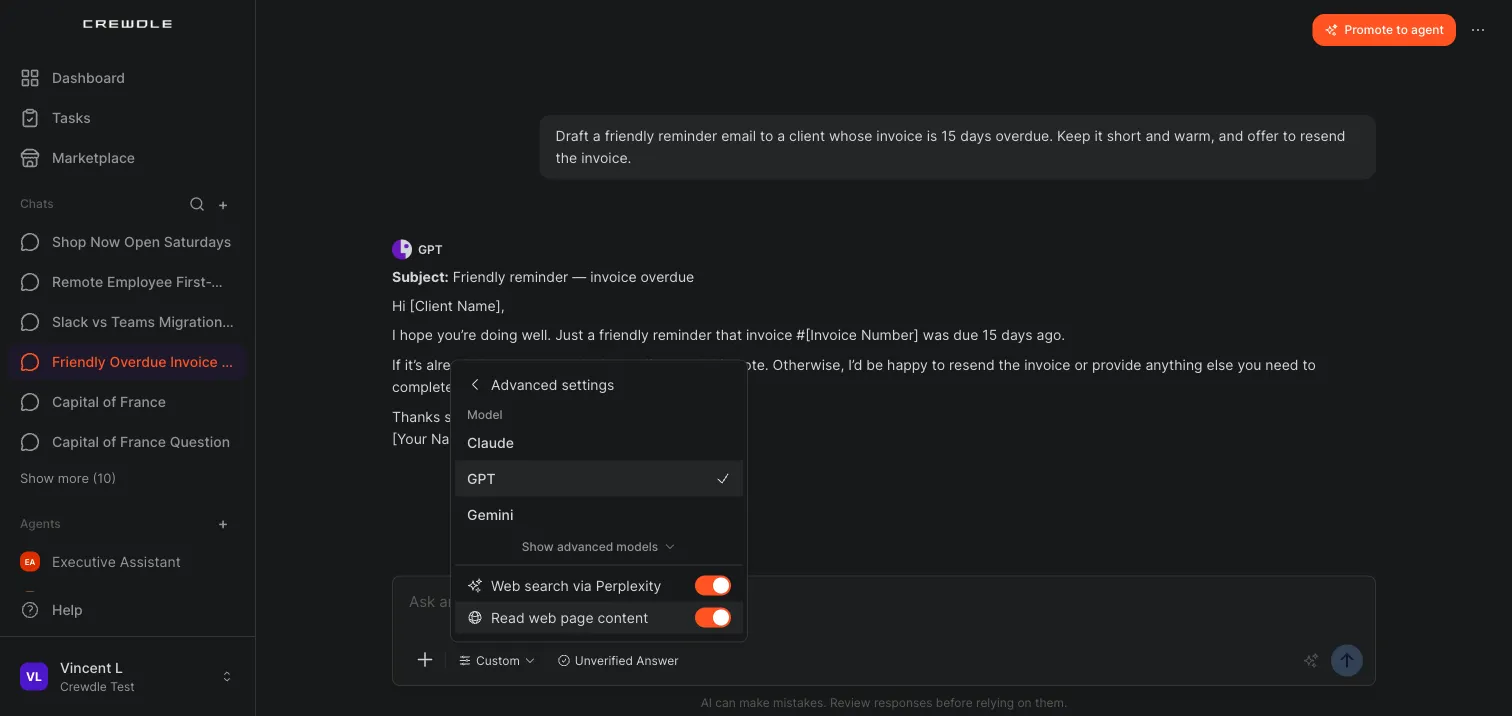 Advanced settings picks Smart Routing for Claude, GPT, or Gemini by default. Open Show advanced models to pick a specific model by name.
How to switch the model
- Open the mode menu next to the + button and click Advanced settings.
- Click Claude, GPT, or Gemini for that family's Smart Routing, or open Show advanced models to pick a specific model by name.
- Keep chatting. You can switch again at any time, even mid-conversation.
Verify answers across models
For answers you need to trust, turn on Verified Answer in the message box. Your question goes to three frontier models from different vendors, currently Claude, GPT, and Gemini. Each one answers independently, then Chat compares the answers, merges them into a single response, and shows every step it took. Because the panel spans vendors, no single AI company is grading its own homework.
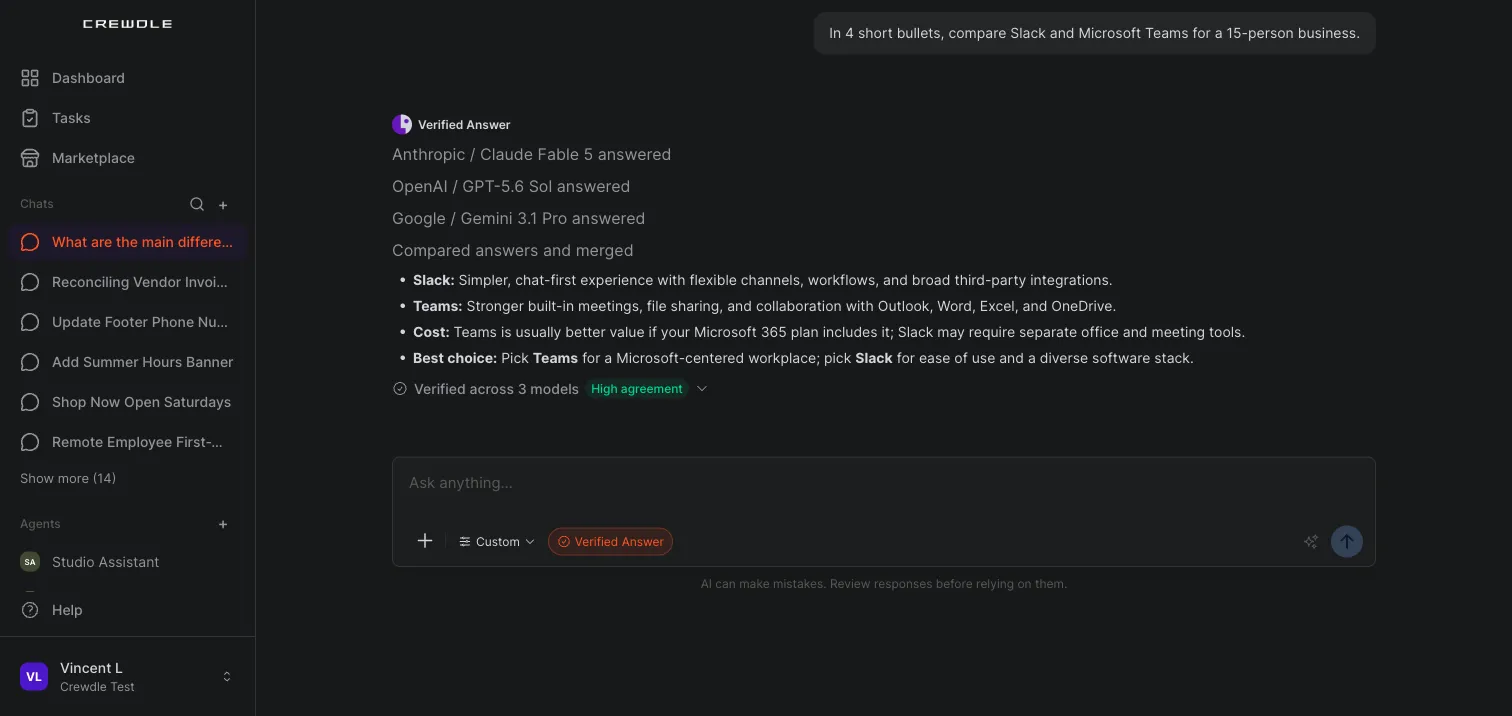 A Verified Answer shows its work: each model answers on its own, then Chat compares the answers and merges them into one response.
Every verified answer ends with a badge showing how strongly the models agreed. Click it to see each model's original answer, the notes on how they were merged, and a claim-by-claim breakdown that marks each point Unanimous or Disputed, with the call that was made wherever the models disagreed.
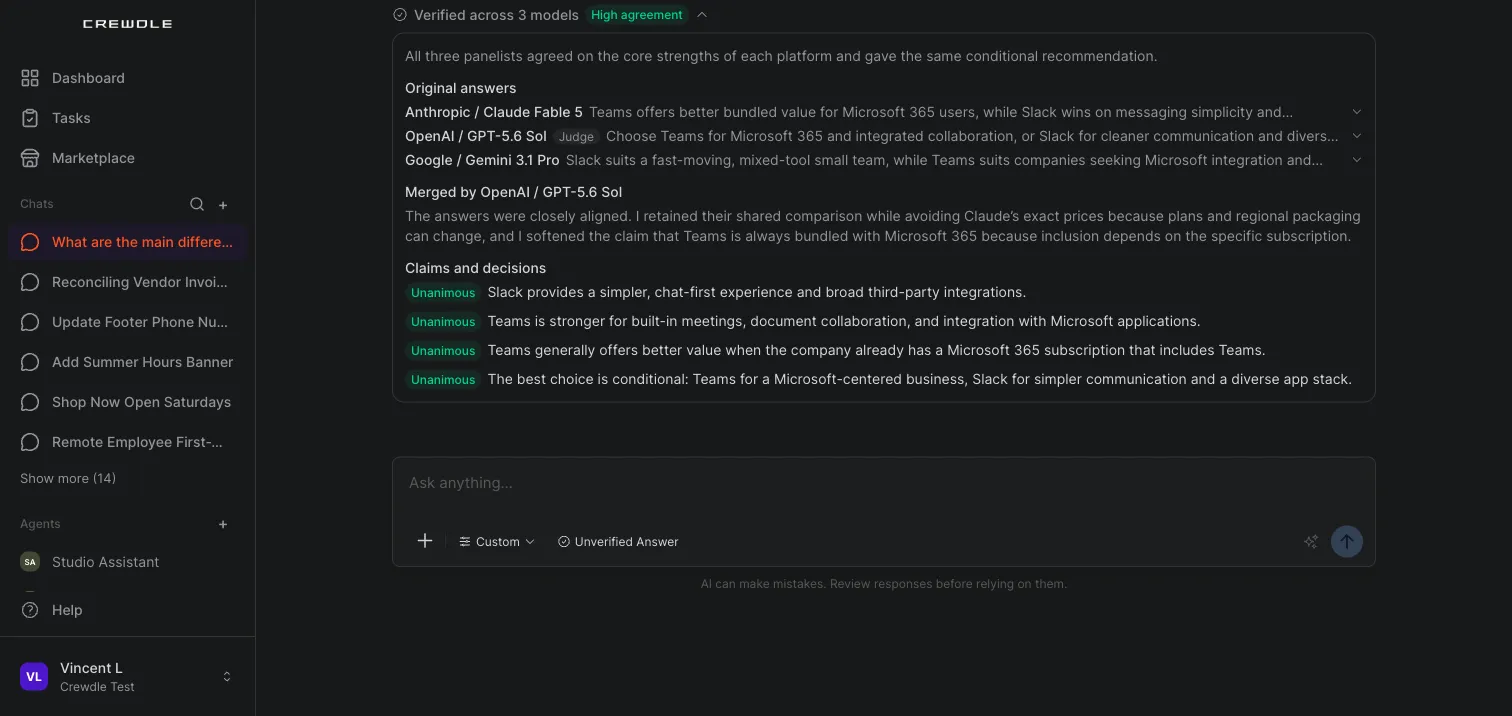 The agreement panel breaks the answer into claims and shows exactly where the models agreed, and where they did not.
How to get a verified answer
- Click Unverified Answer next to the mode name in the message box, so it switches to Verified Answer.
- Ask your question. It takes a little longer than a single-model answer while the three models respond and Chat merges their answers.
- Click the Verified across 3 models badge under the answer to review the agreement level, the original answers, and any disputed claims.
Start and organize chats
Create a new chat from the sidebar, then keep your history tidy:
- Folders group related conversations.
- Pin the chats you return to often.
- Search finds past conversations by title or content.
- Share creates a read-only snapshot link to a conversation, which you can revoke at any time.
How to keep your chats organized
- Click the + in the Chats section of the sidebar and choose New chat to start a fresh conversation.
- Group related chats into a folder, and pin the ones you use most.
- Use Search to find any past conversation by title or content.
Work with documents and files
Attach PDFs, Word and Excel files, CSVs, code, images, and more, then ask questions about them. Chat extracts the content and uses it to answer. For reference material you use again and again, give a folder its own knowledge: upload files, or sync them from Google Drive, OneDrive or an agent's files, and every chat in that folder answers from them (retrieval-augmented generation).
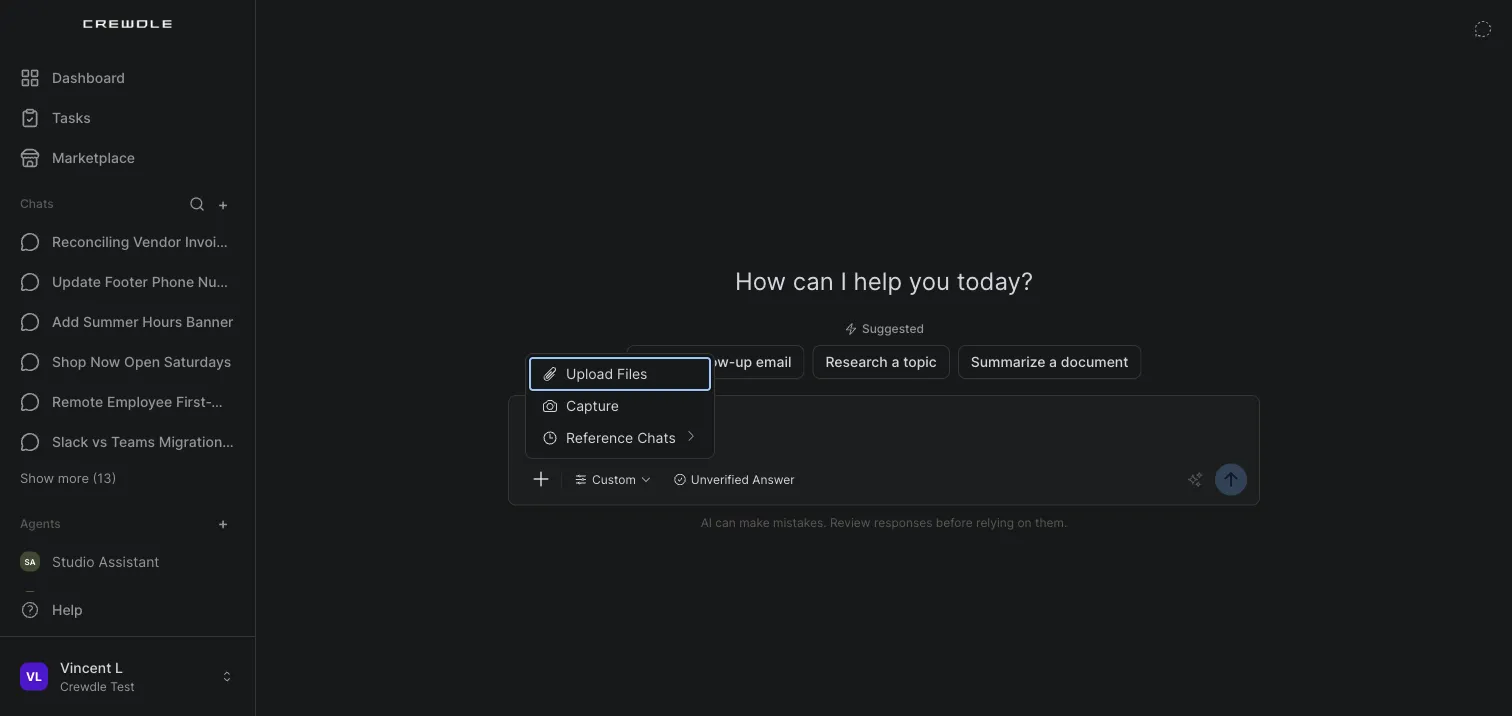 Add a file from the + menu, or pull in another chat as reference.
How to ask about a document
- Click the + in the message box and choose Upload Files.
- Pick a PDF, spreadsheet, image, or other file.
- Ask your question. Chat reads the file and answers from it.
Search the web
Turn on web search to pull in current information and get answers with citations to the sources. Chat can also read a specific web page or a video transcript when you paste a link. The Research mode turns both of these on for you automatically; toggle them yourself from Advanced settings for full control.
Turn on Web search via Perplexity and Read web page content from Advanced settings to bring in current information with citations to the sources.
How to search the web in a chat
- Open the mode menu next to the + button and click Advanced settings.
- Turn on Web search via Perplexity.
- Ask your question. The answer pulls in current information with links to the sources.
Hand the work to an agent
When a conversation turns into a job that should keep running, hand it to an agent without starting over:
Promote to agent turns the chat into a hired agent. Crewdle distills the conversation into a brief, opens the hire wizard with it prefilled, and the new agent starts from what you already discussed. The chat then shows Continued by your hired agent with a link to the agent's conversation.
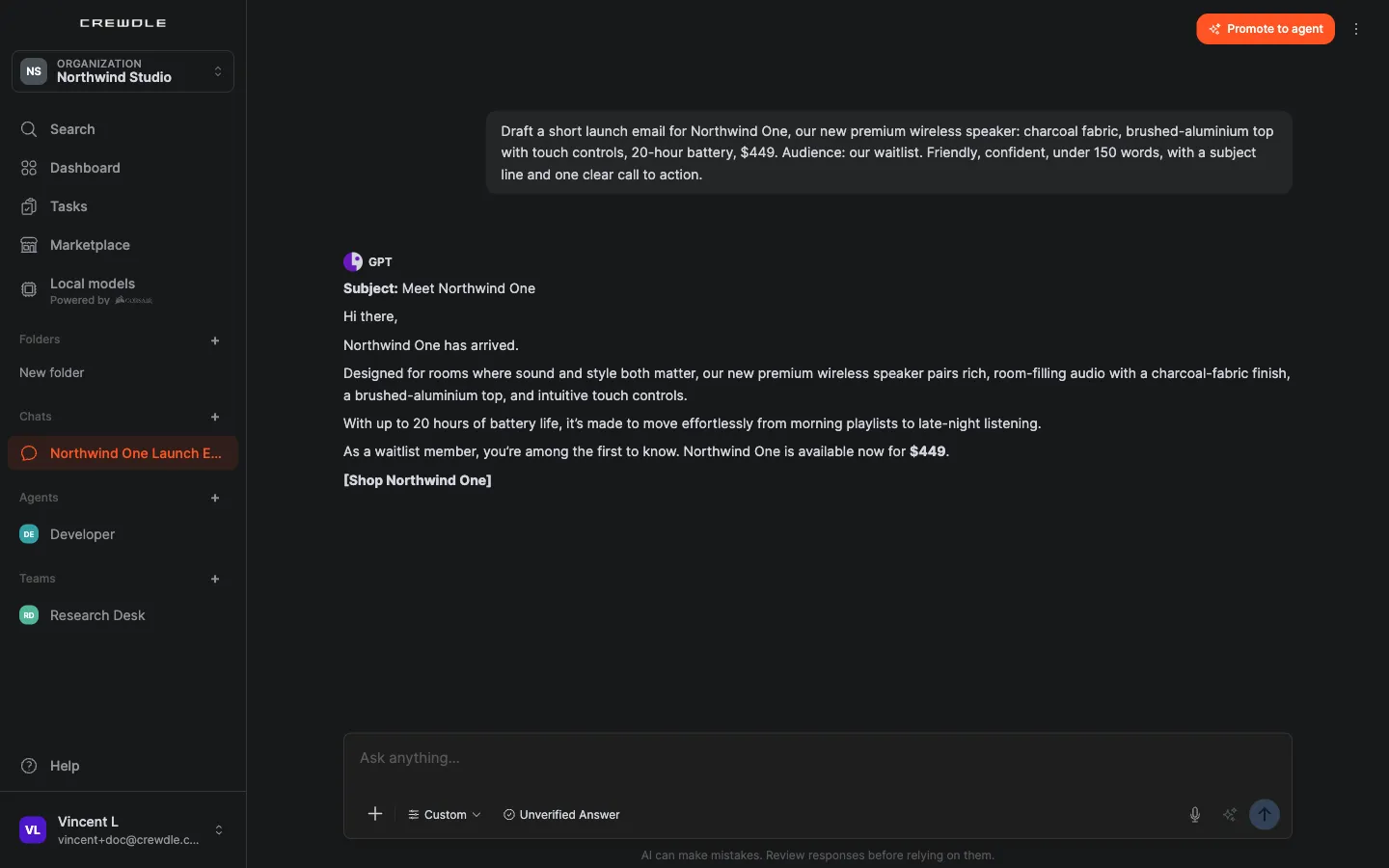 Promote to agent sits at the top of the chat: one click turns this launch-email conversation into a brief for a hired agent.
Route to an agent you already have. Ask Chat to pass a request to one of your agents or teams, and it proposes a hand-off card with the message to send. Confirm it, or choose Keep in chat.
Set up an agent or a team from chat. Describe what you need and Chat can propose an agent or a whole team for you to approve, right in the conversation.
Chat and hired agents are billed differently: a chat uses the model directly (1.3× list price), while a hired agent's work is billed at the agent rate (1.5× list). See Credits and billing.
Share folders with your team
Share a folder with members of your organization from its menu (Share…). Each person keeps their own chats, and the folder's knowledge answers in their chats too; only the owner manages the knowledge files.
Talk instead of typing
Click the microphone in the message box and speak: your words are transcribed into the message at the cursor, ready to edit and send. On the desktop app, you can also pin a chat to a free local model that runs on your computer.
Coming soon: the full Crewdle experience, chat included, inside a Microsoft Teams tab.
Your conversations are yours and are never used to train AI. See Security and privacy. To see where your data is stored, read Data residency.
Frequently asked questions
Which AI models can I chat with in Crewdle?
Chat gives you GPT, Claude, Gemini, and Grok in one interface. You can switch between them at any time, including in the middle of a conversation.
What is a Verified Answer in Crewdle?
A Verified Answer is produced by three frontier models from different vendors (Claude, GPT, and Gemini) answering your question independently. Chat compares their answers, merges them into one response, and shows the agreement level along with any claims the models disputed.
Can I ask questions about my own documents?
Yes. Upload a file and ask about it directly, or add documents to a folder’s knowledge so every chat in that folder answers from them. Folders can be shared with your organization.
Are my chat conversations in Crewdle used to train AI?
No. Your conversations are yours and are never used to train AI models.
What is the difference between Chat modes and picking a model?
Modes (General use, Research, Writing) set up the model and tools for you based on the kind of work. Advanced settings, in the same menu, let you pick the exact model and turn web search or page-reading on or off yourself.
Can a chat become a hired agent?
Yes. Promote to agent distills the chat into a brief and opens the hire wizard with it prefilled. You can also ask Chat to hand a request to an agent or team you already have.
