Images, videos & audio your agents create
Give an agent the Images, videos & audio tool and it generates visuals, clips, narration and music for its work, on your brand kit, billed per task.
Last updated
Images, videos & audio (formerly Crewdle Create) is a tool your agents use, not a studio you open. When a job needs a product shot, a social graphic, a short clip, a voiceover or a music bed, the agent generates it as part of the task and hands you the result in the conversation. You ask in plain words, review what comes back, and ask for another take.
What your agents produce
- Images: product shots, social posts, ad visuals, illustrations and hero images for a website, in the format the job needs.
- Video: short clips from a prompt, or from a seed image so the clip matches a look you already have.
- Storyboards: for a longer piece, the agent plans the video scene by scene, writes the narration script, sets a music direction, generates each scene, and renders the finished video.
- Audio: narration (text to speech, with a choice of voices) and music tracks.
Assets build on each other: a generated image can be the reference for the next one or the first frame of a video, so a campaign keeps one consistent style.
Give an agent the tool
Roles like the Social Media Manager, the Content Writer or the Product Marketer often arrive with this tool suggested. Any agent can use it once you turn it on.
How to give an agent the Images, videos & audio tool
- Your org admin keeps the tool (under Crewdle tools) turned on in Admin → Tools, optionally limited to some roles. The image, video and audio models your organization allows are set in Admin → Models.
- Open the agent, then its Tools panel, and click Connect on Images, videos & audio. Tool grants are set at hire time, so re-grant the tool if an older agent does not see it.
- Ask for what you need, for example "Make three square Instagram visuals for our spring sale, in our brand colors."
Keep it on brand with a brand kit
A brand kit holds your colors, fonts, logo and reusable components. Ask a designer agent to create one, or tell an agent which kit to use, and the visuals it generates follow it. Kits are shared across your organization, so every agent and every team produces work in the same style, and only the designer who owns a kit changes it.
Where the results go
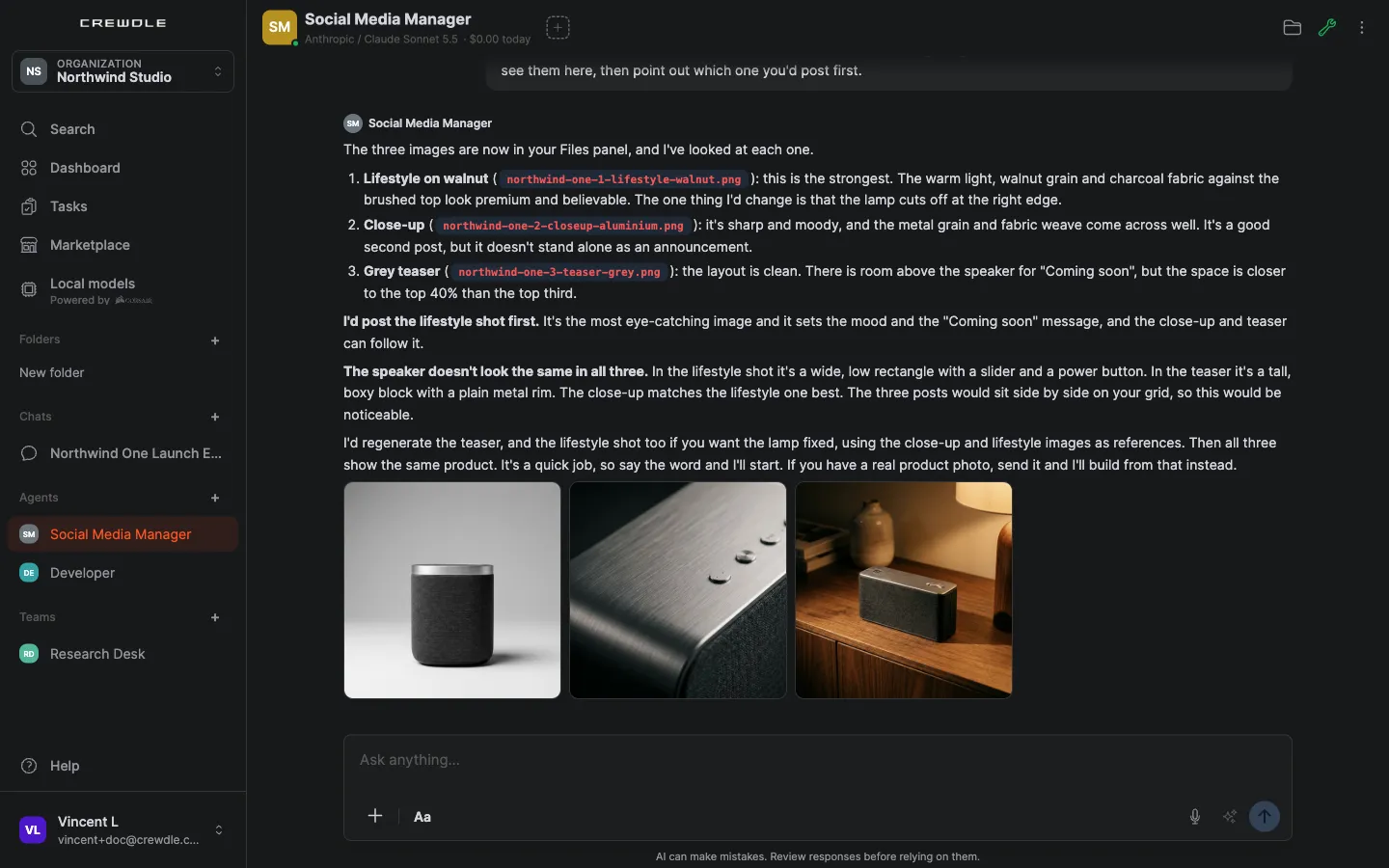 Three launch visuals generated by a Social Media Manager, shown right in the conversation, with the agent's review of each one.
Each result appears in the conversation as a file you can open, download or send back with notes. Everything also stays in the agent's Files panel: images, clips and audio in its files, storyboards and brand kits under Deliverables. Use the files as they are, or have another agent pick them up, for example a developer placing a hero image on your website.
What it costs
There is no subscription and no separate seat. Each generation is billed in credits on your one Crewdle bill, as part of the agent's task, at the agent rate (1.5× the model's list price). The agent's monthly budget caps what it can spend. See Credits and billing.
Frequently asked questions
Do I open Create to make an image?
No. Images, videos & audio (formerly Create) is a tool your agents use. Ask an agent that has the tool, and it generates the asset in the conversation.
What can an agent generate with it?
Images, short videos, storyboarded longer videos with narration and music, and audio: text-to-speech narration and music tracks.
How do I keep the visuals on brand?
Use a brand kit. Ask a designer agent to create one, then tell your agents to use it. Kits are shared across your organization and only their designer can change them.
How is it billed?
Per generation, in credits, as part of the agent’s task on your one Crewdle bill. There is no subscription, and the agent’s monthly budget caps its spend.
