Integrations and connectors
Connect your agents to the tools you already use: Gmail, Outlook, Google Drive, Zoho CRM, HubSpot, Shopify, QuickBooks, Xero, Blender, Roblox and more.
Last updated
Connectors let your agents act in the tools you already use. Instead of copying data back and forth, an agent can read your calendar, send an email, update a CRM record, create an invoice or publish a game, within the actions you allow.
What you can connect
An admin can enable these connectors for the organization:
- Creative: Blender (3D models), Roblox (Roblox games)
- Sales and commerce: Zoho CRM, HubSpot, Shopify, Square, Google Ads, Veloce
- Communication: Gmail, Outlook (including attachments), LinkedIn, Meta, Intercom, SendGrid
- Scheduling: Google Calendar, Outlook Calendar, Mindbody
- Finance: QuickBooks, Xero, Harvest
- Productivity: Google Drive, Docs, Sheets and Slides; OneDrive, Word, Excel and PowerPoint; Dropbox, Notion, Atlassian, ClickUp, WordPress, GitHub
- Data: Google Analytics, People Data Labs, Semrush
- Search and web: Web Search, Perplexity, Firecrawl, BrowserBase (a cloud browser the agent can drive)
- Maps: Google Maps
The catalog grows over time. Browse the integration pages for what an agent does with each one.
How connections are authorized
Connectors use secure OAuth or an API key. You authorize a connection once, and you control which specific actions the AI may take (for example, read email but not delete it). A connection is either set up at the organization level, one account shared by the team, or per user, so each person connects their own account.
How to enable and connect a connector
- In Admin → Tools, under Connectors, turn the connector on. Expand it to choose the connection mode, the role access and the allowed tools, then click Save Changes.
- For an organization-level connection, the admin clicks Connect and authorizes the shared account right there.
- Open the agent in Crewdle and its Tools panel. The connector appears with a Connect button for per-user connections; turn it on for the agent and tell it what to do.
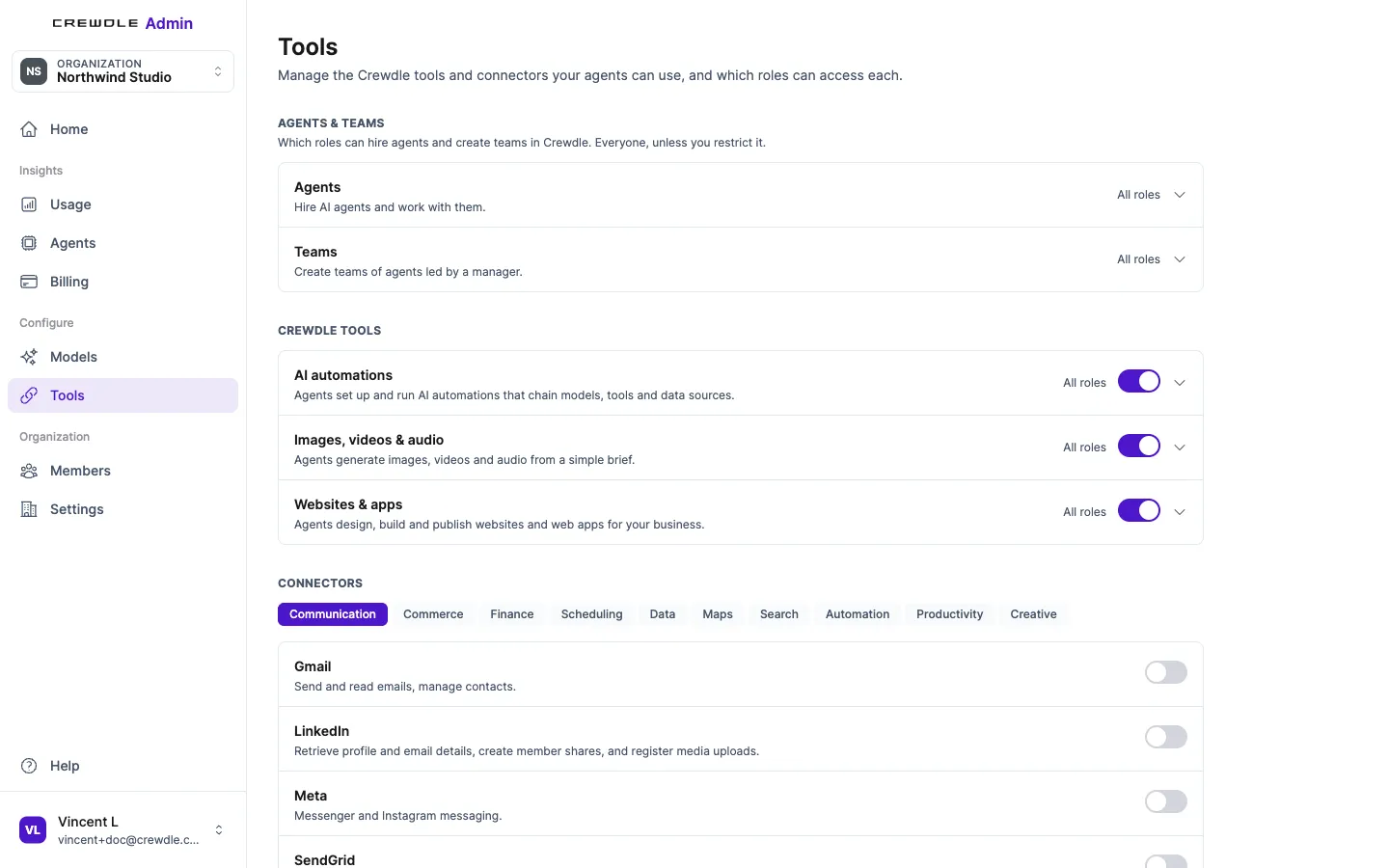 Admin → Tools: each connector has its own switch, grouped in tabs by category.
Blender and Roblox
Blender and Roblox are off by default. Turn them on in Admin → Tools before hiring the 3D Artist, the Roblox Game Developer or the Roblox Studio team:
- Blender needs no account: the agent drives a sandboxed Blender session that Crewdle runs.
- Roblox connects with your own Roblox Open Cloud API key. Crewdle's guided setup page walks you through creating it in Creator Hub, with the permissions it needs, in about two minutes. The key is stored encrypted on Crewdle's servers and never given to the agent.
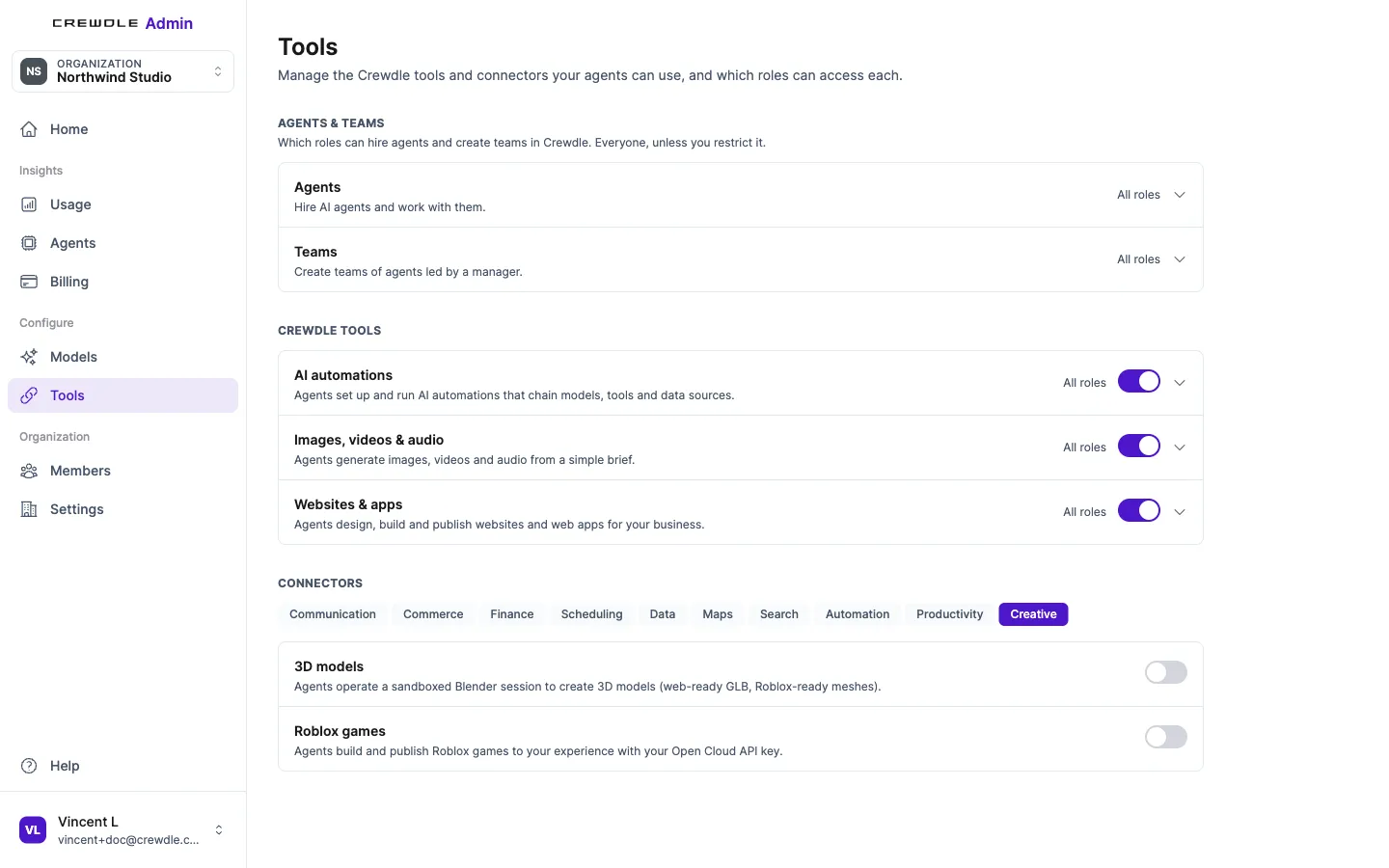 Blender and Roblox live under the Creative tab, as 3D models and Roblox games, and start switched off.
Credentials an app or a website needs
Some work needs a credential that isn't a connector, like a login to a supplier's website or an API key for your own system. Store it in your team's secrets vault: agents use it without ever reading it. When an agent builds an app that needs a sign-in provider (Google, Microsoft, GitHub and others), it posts a secure card where you enter the provider's details directly; the agent never sees them. See Security and privacy.
Microsoft 365
Sign in with Microsoft through Entra ID (the admin links the tenant in Admin → Organization), and agents work with Outlook mail and calendar, OneDrive, Word, Excel and PowerPoint through the connectors above.
Managing integrations
Admins manage which integrations are enabled for the organization, and who can configure them, from Admin. Permissions control who may add or change connections, and disconnecting a connector revokes the agent's access immediately. Agents get their tools when they are hired, so an agent hired before you enabled a connector needs it turned on in its Tools panel.
Frequently asked questions
What tools does Crewdle integrate with?
Email and calendar (Gmail, Outlook, Google Calendar), storage and documents (Google Drive, OneDrive, Word, Excel, Notion, Dropbox), CRM and commerce (Zoho CRM, HubSpot, Shopify, Square), accounting (QuickBooks, Xero), web research, Blender, Roblox and more.
Are integrations secure?
Yes. Connectors use secure OAuth or API keys, you authorize them once, and you control which specific actions the AI is allowed to take. Keys such as your Roblox Open Cloud key are stored encrypted and never given to the agent.
Can each team member connect their own accounts?
Yes. A connection can be shared at the organization level or set up per user, so each person authenticates with their own account when that fits better.
Do I need a plan to use a connector?
No. There are no plans: every connector is available to every organization once an admin enables it. You pay only for the work agents do with it.
