Crewdle documentation: agents
Hire 24/7 autonomous AI agents in Crewdle, give them work and tools, track every request as a task, and approve what matters before it happens.
Last updated
Crewdle gives you an always-on AI crew. You hire an agent, give it a job and your tools, and it runs around the clock: watching what is happening, deciding on its own when something needs doing, and acting without waiting for a trigger or a person in the room. Every request it takes on is tracked as a task, anything sensitive waits for your approval, and you can see what it did and spent, turn by turn.
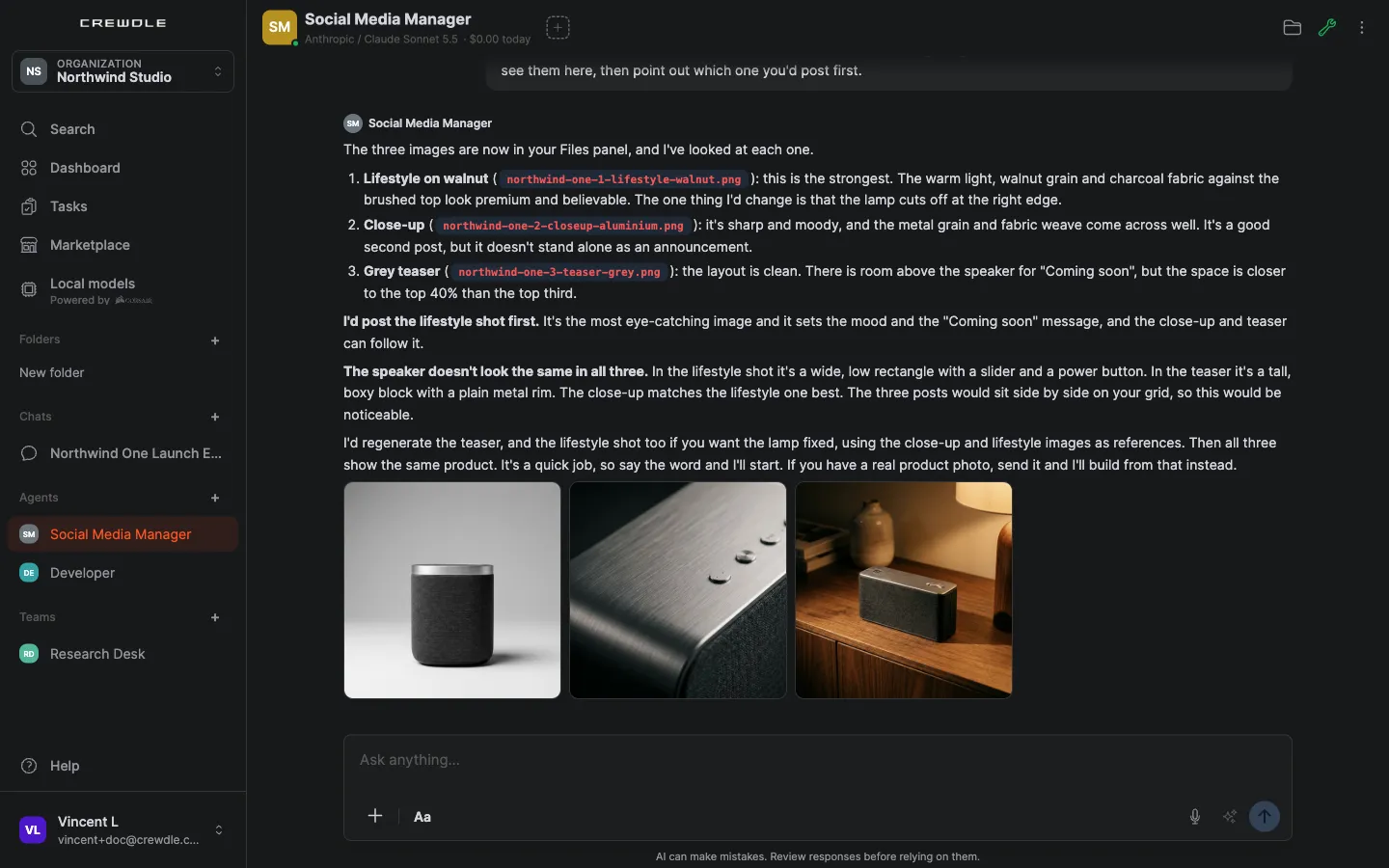 Your hired agents and teams sit in the sidebar next to your chats, like colleagues.
An agent that works on its own
A Crewdle agent is autonomous. Once it is set up, it stays on 24/7, keeps an eye on whatever you put it in charge of (the inbox, the schedule, inventory, incoming leads) and decides for itself when to respond, follow up or flag something. No shifts, no days off, and no one needed in the conversation. Along the way it can write and edit Word documents, Excel spreadsheets and PowerPoint presentations, research the web, and build small interactive apps from your data.
Hire an agent
The fastest start is the Marketplace: ready-made agents for every business function, each with its skills and the tools it suggests, plus pre-made teams and community agents you can rent. Click Hire, and a hire review shows the setup, including the model the agent will use (marketplace agents default to the latest Claude Opus or Sonnet models); change it if you like, then confirm. See Hire your first AI agent.
Need something the marketplace doesn't have? Click the + in the Agents section of the sidebar and describe the job in a name and a few sentences. Crewdle proposes ready-made setups with the agent's responsibilities, its model and the connectors it will need. Pick the closest fit or describe changes in plain words, answer a few quick questions, then connect its tools and add reference documents.
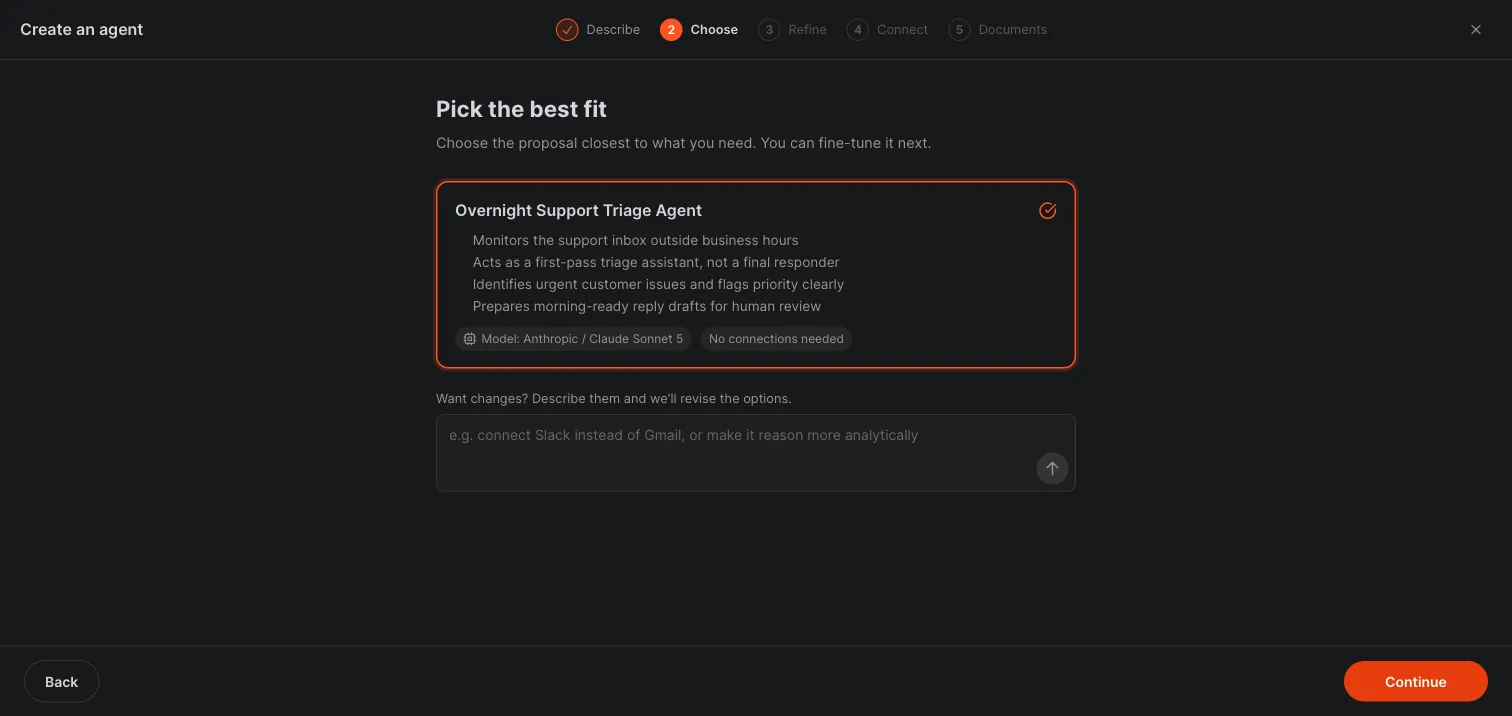 Describe the job and pick the proposal that fits: the wizard suggests the agent's responsibilities, model and connectors before you hire.
For a full walkthrough of hiring and configuring an agent for a real job, see Build an after-hours support agent. For work that needs several skills at once, hire a team.
Every request is a task
Ask an agent for something real and it lands on the Tasks board, so nothing gets lost in a conversation. Each task shows who owns it, its status (To do, In progress, Done), live progress while the agent works, and what it spent. Work that depends on another step waits in To do and starts on its own when that step is done. Changed your mind? Stop a running task or close it from the board, and the agent stops working on it. Tasks with a time estimate also feed the dashboard's time saved and task spend. See Tasks and approvals.
Approvals, questions and the Cards view
You decide what an agent may do on its own. Sensitive tools are approval-gated: before the agent takes a sensitive action, like publishing a site or saving a change to its own memory, an approval card appears in the conversation with Approve, Always approve and Deny. When a decision is yours, like a choice between options or a missing detail, the agent asks on a question card you answer with a click or your own words.
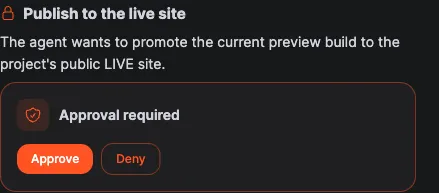 An approval card: the agent says what it is about to do, and waits for Approve or Deny.
When a conversation gets long, switch its header from All to Cards to see only the cards. A bar tells you how many cards need you; click Show to jump straight to them. Everything waiting for your approval also appears on the dashboard.
See what an agent did and cap what it spends
Choose View logs in the agent's options menu to open its full record: credits spent today and in total, its scheduled tasks, and every request broken down turn by turn, each with its credit cost and the kind of action it took. The same panel holds the monthly budget. When the agent reaches it, the agent pauses and a budget card asks whether to raise the budget or remove it.
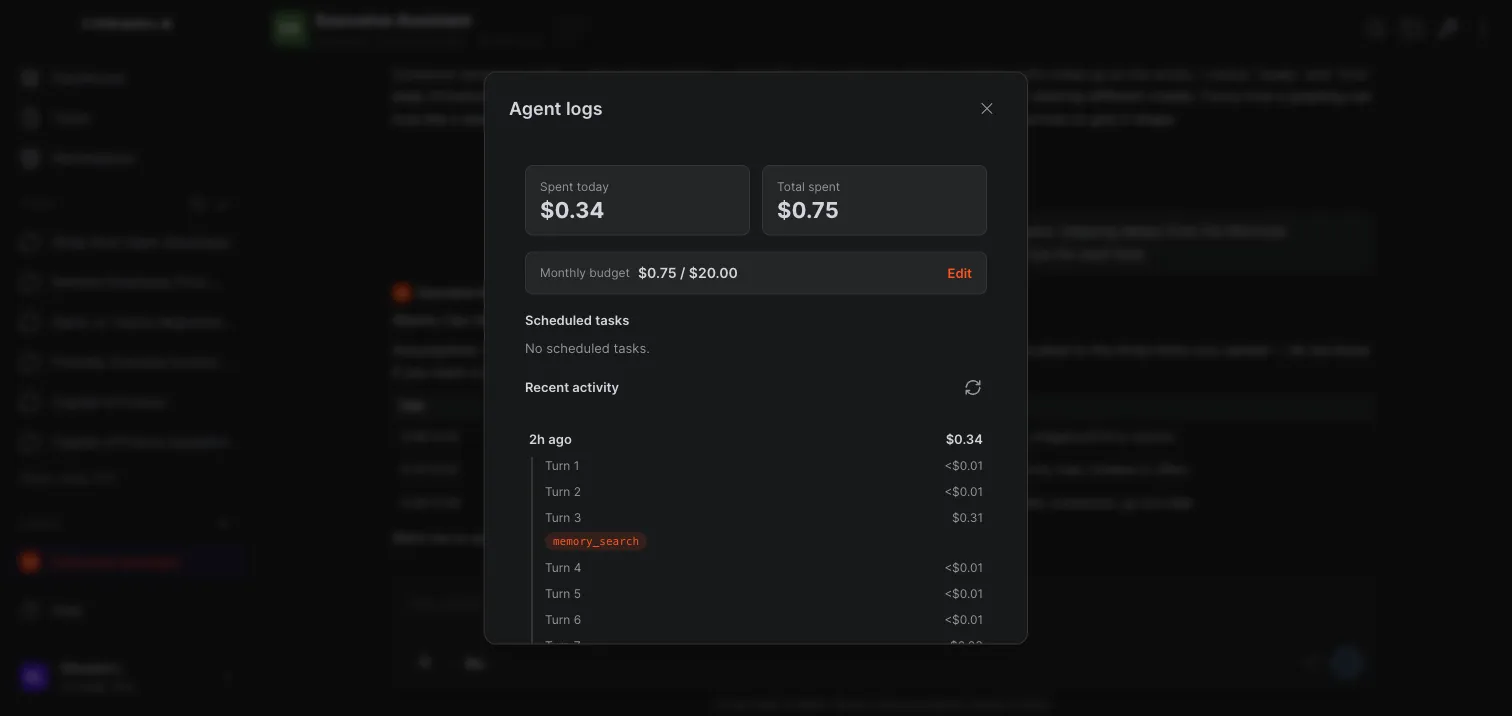 Agent logs show spend, scheduled tasks and every request turn by turn, with a monthly budget cap a click away.
How to review an agent's logs and set a budget
- Open the agent, click More options in its header, and choose View logs.
- Review credits spent today and in total, and the recent activity list, where every request is broken down turn by turn with its credit cost.
- Set a monthly budget and save. Leave it blank for no cap.
Give it tools
Open the agent's Tools panel (the wrench in its header) to choose what it can use:
- Connectors to your accounts: email and calendar (Gmail, Outlook, Google Calendar), storage and documents (Google Drive, OneDrive, Word, Excel), CRM and commerce (Zoho CRM, HubSpot, Shopify), accounting (QuickBooks, Xero), web research and browsing, and more. You authorize each one with secure OAuth or an API key and control the exact actions the agent may take. See Integrations and connectors.
- Crewdle tools that produce finished work: Websites & apps, Images, videos & audio, AI automations, 3D models (a live Blender session) and Roblox games. 3D models and Roblox are off by default; an org admin turns them on in Admin → Tools.
Tool grants are set when you hire an agent, so an agent hired before a tool existed won't pick it up on its own; turn it on in the agent's Tools panel.
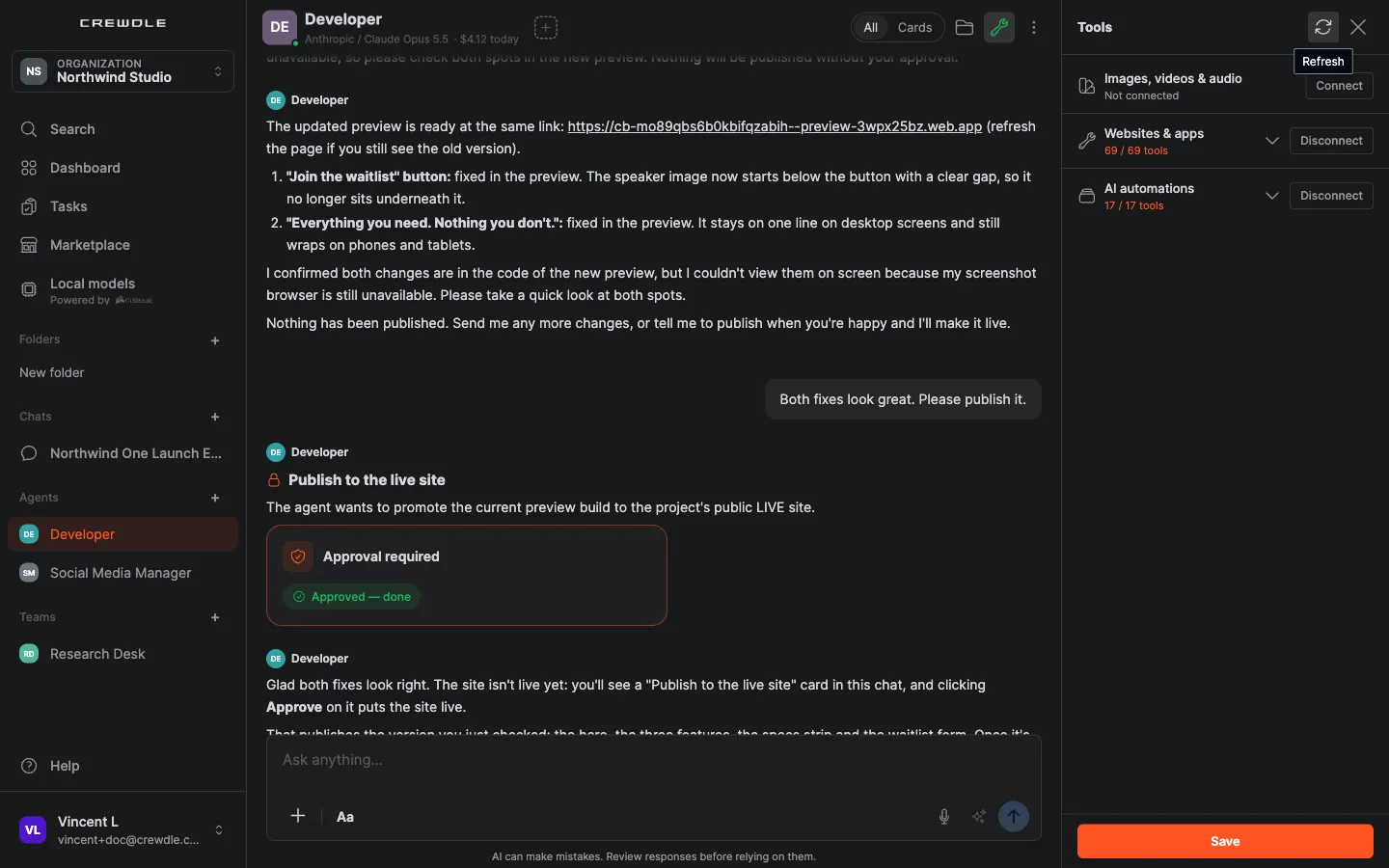 The Tools panel: connect a Crewdle tool or connector, see how many of its tools the agent may use, and save.
How to give an agent a tool
- In Admin → Tools, an admin enables the connector or Crewdle tool and chooses which roles may use it.
- Open the agent and its Tools panel. Enabled connectors and Crewdle tools appear with a Connect button; once connected, each shows how many of its tools the agent may use. Click Save.
- Tell the agent what to do with the tool. It acts only within the actions you allowed.
For logins and API keys, use your team's secrets vault: agents use a stored credential, even typing a password into a website, without ever seeing it. See Security and privacy.
What an agent produces, and where to find it
Agents hand back finished work: documents and spreadsheets, images and video, micro-apps (small interactive dashboards and calculators that open right in the conversation, in a secure sandbox), and full websites and apps. When there is something to look at, the agent posts a preview that opens beside the conversation; turn on Feedback mode to click any element and comment on it, then send all your comments at once.
Click Files in the agent's header to open its Workspace panel. At the top, Deliverables lists the bigger things the agent has produced, like websites, brand kits and workflows, with an Open button for live sites and a menu to download, copy a link or delete. Below that, one list holds everything else, newest first: the files you uploaded and the files the agent created, with micro-apps shown as cards. Documents you ask for land in the agent's output folder, so they always show up here.
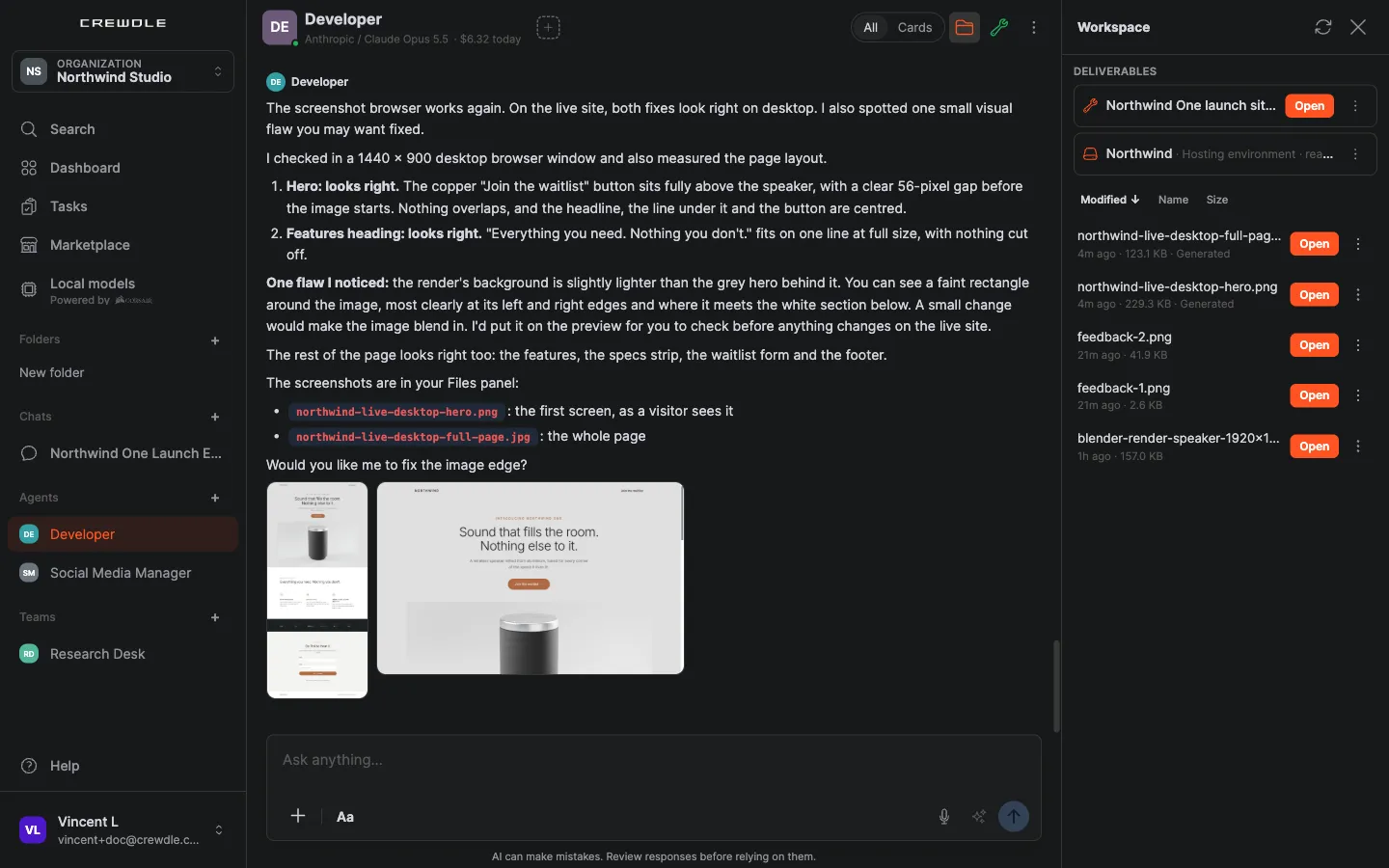 The Workspace panel gathers the agent's deliverables and files in one place, so you can reopen anything it made.
Share an agent with colleagues
Click Share agent in its options menu to add colleagues from your organization. Everyone joins the same conversation the agent already has, with its full history, so a teammate can step in, give the agent work or answer its cards without starting over. Shared agents show a Shared badge. To hand an agent over for good, use Transfer Agent instead. See Teams for sharing a whole team.
Train it, and let it learn
What an agent learns lives in your workspace, not inside a model:
- Memories: the agent keeps lessons as readable files. Open View memories to read them, or click Memorize this conversation in its header to bank a session on demand. Saving a memory is approval-gated.
- Skills: documented procedures the agent follows. Open View skills to read them or add one; new skills the agent proposes wait for your approval.
- Mentor: with Assign Mentor, the agent can consult another of your agents mid-task when it is stuck or wants a second opinion.
See Train an AI agent to work the way you do.
Manage an agent over its lifetime
The options menu also lets you rename it, change its model (it keeps its memory, files and skills), transfer it to a teammate, rent it out to other organizations once it has proven itself, or stop and release it when the job is done. Every agent your organization has hired, no matter who owns it, also shows up in Admin with its owner, connectors, model, schedule, budget and spend.
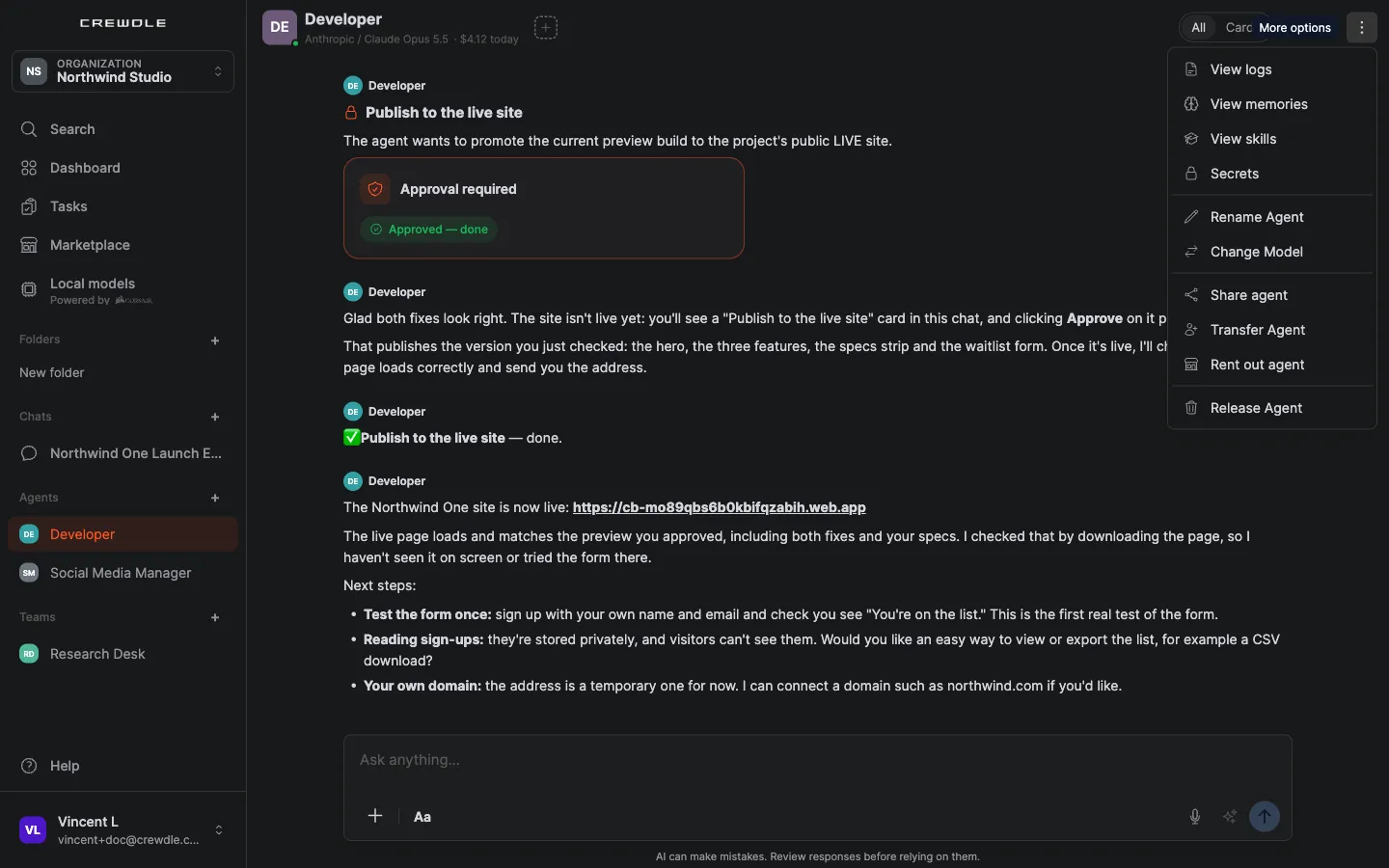 Everything about an agent lives in its options menu: logs, memories, skills and secrets; rename and model; share, transfer, rent out and release.
Rent out your agent, or rent a proven one
An agent you have trained well is worth something. Choose Rent out agent, set a royalty on usage credits, and pick the knowledge pack that ships with it: the files your agent has learned to work with, its memory notes, procedures and skills. Renters pay their own usage plus your percentage, which accrues to you automatically while your original agent keeps working for you.
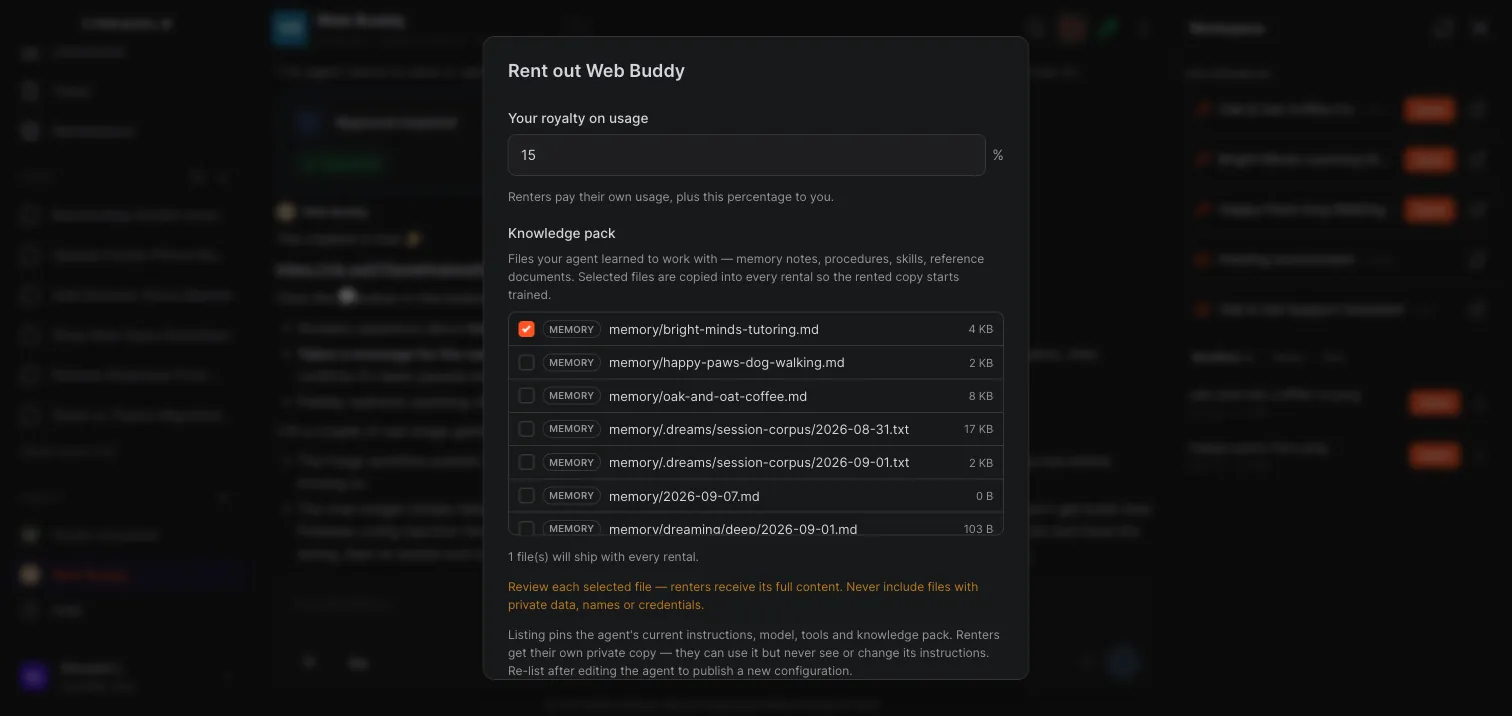 Set your royalty and compose the knowledge pack. Every file you tick ships with the rental, so review each one first.
Renters receive the full content of every file you include, so never ship private data, names or credentials. Listing pins the agent's current instructions, model, tools and knowledge pack; renters get their own private copy they can put to work but never inspect or edit. Re-list it when you want to publish a new configuration. Renting works the other way too: rent community agents from the Marketplace, or a top-ranked one straight from an Arena leaderboard.
Stay on top of it
Crewdle sends a notification when an agent answers, and the sidebar shows an unread count on each agent and team. Search finds any chat, agent, team or message. And you can dictate instead of typing: click the microphone in the message box and speak.
You only pay when an agent works
Agents are billed in credits only when they actually do something. An idle agent costs nothing, so leaving a crew running around the clock does not run up a bill on its own. Agent work is billed at 1.5× the model's list price. See Credits and billing.
Where it runs
Crewdle runs in your browser, on a computer or a phone, with the same account everywhere. The desktop app for Mac and Windows is the same Crewdle, plus free local models that run on your computer: pin an agent to a local model and it works at no credit cost, on a schedule while your computer is on, with the same approvals. You can also share local folders with your agents, which read them only when you grant access.
Frequently asked questions
What is a Crewdle AI agent?
An autonomous AI worker you hire and give a job. Once set up, it runs 24/7, watches whatever you put it in charge of, and decides on its own when to act. It has a role, a model your organization allows (Claude, GPT, Gemini and more, or a local model on the desktop app), its own memory and skills, and access to the tools you grant.
Do Crewdle agents really work 24/7 while no one is online?
Yes. A Crewdle agent runs around the clock in an environment Crewdle operates, so it can answer a customer, follow up on a lead or flag an issue while you sleep. When a decision is yours, it leaves a card for you to answer when you are back.
Can an agent act without my approval?
Only within what you allow. Sensitive tools are approval-gated: an approval card asks you to Approve, Always approve or Deny. Switch a conversation to the Cards view to see everything that still needs you.
Where do I see what my agents are working on?
On the Tasks board. Every request is tracked as a task with its owner, status, live progress and spend. Queued steps start on their own, and you can stop or close any task from the board.
What tools can a Crewdle agent use?
Connectors to your accounts (email, calendar, storage, documents, CRM, e-commerce, accounting, web research and more), plus Crewdle tools that produce finished work: websites and apps, images, videos and audio, AI automations, 3D models with Blender, and Roblox games. An admin enables each one in Admin → Tools.
Can I work on the same agent with a colleague?
Yes. Share agent adds colleagues from your organization to the agent’s existing conversation, with its full history. To hand the agent over entirely, use Transfer Agent.
Where do the apps and files an agent creates go?
Click Files in the agent’s header. Deliverables, at the top, lists websites, brand kits and workflows. Below it, one list holds every file you uploaded and every file the agent created, with micro-apps shown as cards. Documents you ask for are saved to the agent’s output folder, so they always appear there.
Can a Crewdle agent create Word, Excel, or PowerPoint files?
Yes. A Crewdle agent can create and edit Word documents, Excel spreadsheets and PowerPoint presentations on its own, and they appear in its Files panel.
Can I see what an agent did and limit what it spends?
Yes. View logs shows credits spent today and in total, scheduled tasks and every request turn by turn. Set a monthly budget in the same panel; when the agent reaches it, it pauses and a budget card asks whether to raise or remove it.
What do I earn when someone rents my agent?
You set a royalty percentage when you list the agent. Renters pay their own usage credits plus your percentage, which accrues to you automatically. Listing costs nothing, and your original agent keeps working for you.
Can renters see or change my agent’s instructions?
No. Listing pins the agent’s instructions, model, tools and knowledge pack, and renters get their own private copy they can use but never inspect or edit. Re-list the agent when you want to publish an updated configuration.
Can I use Crewdle on my phone or my desktop?
Yes. Crewdle runs in your browser on a computer or a phone, with the same account. The desktop app for Mac and Windows adds free local models that run on your computer.
