Crewdle Admin documentation
Govern your AI workforce from one console: members and roles, the tools and models agents may use, budgets, usage analytics, credits and billing.
Last updated
Crewdle Admin is the business governance console for your AI workforce and the tools around it: members and roles, tool and model access, budgets, spend, and billing. It is where the person who keeps the business moving controls the team, watches the spend, and decides who can use what.
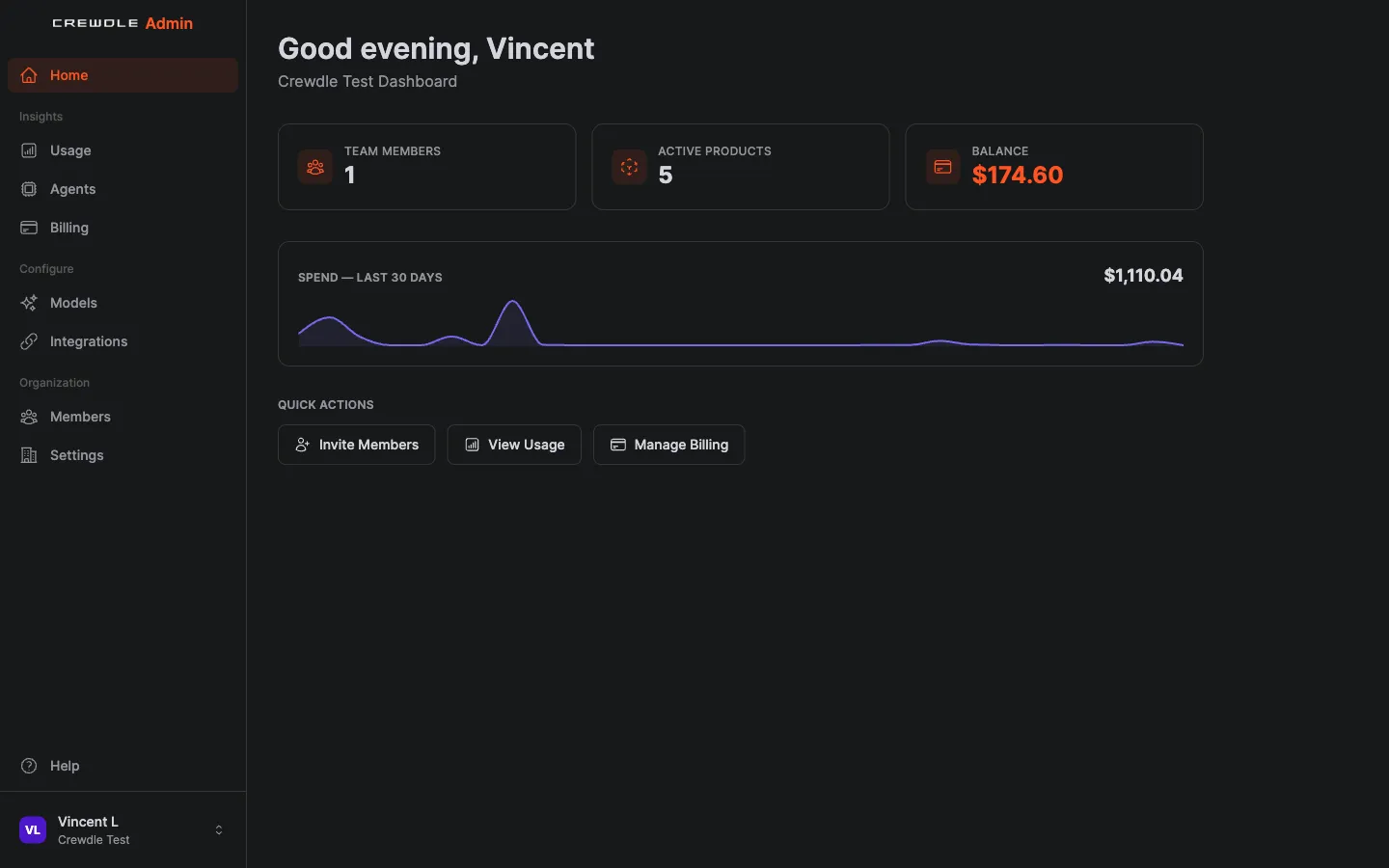 The Admin home dashboard puts your credit balance, onboarding steps, and team stats in one place.
Team and members
From Members you invite people by email, assign each a role, change roles later, and remove members. Crewdle also connects to Microsoft Entra ID, so enterprise teams can sync users and roles from Azure rather than managing them by hand.
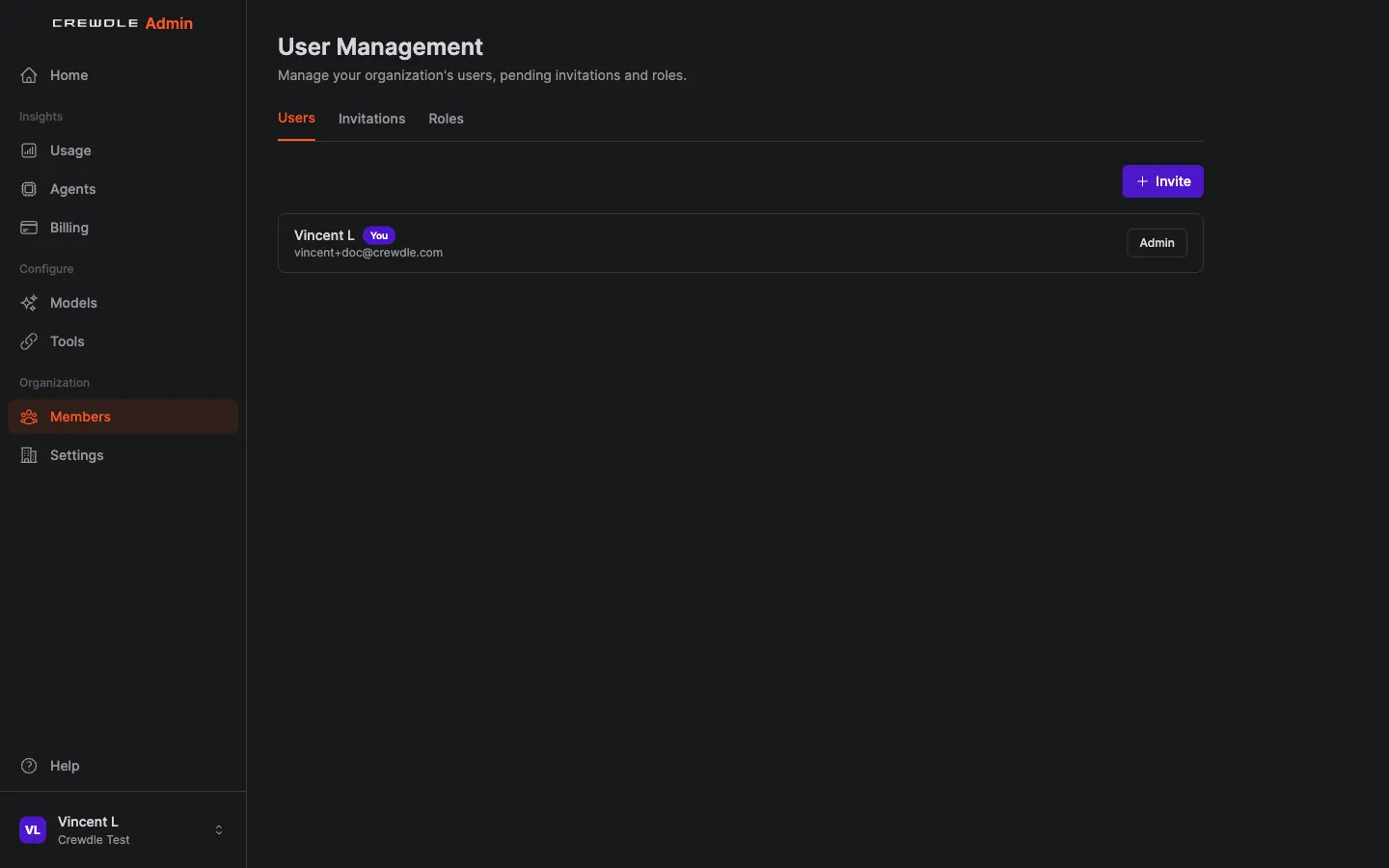 Manage users, pending invitations, and roles from the Members area.
How to invite a teammate
- Go to Members and click Invite.
- Enter the person's email and pick a role: Admin for full access, or Member for everyday use.
- Send it. They get an email to join, and you can change their role at any time.
There are no per-seat fees, so adding people does not raise your bill on its own.
Roles and permissions
Two system roles ship by default:
- Admin has full access.
- Member has everyday read and write access.
You can create custom roles and grant granular permissions: who can invite members, manage billing, manage models, manage integrations, and more. Roles also control which products and which AI models a person can reach.
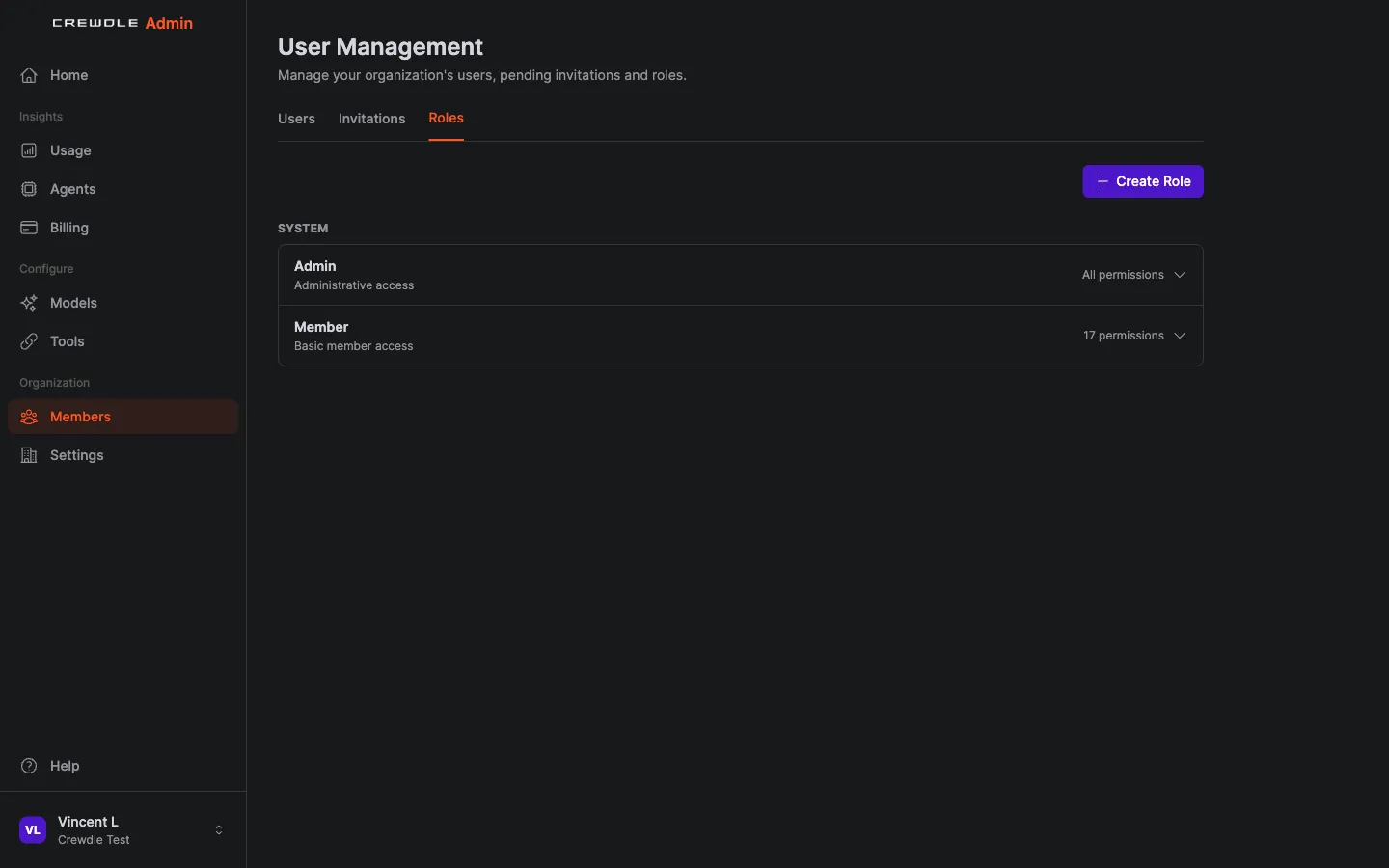 Two system roles ship by default. Create custom roles to fit how your team works.
How to set up a custom role
Most teams only need the built-in Admin and Member roles. Create a custom role when you want to match access to a job, for example a bookkeeper who sees billing but nothing else.
- On the Roles tab, click Create Role and give it a name.
- Turn on only the permissions that role should have.
- Save it, then assign it to people from the Users tab.
Tools: what your agents and your people may use
The Tools page is where you decide what is available in your organization, and to which roles. It has three sections:
- Agents & teams: which roles can hire agents and create teams in Crewdle. Everyone, unless you restrict it.
- Crewdle tools: the tools agents use to produce finished work: AI automations, Images, videos & audio and Websites & apps. Turn one off and no agent can use it; when it is on, choose which roles can give it to their agents.
- Connectors: your third-party services, grouped by category (Communication, Commerce, Finance, Scheduling, Data, Maps, Search, Automation, Productivity, Creative). Enable what your organization uses, pick which roles may use each one, limit the allowed actions, and choose whether a connection is shared by the organization or set up by each user.
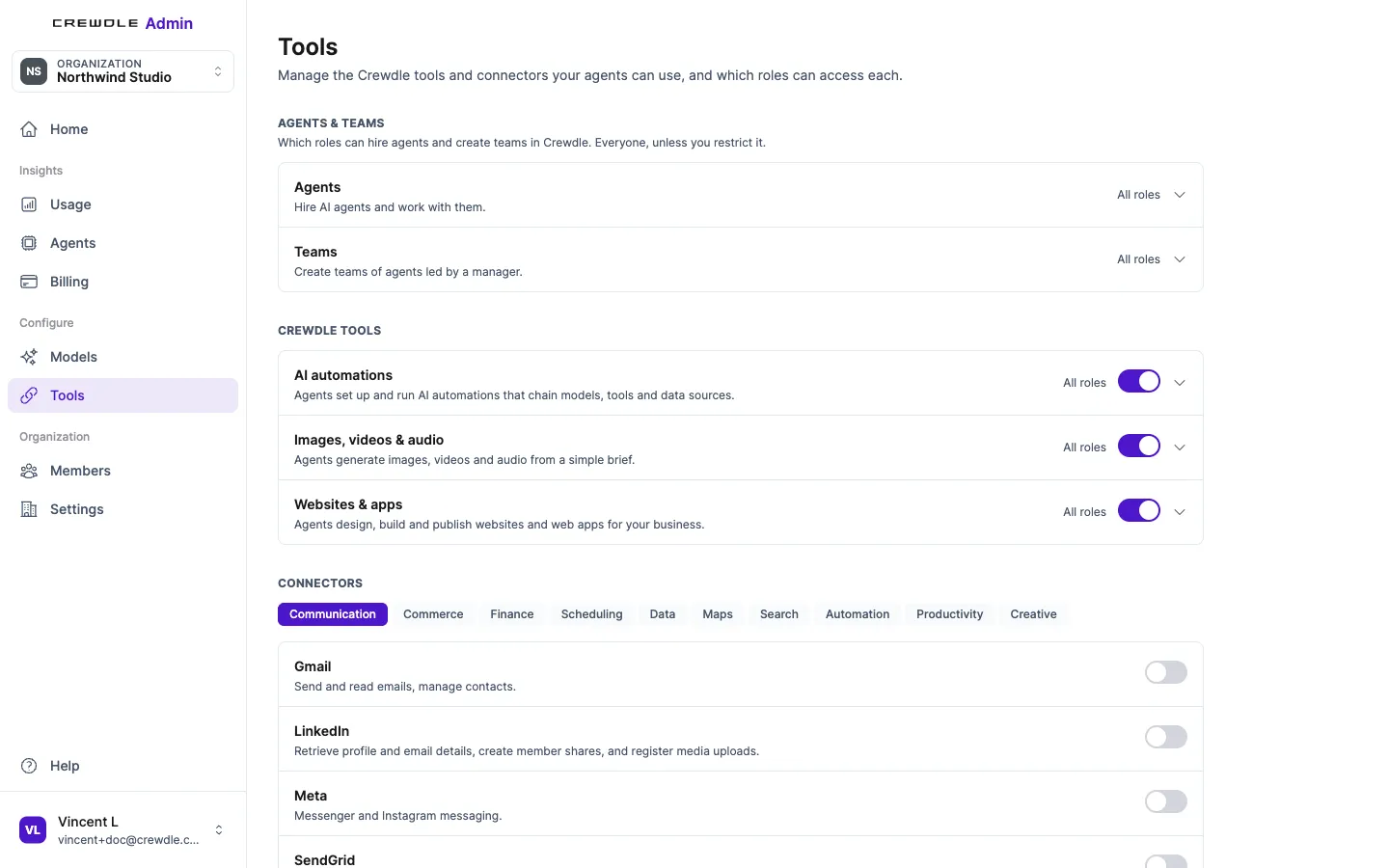 The Tools page: who can hire agents and create teams, which Crewdle tools are on and for which roles, and every connector by category.
Blender (3D models) and Roblox (Roblox games), under Creative, are off by default and open to every organization: turn them on here before anyone hires the 3D Artist or the Roblox Game Developer. See Integrations and connectors.
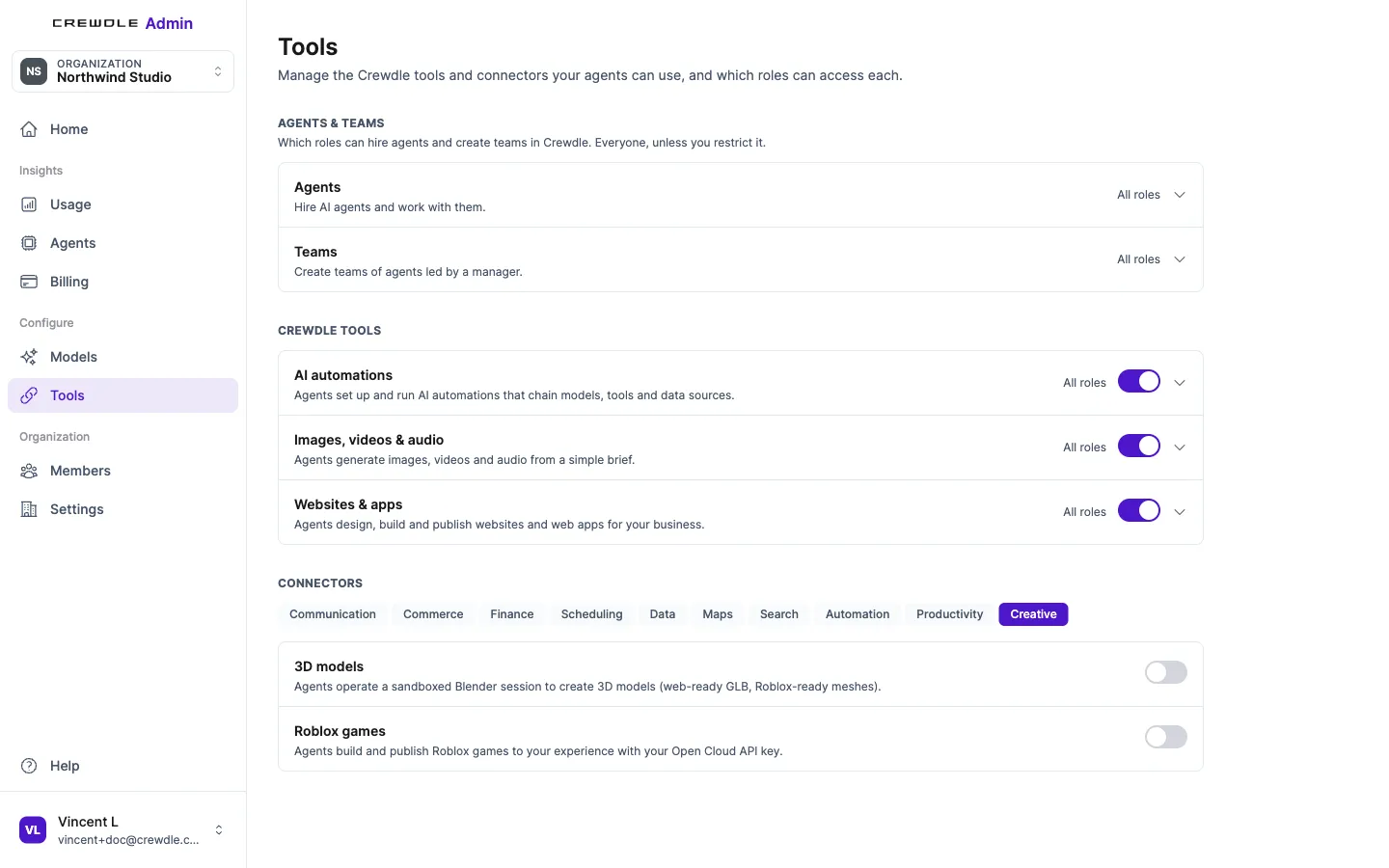 Connectors → Creative: 3D models and Roblox games stay off until an admin turns them on.
How to turn a tool on or off
- Open Tools.
- Toggle a Crewdle tool or a connector on or off. For a connector, expand it to set the connection mode (organization or per user), the role access and the allowed tools, then Save Changes.
- To limit who can hire agents or create teams, set the roles under Agents & teams.
Organization settings
The Organization page holds settings for the workspace as a whole: rename your organization, connect Microsoft Entra ID, and, if you ever need to, delete the organization and all of its data.
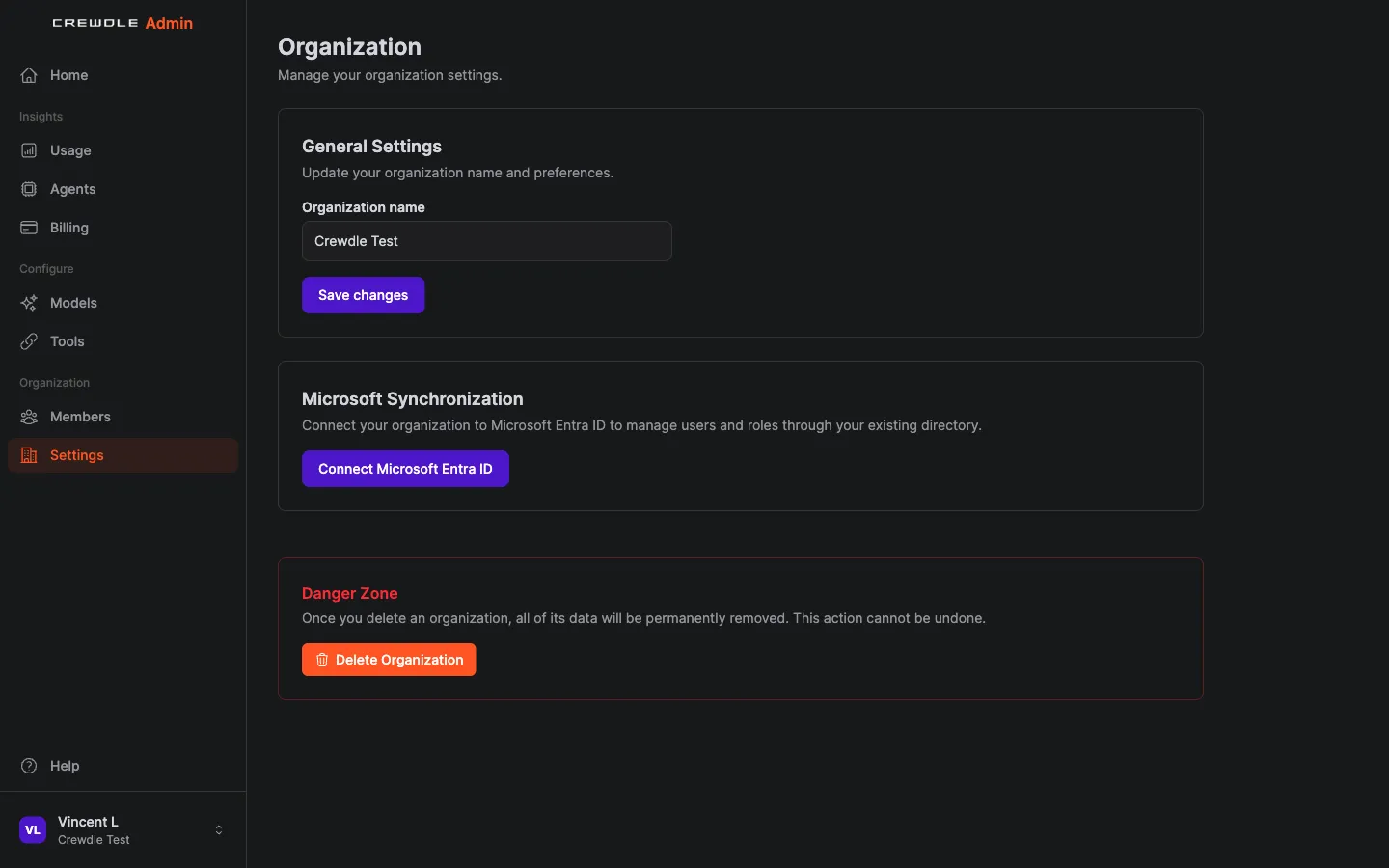 Organization settings: rename your workspace, connect Microsoft Entra ID, or delete the organization.
How to rename your organization
- Open Organization.
- Edit the Organization name field.
- Click Save changes.
To let your people sign in with Microsoft and sync users and roles from your existing directory instead of managing them by hand, use Connect Microsoft Entra ID; you can connect more than one tenant. Linking the tenant also enables directory segments in usage reports. The Danger Zone lets an admin delete the organization, which permanently removes all of its data and cannot be undone.
Billing and credits
The Billing area shows your credit balance, purchase history, and expiring credits. Set up auto top-up so credits refill automatically when the balance drops below a threshold you choose, and set a low-balance alert. Purchases run through Stripe. See Credits and billing.
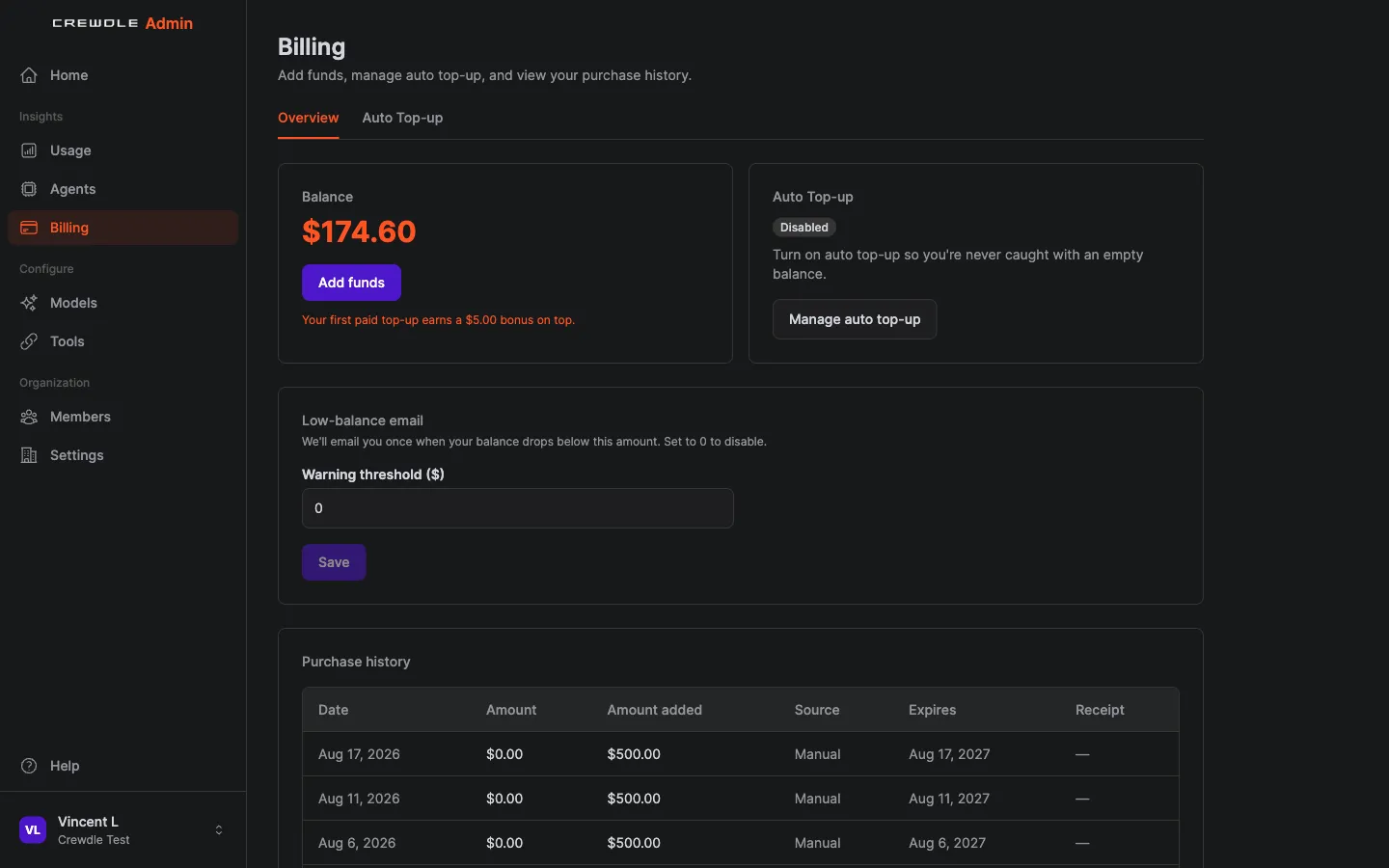 Billing shows your credit balance, auto top-up, the low-balance alert, and your full purchase history.
How to add credits and never run out
- Open Billing and click Buy credits, then pay by card. Your first paid top-up adds a 500-credit bonus.
- Open the Auto Top-up tab, set the balance that should trigger a refill and how much to add, and turn it on. Crewdle then refills automatically so the AI never stops mid-task.
- Set a low-balance email amount and save it. We email you once when you drop below it.
Usage and cost analytics
The Usage dashboard breaks down token spend and credits by product, user, and model, by month or a custom date range. It shows daily averages, a projected month-end total, and a balance forecast, so you can see where the money goes before the bill runs hot.
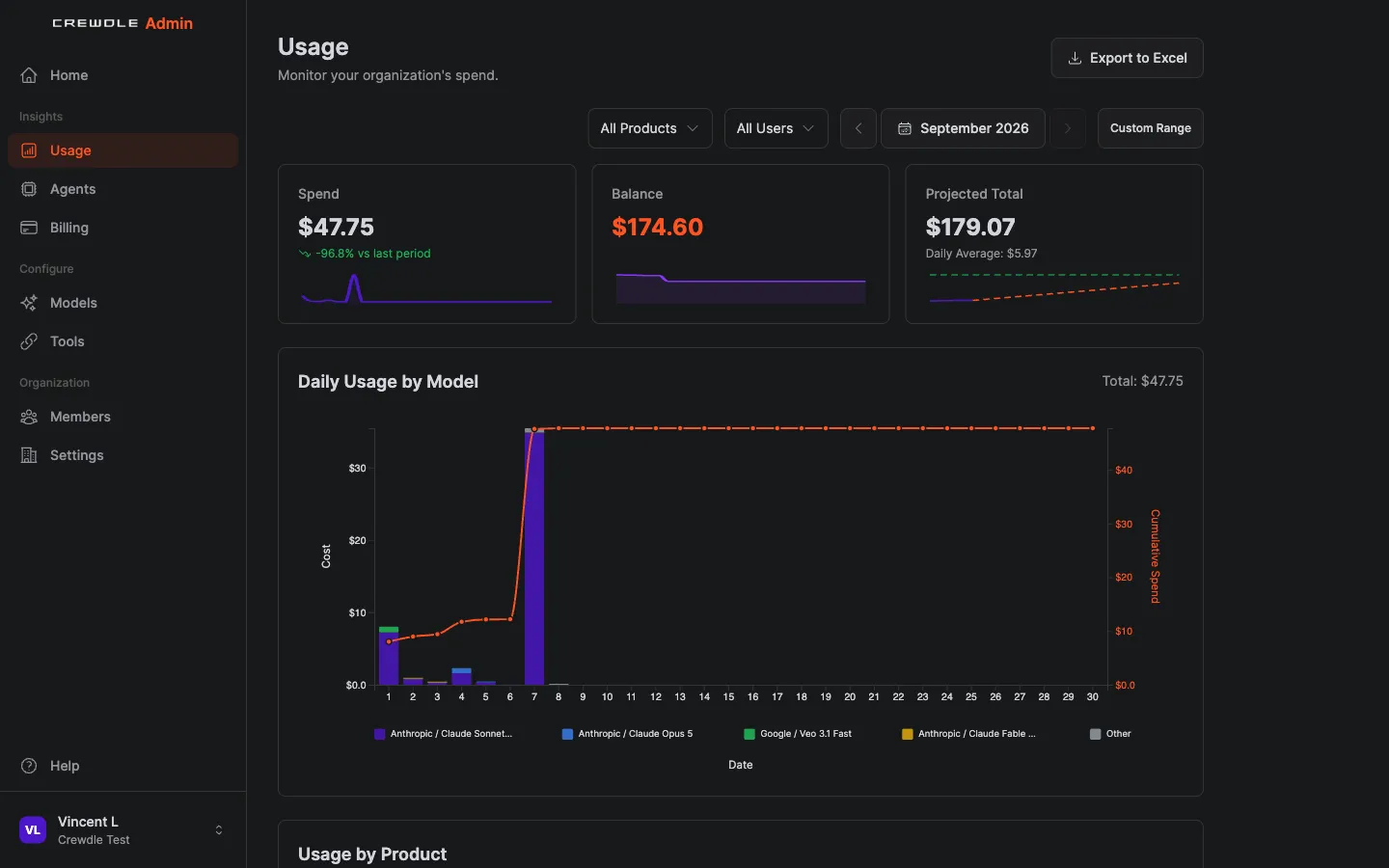 The Usage dashboard tracks credits used and remaining, with a projected month-end total and a daily chart.
How to see where your credits go
- Open Usage.
- Filter by product, by person, or by date range to find what is using the most.
- Check the Projected Total to see roughly where the month will land.
Smart model routing
Route routine work to cheaper models and save the top models for the hard problems. This keeps quality where it matters while cutting cost on everything else. See Models and smart routing.
How to choose which models your team can use
- Open Models.
- Turn models on or off for your organization. The most powerful ones are tagged Premium.
- Use Role Access to give some roles the full list and others a smaller, cheaper set.
AI agents across your organization
The Agents page is where AI agent governance happens: it lists every AI agent hired in Crewdle across your whole organization, who owns each one, which connectors it can use, the model powering it, whether it runs on a schedule, its budget, when it last worked, and how many credits it has spent. Open an agent to see a running log of what it has done, turn by turn, and set a monthly budget to cap what it can spend. It gives whoever manages the account one place to govern every agent at work, not just the ones in their own conversations.
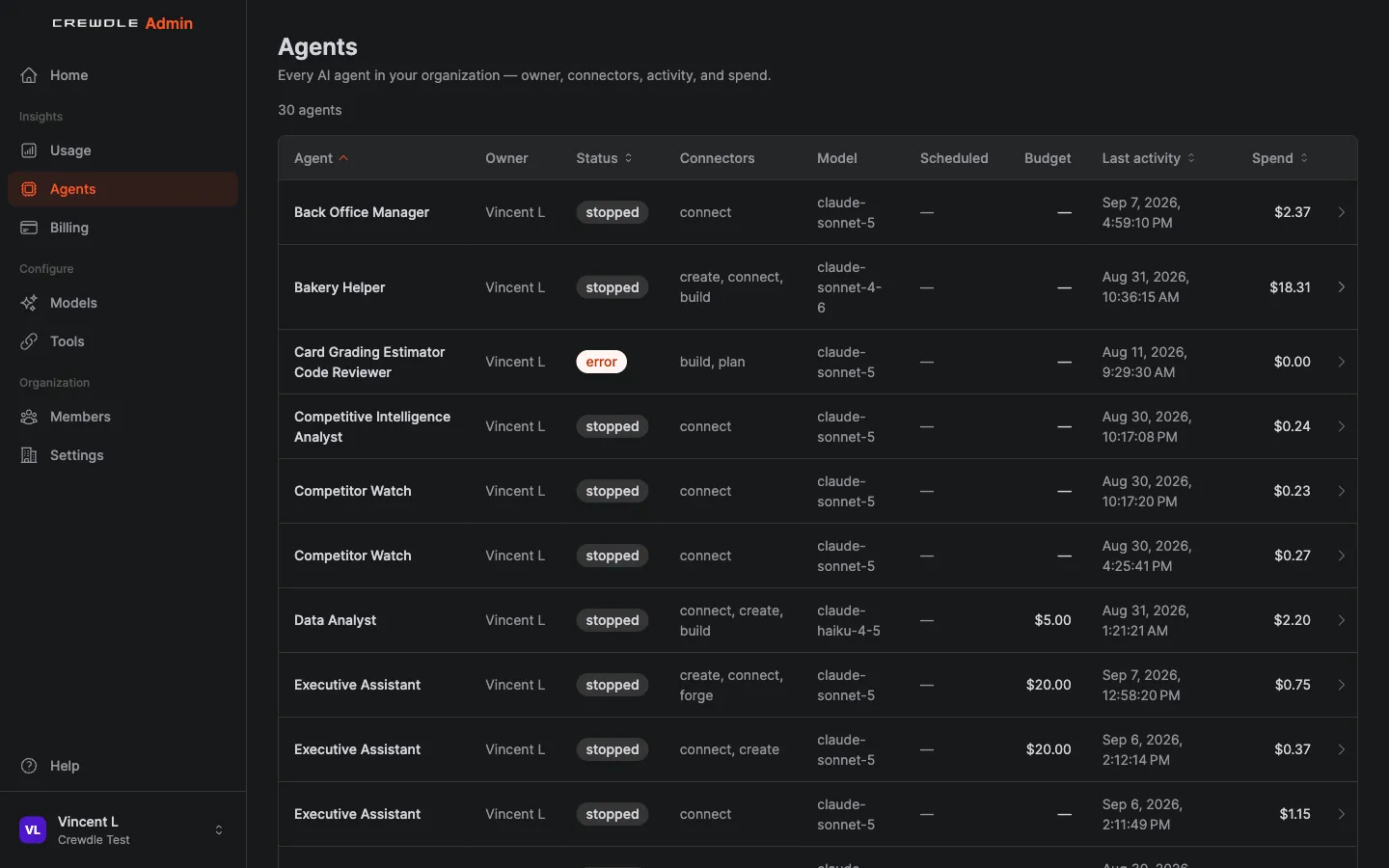 Every agent hired in Crewdle shows up here with its owner, model, budget, and spend, for governance across the whole organization.
How to keep track of every agent
- Open Agents to see every agent hired across the organization, not just your own.
- Click an agent to see its activity log and set a monthly budget to cap its spend.
- Check Last activity and Spend to spot an agent that has gone quiet or is running up cost, then open it in Crewdle to change its model, transfer it to someone else, or stop it.
Frequently asked questions
How do I invite someone to my Crewdle organization?
Open Admin, go to Members, click Invite and enter the person’s email. Assign them a role when you invite them; you can change it later.
Can I limit which AI models my team can use?
Yes. Model access and tool access are controlled by role in Admin, so you decide which people and agents can reach which models and tools.
How do I keep AI costs under control?
Use the Usage dashboard to see spend by product, user, and model, set a low-balance alert, enable smart model routing, and turn on auto top-up so you are never surprised.
Does Crewdle Admin support single sign-on?
Yes. You can connect Microsoft Entra ID to sign in and to sync users and roles for your organization.
Can I see every AI agent my team has hired?
Yes. The Agents page in Admin lists every agent hired in Crewdle across your organization, with its owner, model, connectors, schedule, budget, last activity, and spend.
Why can’t my agents use Blender or Roblox?
Both are off by default. An admin turns them on in Admin → Tools, under Connectors → Creative. Agents hired before that need the tool turned on in their Tools panel.
