
Crewdle Academy: the Assistant
Last updated:
Your Assistant is your main assistant in Crewdle: it answers your questions, helps you use Crewdle and hands out work to your agents.
The Assistant is where you do your own day-to-day AI work inside Crewdle, right next to your added agents. It puts several frontier models in one interface, so you stop juggling separate subscriptions and logins. When a conversation turns into a recurring job, you can ask the Assistant to give the work to an agent from the same screen.
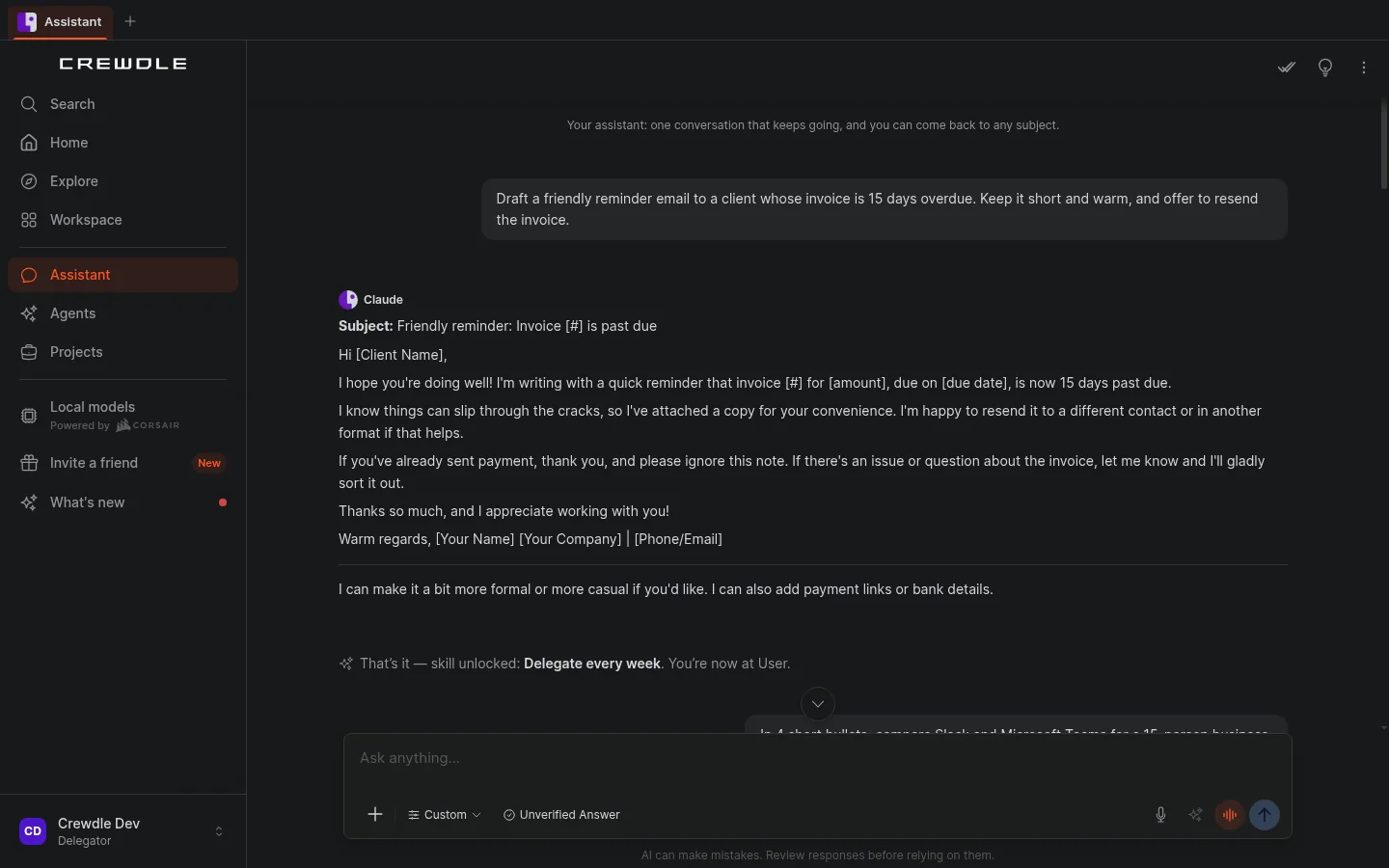 The Assistant remembers your conversations: ask in plain words and keep following up. The message box holds the mode menu, Verified Answer and dictation.
Do’s and don’ts
Do
- Say the goal, who it’s for and what “done” looks like in your first message
- Say what you’ll do with the result (“I’ll share it with my team”)
- Attach the file in the same message
- Ask for a plan first on big jobs
- Ask for 2 or 3 options in one request
Don’t
- Send one-liners like “make a report”
- Make the agent guess the format, the language or the audience
- Paste a whole document as text when you can attach it
- Start a long, costly job on a vague request
- Regenerate again and again to compare versions
Assistant modes: General use, Research, and Writing
Pick a mode from the composer instead of configuring tools by hand. General use is the everyday default. Research leans on web search and citations for finding things out. Writing is tuned for drafting and editing text. Open Advanced settings from the same menu to pick a specific model by name or turn web search and page-reading on or off directly, the same controls modes set for you automatically.
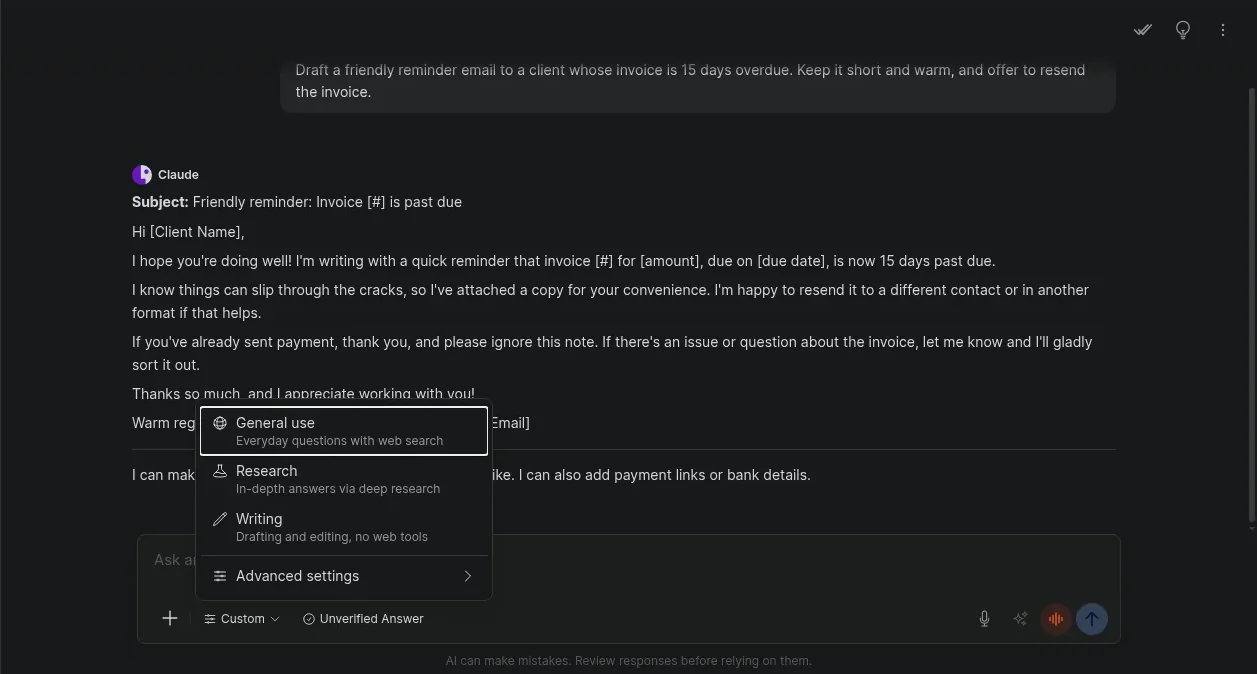 Pick a mode for the kind of work you're doing, or open Advanced settings to control the model and web tools yourself.
How to switch Assistant modes
- Click the mode name next to the + button in the message box (it starts on General use).
- Pick Research for web-backed answers with citations, or Writing for drafting and editing.
- Open Advanced settings at the bottom of the menu to choose a specific model or toggle web search and page-reading directly.
Choose a model
Switch between GPT, Claude, Gemini, and Grok at any time, even mid-conversation, from Advanced settings in the mode menu. There is no setup and no API keys: Crewdle holds the model relationships, you just talk. Clicking Claude, GPT, or Gemini picks that family's Smart Routing: Crewdle automatically routes each request to the right model in that family based on its complexity, a faster, cheaper model for simple asks, a top model for the hard ones. Open Show advanced models to pick a specific model by name instead.
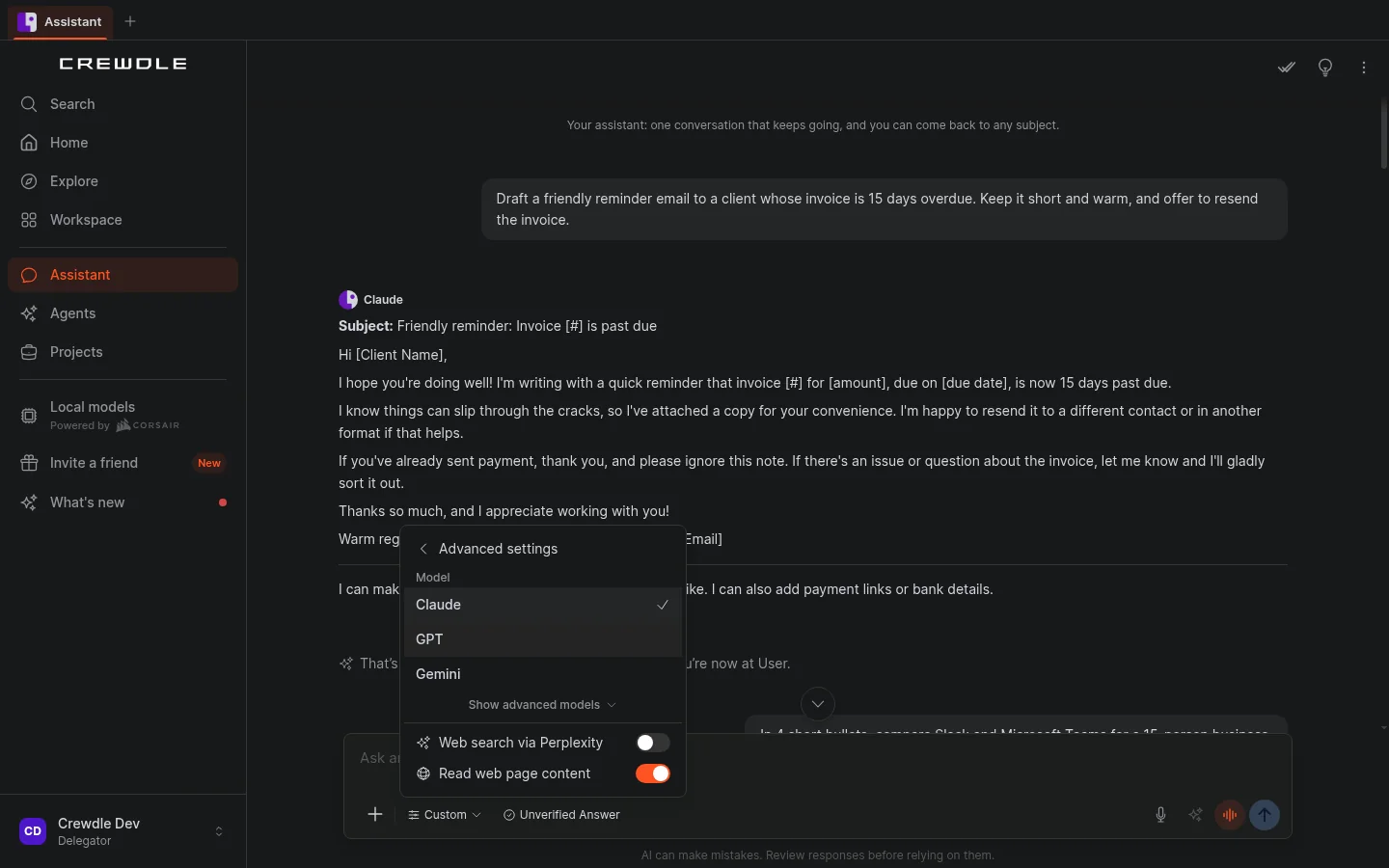 Advanced settings picks Smart Routing for Claude, GPT, or Gemini by default. Open Show advanced models to pick a specific model by name.
How to switch the model
- Open the mode menu next to the + button and click Advanced settings.
- Click Claude, GPT, or Gemini for that family's Smart Routing, or open Show advanced models to pick a specific model by name.
- Keep chatting. You can switch again at any time, even mid-conversation.
Verify answers across models
For answers you need to trust, turn on Verified Answer in the message box. Your question goes to three frontier models from different vendors, currently Claude, GPT, and Gemini. Each one answers independently, then the Assistant compares the answers, merges them into a single response, and shows every step it took. Because the panel spans vendors, no single AI company is grading its own homework.
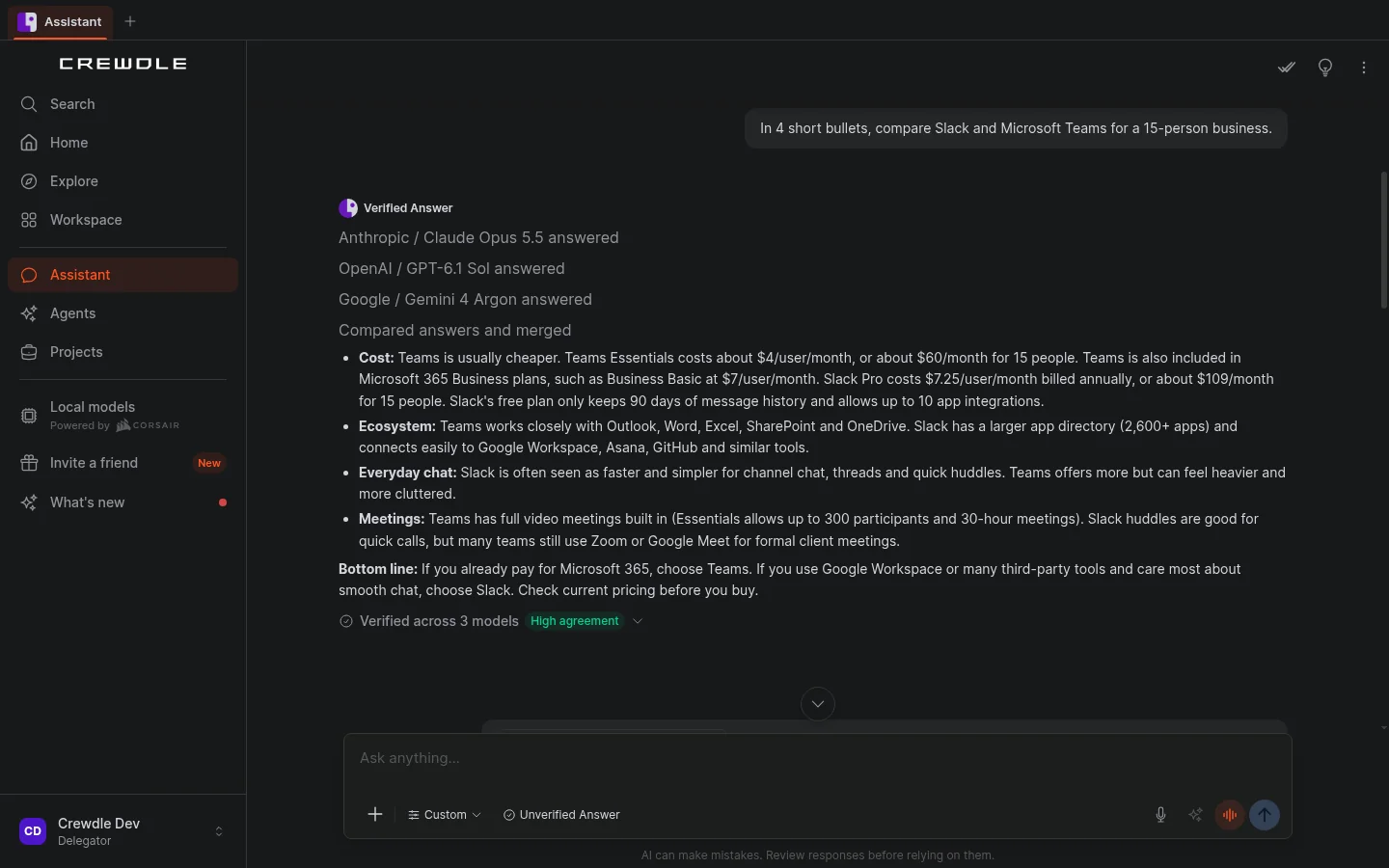 A Verified Answer shows its work: each model answers on its own, then the Assistant compares the answers and merges them into one response.
Every verified answer ends with a badge showing how strongly the models agreed. Click it to see each model's original answer, the notes on how they were merged, and a claim-by-claim breakdown that marks each point Unanimous or Disputed, with the call that was made wherever the models disagreed.
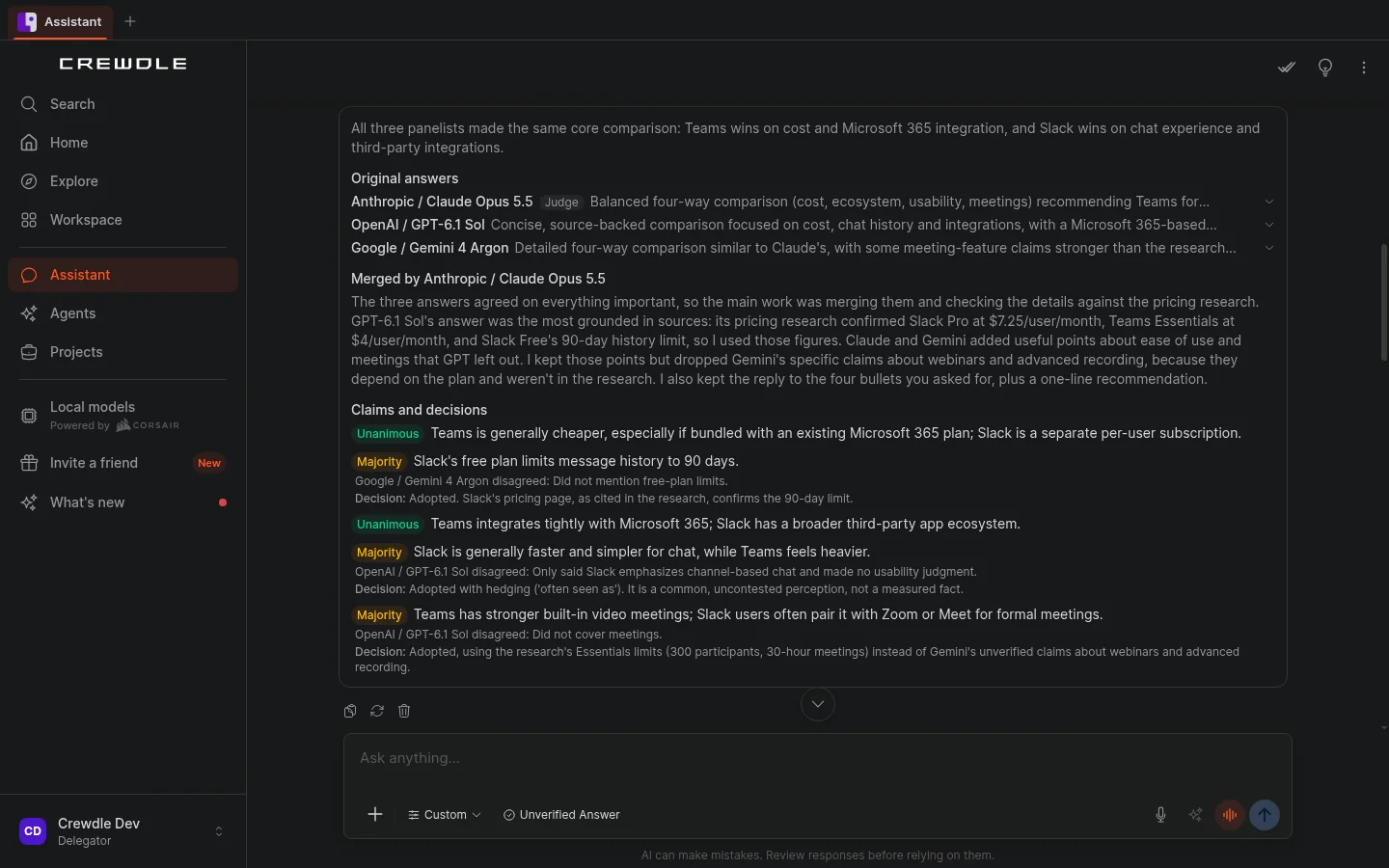 The agreement panel breaks the answer into claims and shows exactly where the models agreed, and where they did not.
How to get a verified answer
- Click Unverified Answer next to the mode name in the message box, so it switches to Verified Answer.
- Ask your question. It takes a little longer than a single-model answer while the three models respond and the Assistant merges their answers.
- Click the Verified across 3 models badge under the answer to review the agreement level, the original answers, and any disputed claims.
One conversation that remembers
One conversation that remembers. Each person’s conversations with the Assistant are private to them. The Assistant remembers what you talked about and picks it up the next time you come back. Your earlier conversations are still there: scroll up past the start of the conversation to see them as blocks with their date and title, and open any of them in place. To find something specific, just ask: “find what I told you about Lucie’s invoices.”
Work with documents and files
Attach PDFs, Word and Excel files, CSVs, code, images, and more, then ask questions about them. The Assistant extracts the content and uses it to answer. For reference material you use again and again, add it to Memory as a knowledge source: connect a folder from Google Drive, OneDrive or SharePoint, or upload files, and the Assistant and your agents can answer from it (retrieval-augmented generation).
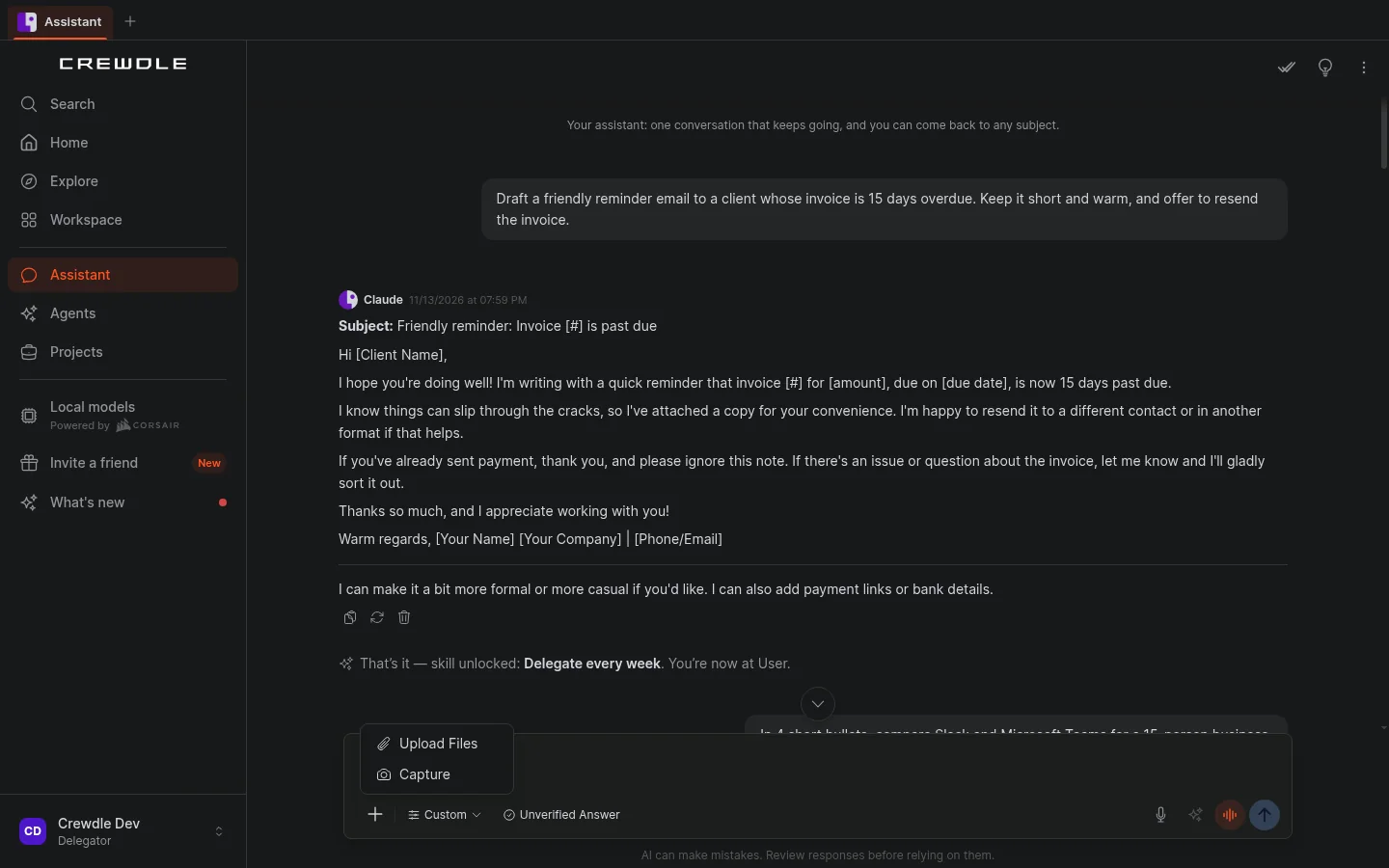 Add a file from the + menu, or pull in another conversation as reference.
How to ask about a document
- Click the + in the message box and choose Upload Files.
- Pick a PDF, spreadsheet, image, or other file.
- Ask your question. The Assistant reads the file and answers from it.
Search the web
Turn on web search to pull in current information and get answers with citations to the sources. The Assistant can also read a specific web page or a video transcript when you paste a link. The Research mode turns both of these on for you automatically; toggle them yourself from Advanced settings for full control.
Turn on Web search via Perplexity and Read web page content from Advanced settings to bring in current information with citations to the sources.
How to search the web with the Assistant
- Open the mode menu next to the + button and click Advanced settings.
- Turn on Web search via Perplexity.
- Ask your question. The answer pulls in current information with links to the sources.
Give work to your agents and teams
Ask the Assistant in plain words: “Ask my Marketing agent to prepare three post ideas for next week and report back here.” Assistant sends the work to that agent or team and brings the result back into the conversation when it’s done. You can also ask:
“What are my agents working on?” for a status of your agents and projects, what’s blocked and what you spent today;
“Tell my Developer: yes, go ahead with the blue version” to answer an agent’s question in your own words;
“Send this to whichever agent is best placed” and the Assistant picks.
The Assistant and added agents are billed differently: your Assistant conversations use your dollar balance, while an added agent’s work is billed at the agent rate (1.5× list, or 2.0× in private AI mode). For sensitive work, add an agent in private AI mode. See Balance and billing.
Your knowledge is in Memory now
What used to be topics now lives in Memory: notes about you and your organization, and knowledge sources (folders from OneDrive, SharePoint or Google Drive, or uploaded files) that the Assistant and your agents can answer from. Each note and source shows who can see it. See Memory and knowledge.
What’s at the top of the Assistant
Decisions (✓✓): everything your agents and projects are waiting on you for, which you can answer right there.
Coach tips (💡): short tips based on how you work, plus your AI skills panel (your level, next skill, Try it now, certificate).
⋯ menu: settings and options.
Ask for help
Ask the Assistant how Crewdle works (“how do I set a budget for an agent?”) and it answers from the Crewdle guides, with the source. If you need a person, ask to talk to the Crewdle team.
Talk instead of typing
Dictation: click the microphone and speak; your words appear in the message box, ready to edit.
Live: start a hands-free voice conversation. The Assistant answers out loud, can check on your agents and give them work, and always asks you to confirm before anything important. See Talk with the Assistant (Live).
On the desktop app, you can also pin an agent to a free local model that runs on your computer.
Crewdle is also in Microsoft Teams: add Crewdle for Microsoft Teams from Microsoft Marketplace and find the same conversations in a Microsoft Teams tab.
Your conversations are yours, and your data is not used to train our own models. See Security and privacy. To see where your data is stored, read Data residency.
Requests to try
Clear email in one go
Write a short, friendly email to [our clients] announcing that [our office is closed December 24 to January 2], that [urgent orders can still go through our online store], and that [we reopen January 3]. Sign as [Marie, Customer Service]. Keep it under 120 words.
Plan with a goal, not steps
I want [more repeat customers]. Our clients are [restaurants in Québec; most order monthly]. Give me a one-page plan in [French] with 3 concrete actions, the expected impact of each, and what I’d need to start this week. Nothing that requires [discounts over 10%].
Status of everything
Give me a status of my agents and projects: what each one is working on, what’s done since yesterday, what’s blocked, and what I spent today.
Weekly ideas from your marketing agent
Ask my [Marketing] agent to prepare [three LinkedIn post ideas] for next week about [our new service], each with a hook, three key points and an image idea, and report back here.
Replace the [brackets] with your details. The more context you give, the better the first answer.
Frequently asked questions
Which language do agents answer in?
In the language of your latest message, even in a shared space where others write in another language.
Which models and modes can I use in the Assistant?
The Assistant gives you GPT, Claude, Gemini, and Grok in one interface. You can switch between them at any time, including in the middle of a conversation. Modes (General use, Research, Writing) set up the model and tools for you based on the kind of work. Advanced settings, in the same menu, let you pick the exact model and turn web search or page-reading on or off yourself.
What is a Verified Answer in Crewdle?
A Verified Answer is produced by three frontier models from different vendors (Claude, GPT, and Gemini) answering your question independently. The Assistant compares their answers, merges them into one response, and shows the agreement level along with any claims the models disputed.
Does Crewdle use my conversations with the Assistant to train its own AI models?
No. Your conversations are yours, and your data is not used to train our own models.
Can I switch on private AI mode in the Assistant?
No. Private AI mode is available for added agents and AI automations only. If you need a recurring private job, add an agent and turn the mode on when you add it.
Where are my old conversations?
Scroll up past the start of the conversation: your earlier conversations are there as blocks with their date and title. You can also ask the Assistant to find them, for example “find what I told you about Lucie’s invoices.”
What happened to topics?
They now live in Memory, as notes and knowledge sources. Each one shows who can see it. See [Memory and knowledge](/docs/memory/).
